


Want A Typewriter Keyboard To Show Off & Use As A Daily Driver? EPOMAKER Glyph Is The One For You
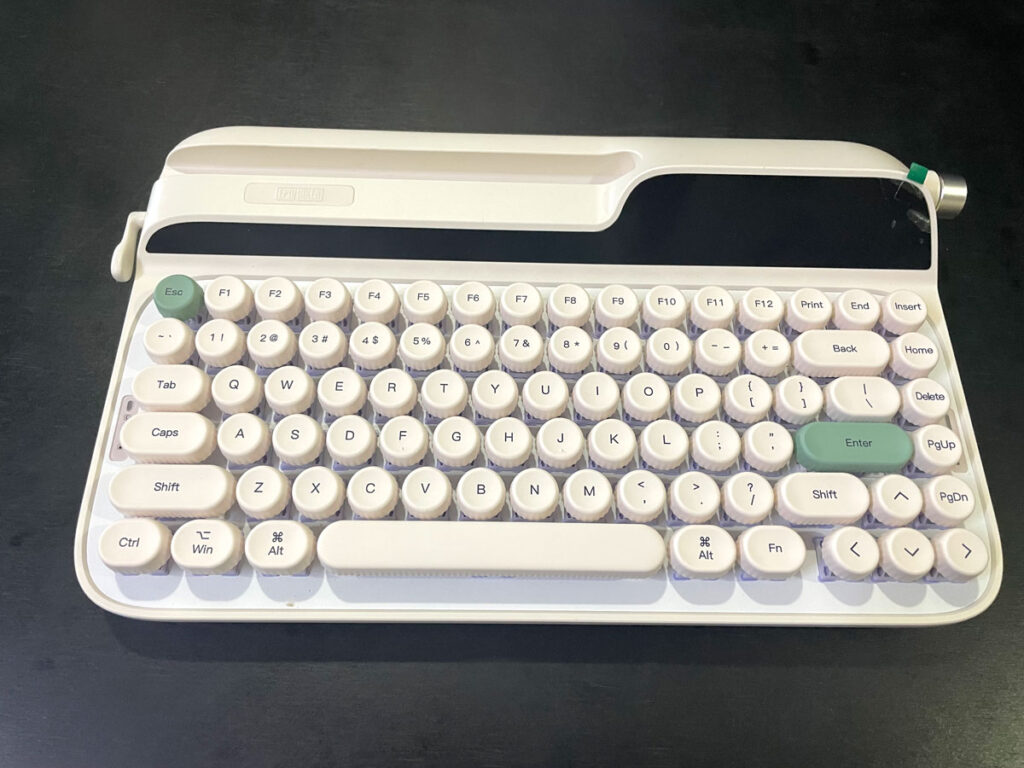
I received EPOMAKER Glyph from Epomaker to review & give my opinion on. It follows the trend of typewriter keyboards. Instead of trying to look exactly like an old metal typewriter, it tries to be an elegant & modern one. It has 75% layout, so it has most of the keys anyone would need, all in a compact design. The backlight, including the light stripe at the back, adds to the beauty of this keyboard.
I loved typing on the keyboard, and the sound the keys make is good. The keyboard itself was a bit high, but I managed to adjust to that after some time.
The main deal-breaker for some people is the rounded keys, which took me some time & some typos before I could type as close to what I usually do. The knob on the side works the same as any knob found on many keyboards, and its functionality can be customized in the driver. The lever on the left can’t be customized though, which is a shame. I totally appreciate having a dedicated slot to plop my phone or tablet into. Though I wish the slot was centered to the keyboard. Note that thin tablets may not sit upright without a cover that makes them a little bit thicker.
The driver provides many good options to customize EPOMAKER Glyph, including customizing the screen. The screen itself is such a neat feature in this keyboard. Being able to upload your own animation into it adds to the fun of this keyboard. I hope they would fix the issue preventing me from uploading many GIFs of my own in the future (Update:- The problem has been fixed).
Supporting 3 connectivity modes is something I always welcome in any keyboard. It makes the keyboard versatile and is something that should be there in any expensive keyboard.
I think EPOMAKER Glyph was made to be both a fun keyboard & one you could use as a daily driver. If you don’t mind any of the complaints I pointed out, or if you’re looking for an elegant & fun keyboard, then EPOMAKER Glyph is the keyboard for you.
Buy from AliExpress
#CommissionsEarned

Quickly go to:-
Unboxing & Overview Of EPOMAKER Glyph
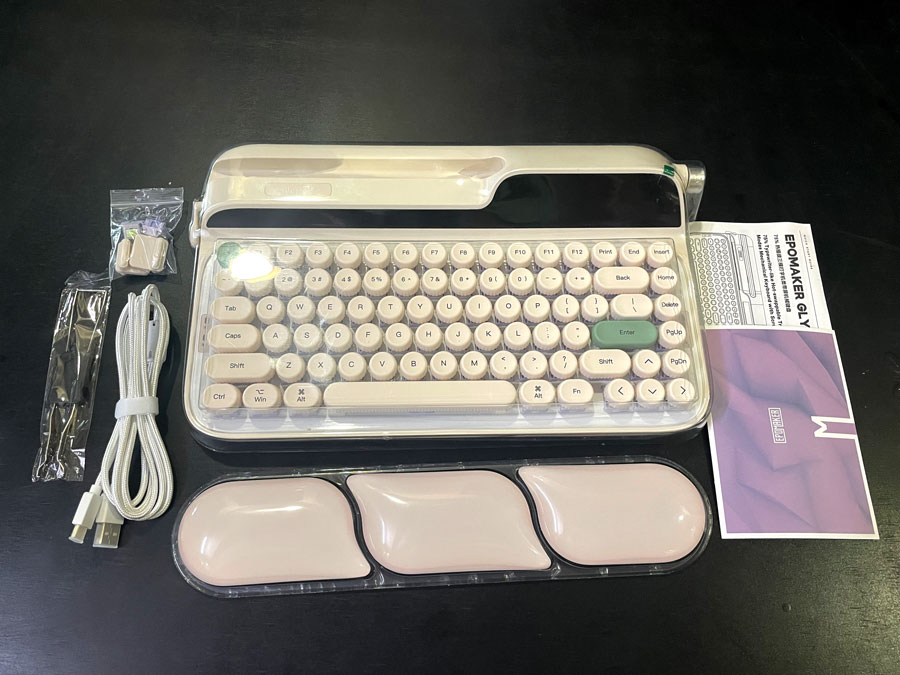
After unboxing EPOMAKER Glyph, I found the following stuff in the box:-
-
- EPOMAKER Glyph itself
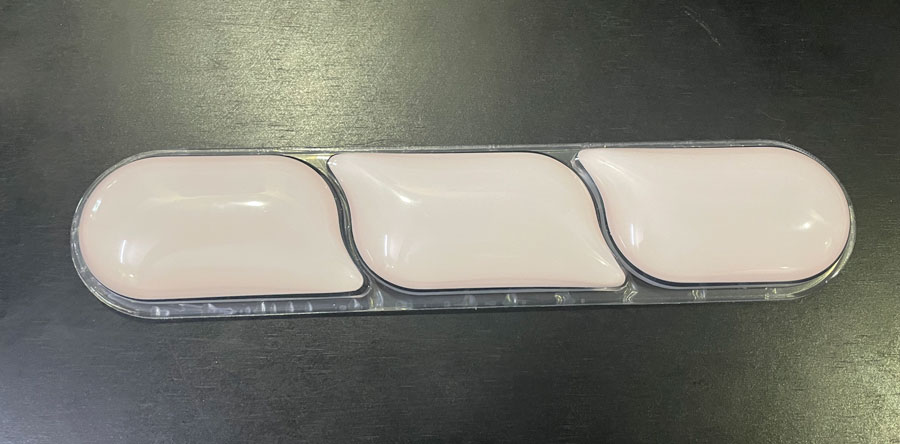
- Silicon wrist rest.
- 2.4GHz USB receiver.
- Switch & keycap puller
- 2 spare switches
- White braided USB cable.
- Spare feet
- Anti-dust cover
- A user manual.
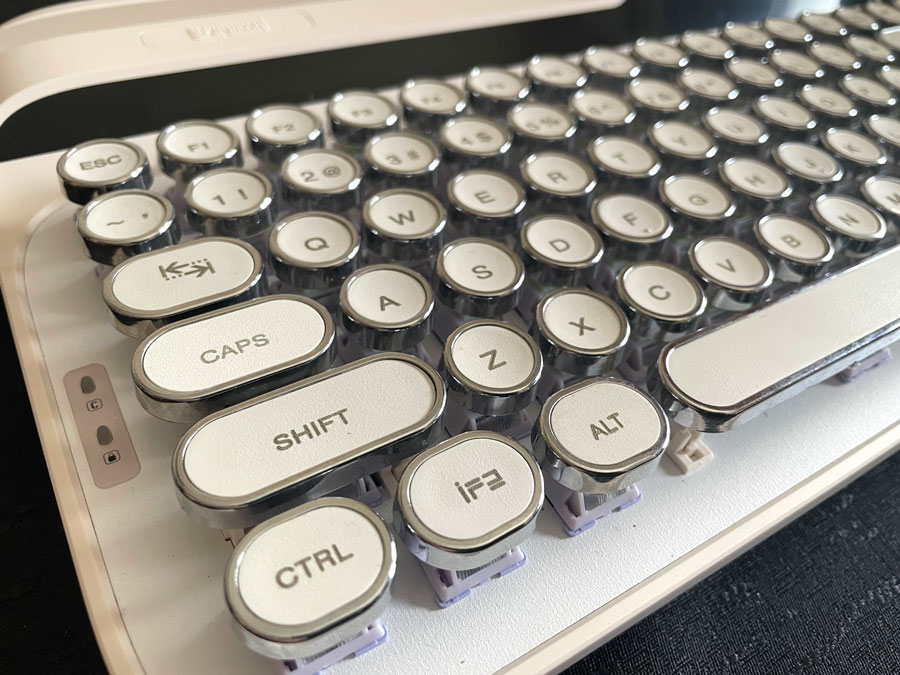
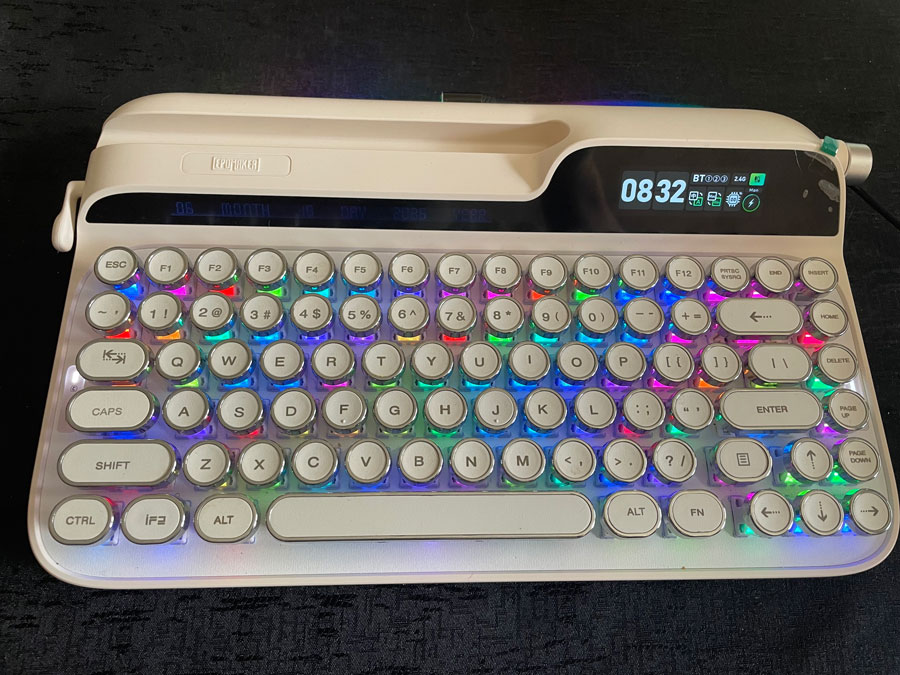
EPOMAKER Glyph is such a cute keyboard. It looks smooth with all the rounded corners, rounded keys & screens. The PBT keycaps feel really soft to the touch, giving this keyboard a luxury feel. They truly make using this keyboard a joy. It is a 75% keyboard, a keyboard form factor with no numpad. It usually has all the navigation keys arranged near the Enter & F keys. Unlike 65% & 60% keyboards, it has the F keys. The keyboard layout of this form factor varies, but to simplify things, I tend to think of them as similar to laptop keyboards, which also tend to vary, and the layout & the keys you get depend on the laptop.
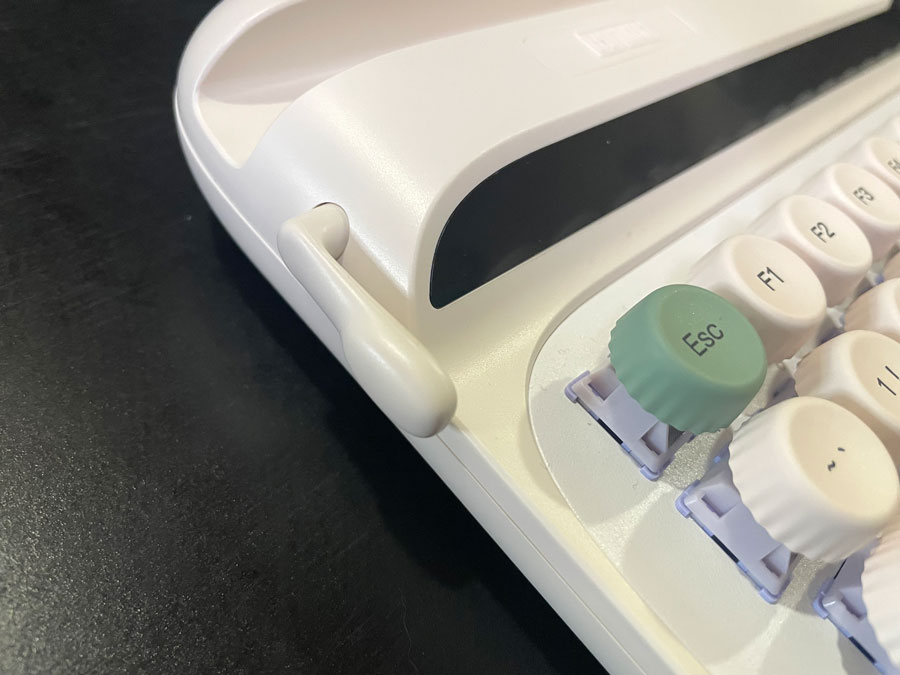
To go along with the typewriter theme, there’s a handle to the left, which triggers the Enter key when pushed up, and the Delete key when pushed down. I don’t find myself using it much while typing, given how far away it is compared to the actual buttons it triggers. There’s also a knob on the right, which works the same as the knobs you see in other keyboards. It adjusts the volume by default.
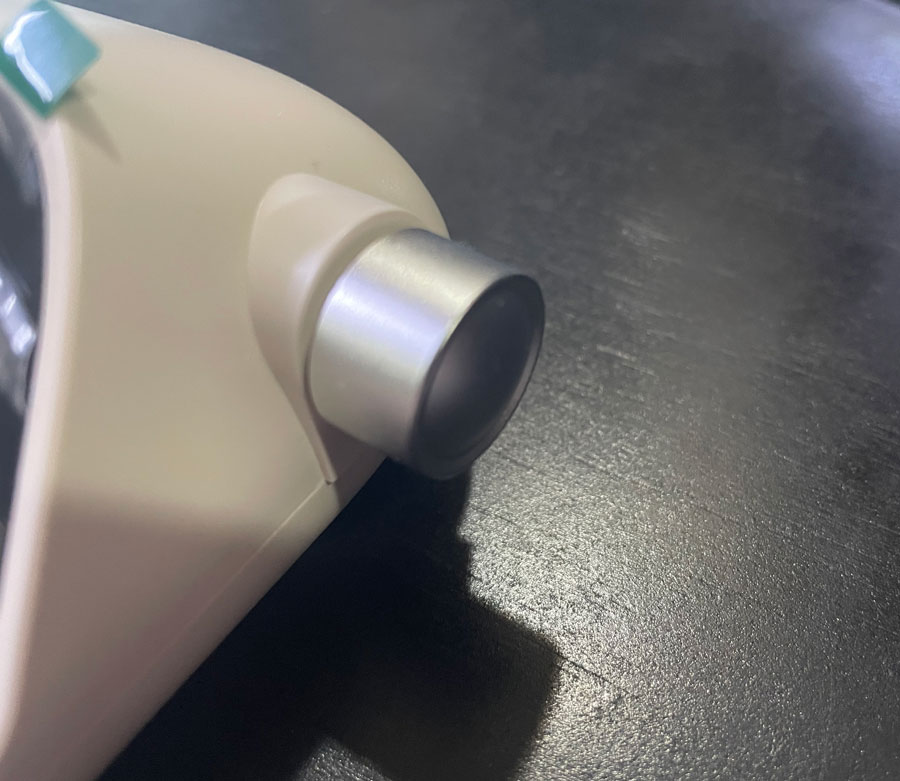
Overall, I have no issue with EPOMAKER Glyph’s build quality. It’s built very well. The keyboard feels sturdy, and the chassis didn’t flex when I held it in my hands. This is not exactly a cheap keyboard, so that is to be expected. The keyboard is a bit heavy, but not as heavy as an aluminum keyboard.
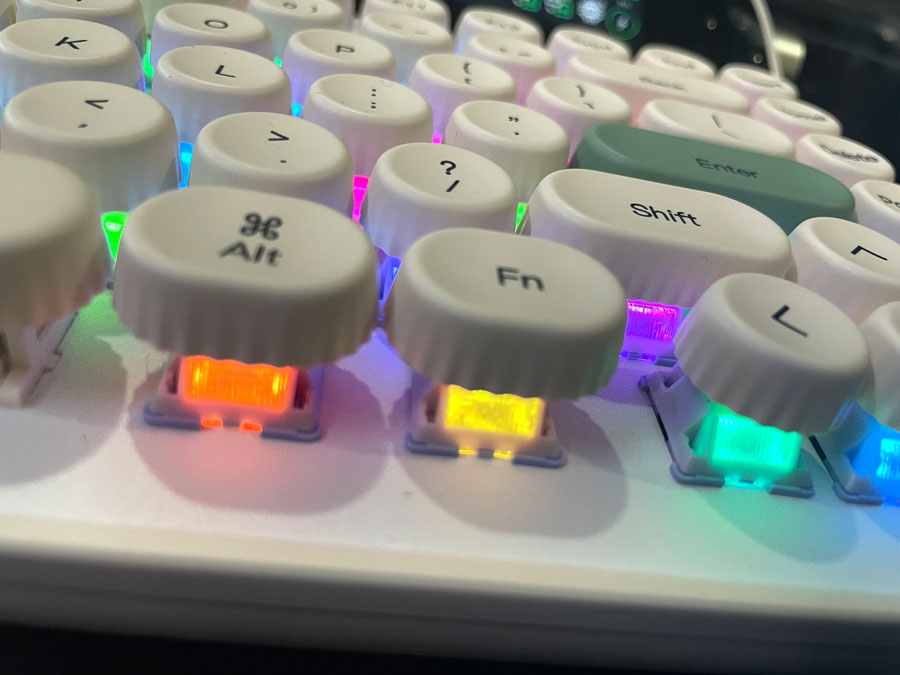
There are RGB lights below the keycaps, as well as a light strip on the back, similar to the one on the PS4 controller. Both of them can be customized.
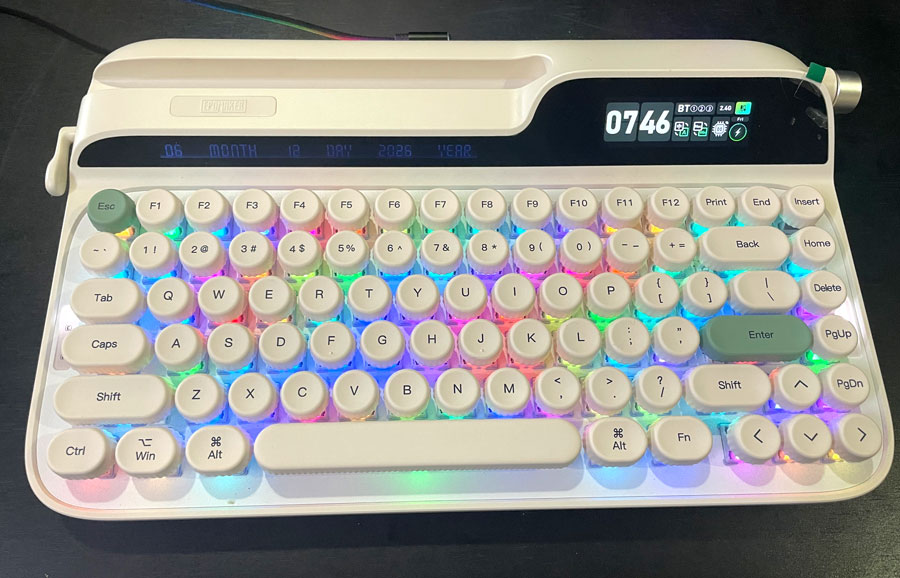
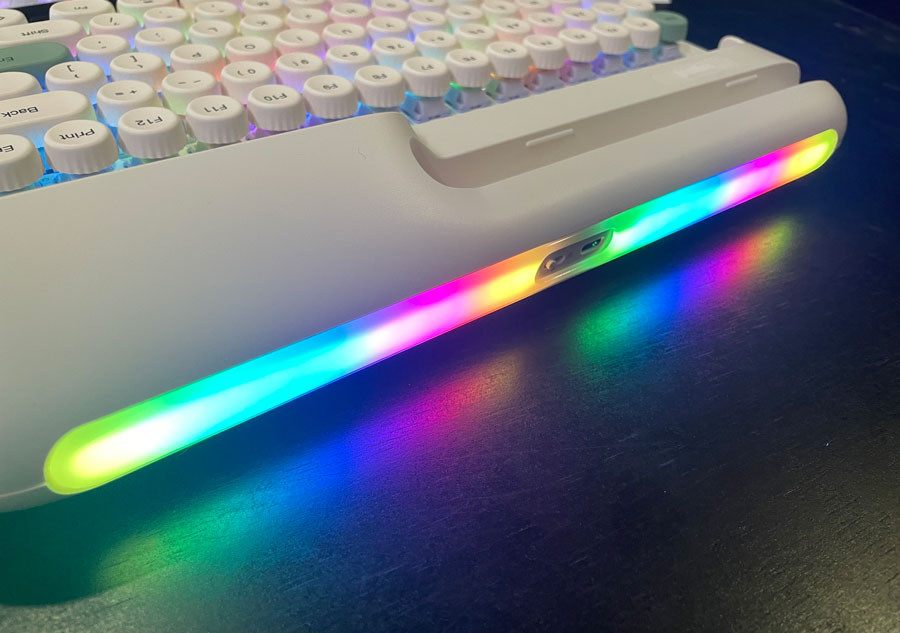
EPOMAKER Glyph only comes in one color called “retro white” and with only one type of switches, which is Wisteria Switch V2.
There’s a battery indicator on the right side, as well as lock & Caps Lock indicators on the left.
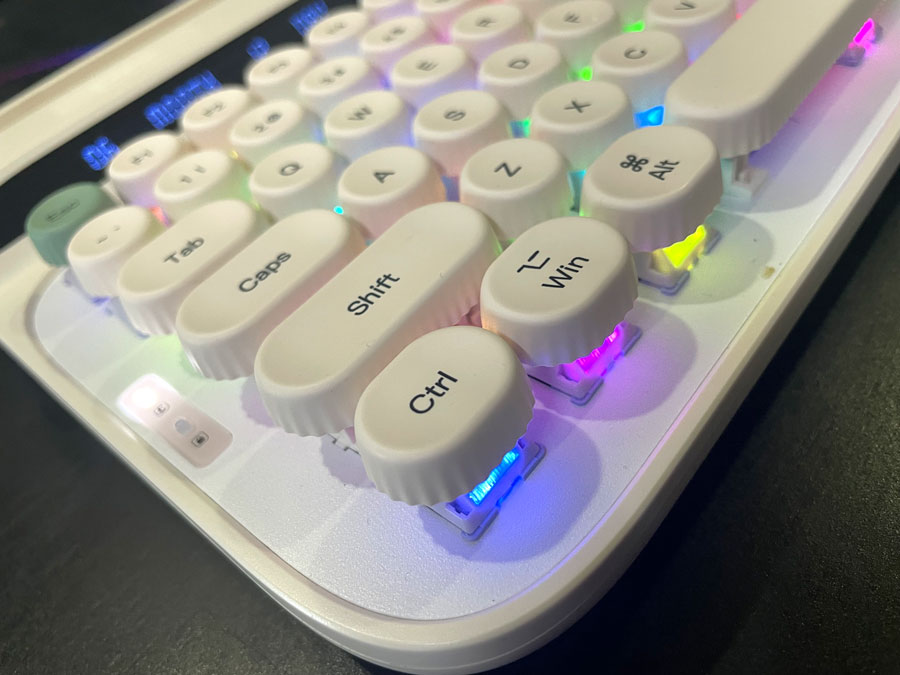
Typing Experience On EPOMAKER Glyph
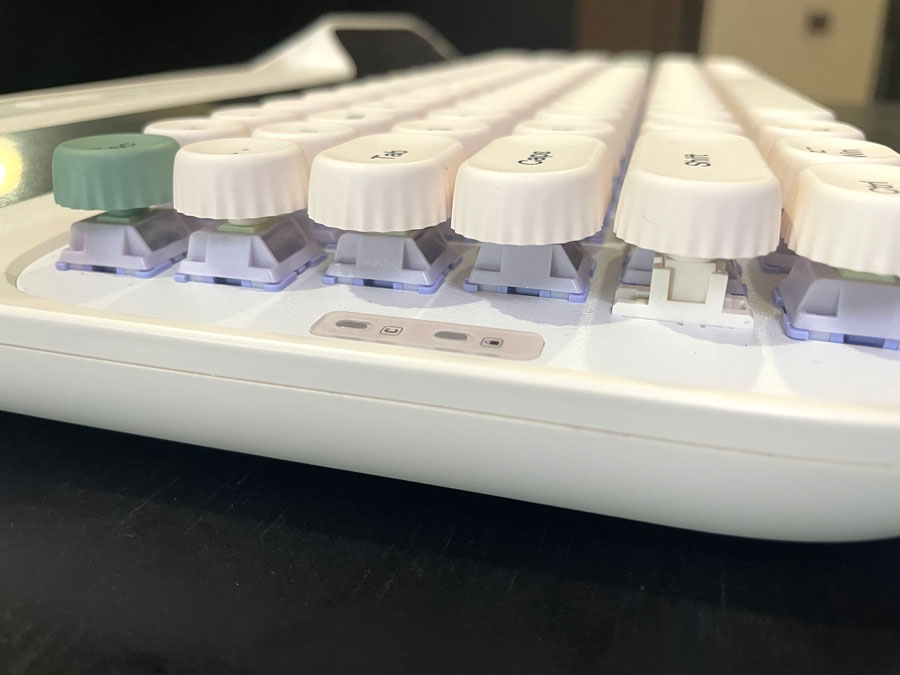
I found myself liking typing on EPOMAKER Glyph. The keys felt very soft when pushed down in a pleasant way. If you have tried EPOMAKER’s Wisteria Switch V2 before, then you know what I mean. There’s some thock to the keys when pushed down. I generally like the sound the keys make while typing. The large keys like Enter, Shift & Space make a good enough sound too. The left Shift key’s sounds were a bit worse, but I only noticed them when I tested it separately. Pushing very hard on the keys doesn’t cause the keyboard to flex at all.
The main issue I had with this typing on EPOMAKER Glyph is how high it is. It’s a bit higher than most of my keyboard. Another issue I faced is the lack of slant while typing. There were no adjustable legs under the keyboard to give you that. I am totally fine with not having a slant, as I often type without it, but because the keyboard was also a bit high, this is not easy to do here. I guess that’s why EPOMAKER Glyph comes with the silicone pad, which helps raise your hands. I later found that I can use the keyboard without the pad. I just had to place my hands above the keys. I am glad I was able to do that, since this is a type of keyboard I can see myself carrying around, rather than keeping it on the top of my desk all the time.
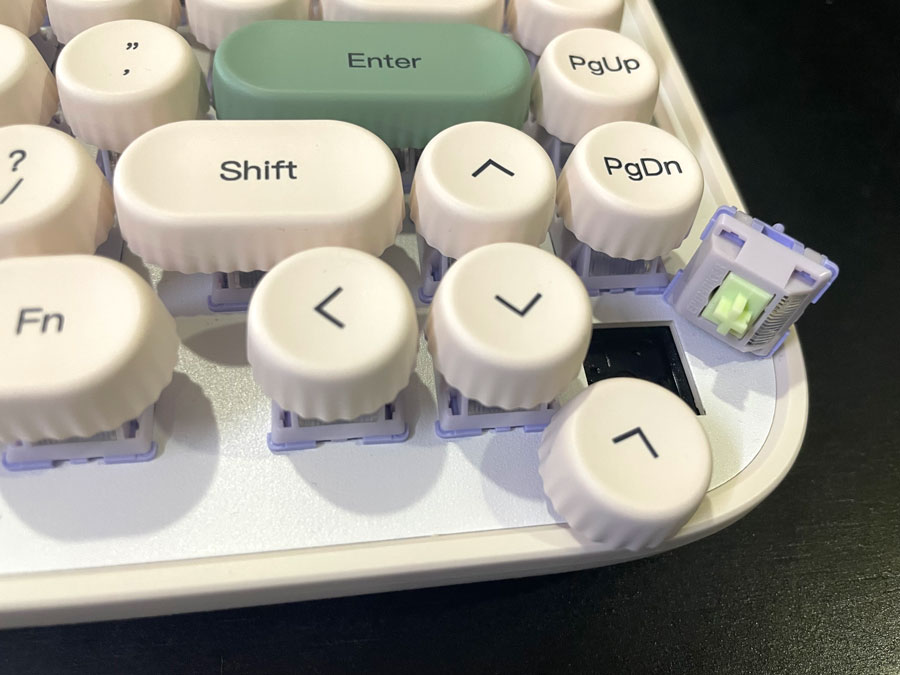
I appreciate the page up & page down keys being close to the arrow keys, which is one of the nice features many compact keyboards have. It’s one of the advantages they have over 100% keyboards.
EPOMAKER Glyph features hot-swappable switches. It’s compatible with the standard 3pin/5pin switches. So you can mod it to sound even more like a typewriter if you wish.
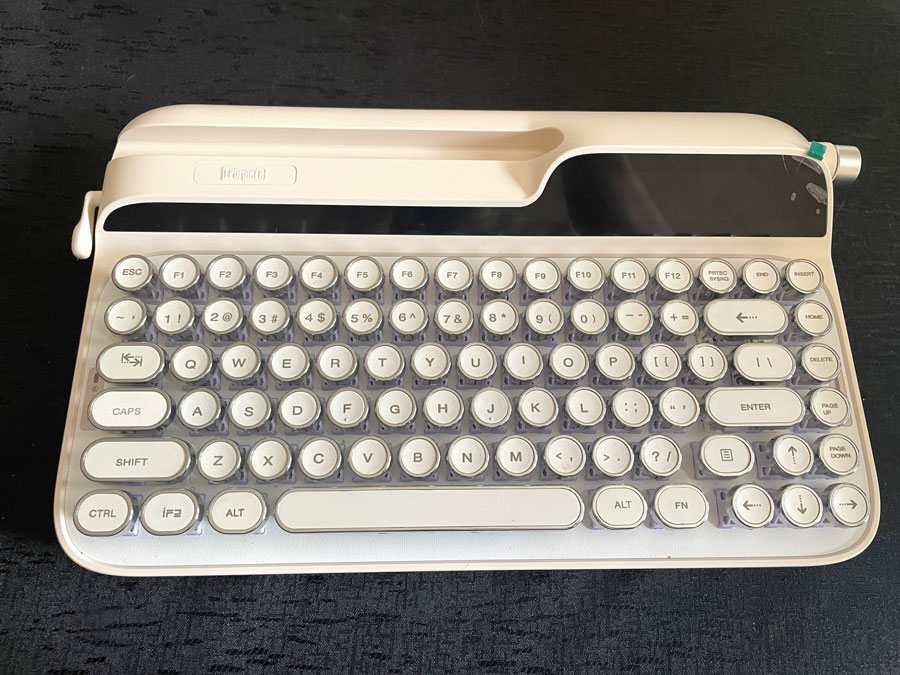
For the fun of it, I replaced the keycaps with the ones for my other keyboard with rounded keys, and it turned out really nicely & close to a typewriter:-
Rounded Keys & Their Practicality
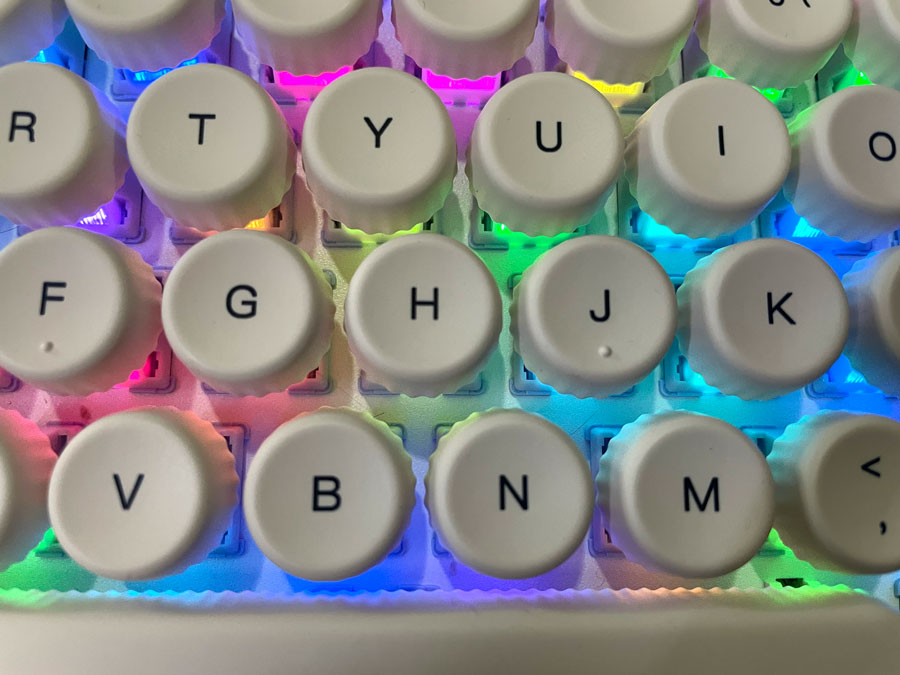
I have been showering EPOMAKER Glyph’s look & feel with praise quite a bit. I will admit I am a sucker for good-looking keyboards. But one may wonder whether rounded keycaps are even practical or even worth it. I say that boils down to your preferences. Some really dislike such keycaps and will shun away from this keyboard the moment they see it. While some will love it and may buy it on impulse, especially with the other neat features it provides. If you’re on the fence about the rounded keys, you can give it a try, but keep in mind since it’s a love-or-hate thing, you may end up not liking it.
To give you my own opinion, typing on rounded keys isn’t straightforward for any of us used to square keys. Despite the fact this is the second keyboard with rounded keys I own, I have found myself making more typos than usual at first. There are times when I hit the edge of some keys while typing, mainly because I am used to the larger area of regular keycaps. I managed to improve as I kept on typing on it (this includes writing most of this review). The grooves on the keycaps help a lot in that regard. Me liking everything else about this keyboard helped me stick with it. If anything, I found the height of this keyboard a bigger problem than rounded keys. I ended up liking the keyboard more once I solved that.
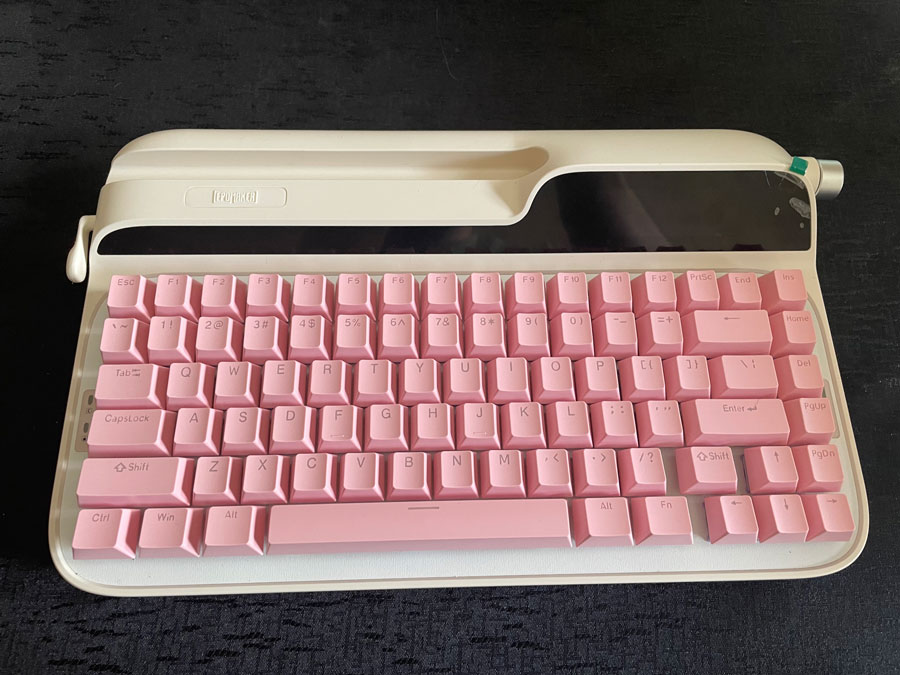
If you like the features EPOMAKER Glyph provides, but you’re spooked by the rounded keys. One option you have is to replace the switches with regular keycaps. The keyboard will still be the same, but you will get the typing experience you want. And finally, there’s nothing wrong with going for something else if you think this keyboard isn’t for you.
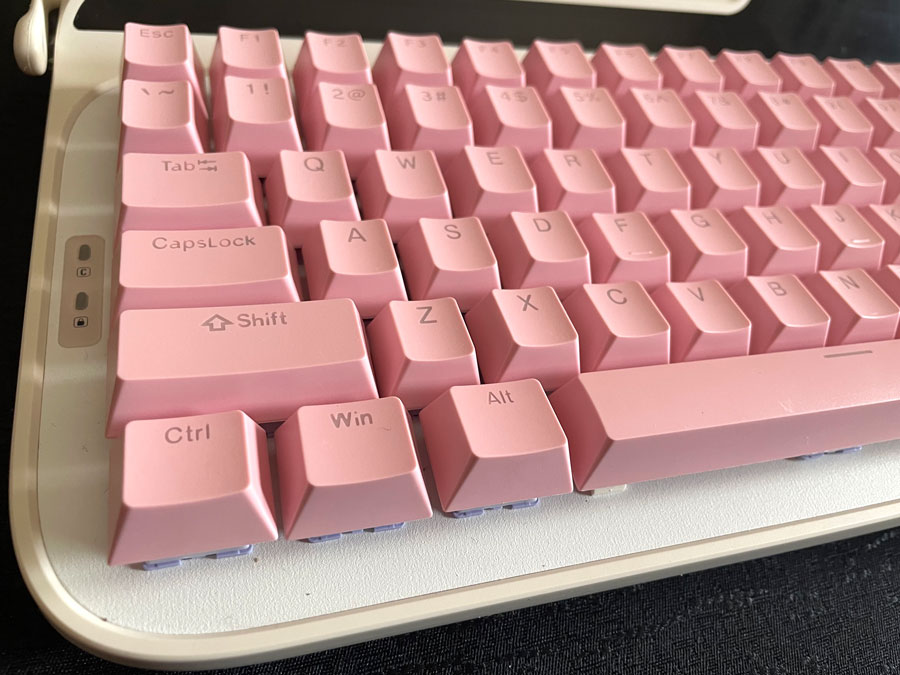
I did replace the keycaps with pink regular ones I have. It wasn’t 100% perfect, but it turned out nicely. I am sure I can tweak it to look even better:-
Using EPOMAKER Glyph With My Tablets
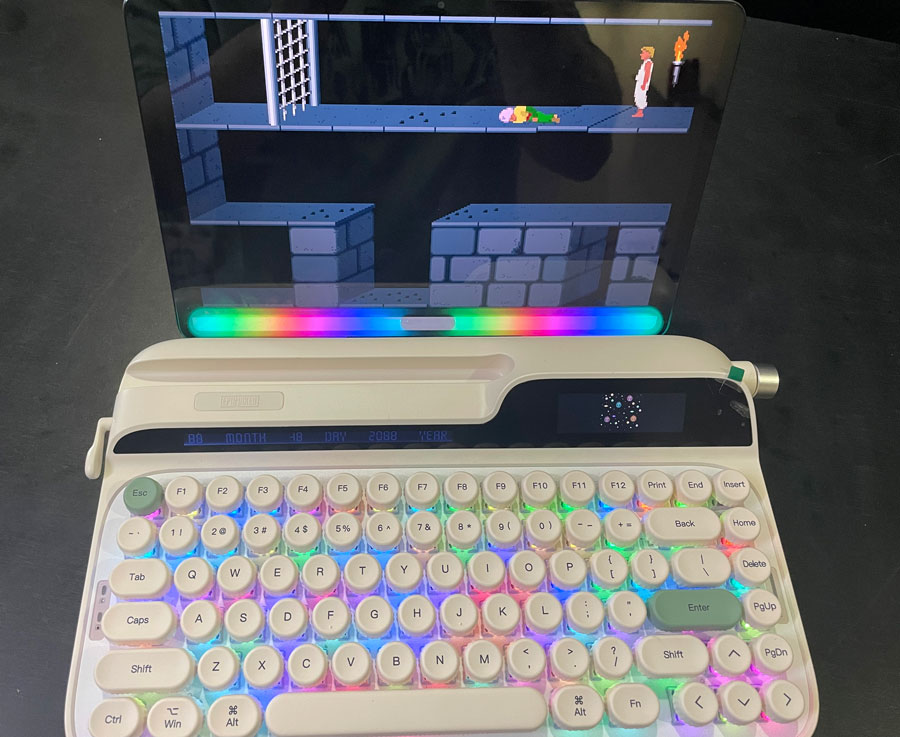
There’s no way I wouldn’t test a keyboard like this on my tablets. If anything, I think it is fancier to use it that way compared to Windows, Linux & Mac machines.
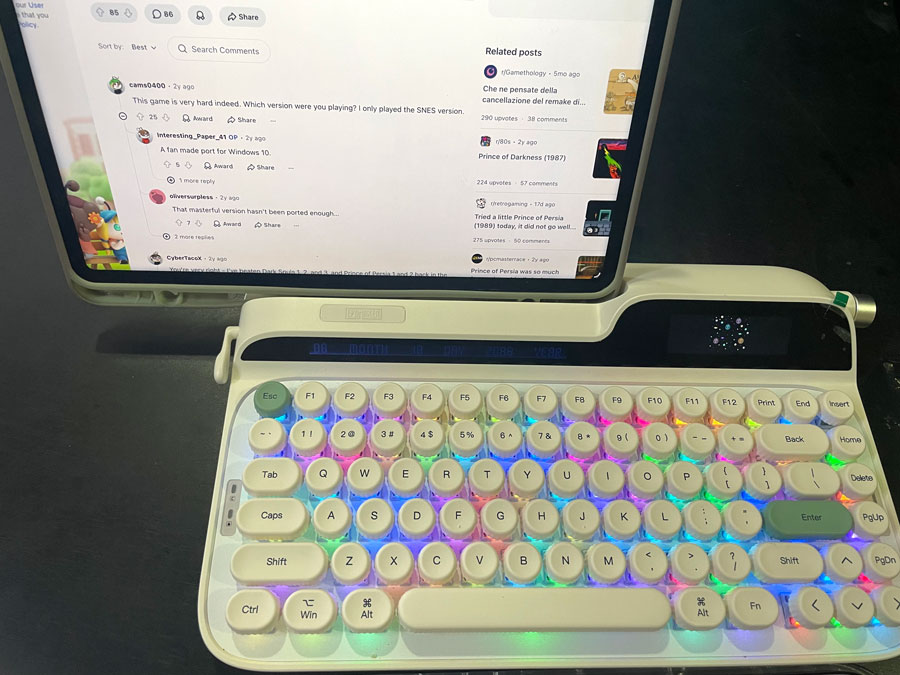
There’s a dedicated space to plop your phone or tablet to use alongside the keyboard. It’s a neat feature that can make the keyboard look a bit more like a typewriter. But unless I place my tablet in portrait mode, it won’t be centered, which is a shame if you ask me. So I will more likely use the stand I have always been using when typing on landscape mode.
Having a dedicated place to put my phone is useful even when I am on PC, as it allows me to have my phone in front of me rather than lying on my desk. As far as I know, only typewriter keyboards tend to have a dedicated slot for a tablet or phone.
It’s worth noting that the tablet or phone has to be thick enough to stand at a comfortable angle. Neither my Android tablet nor my Android tablet would sit upright without a cover that makes them thick enough for that.
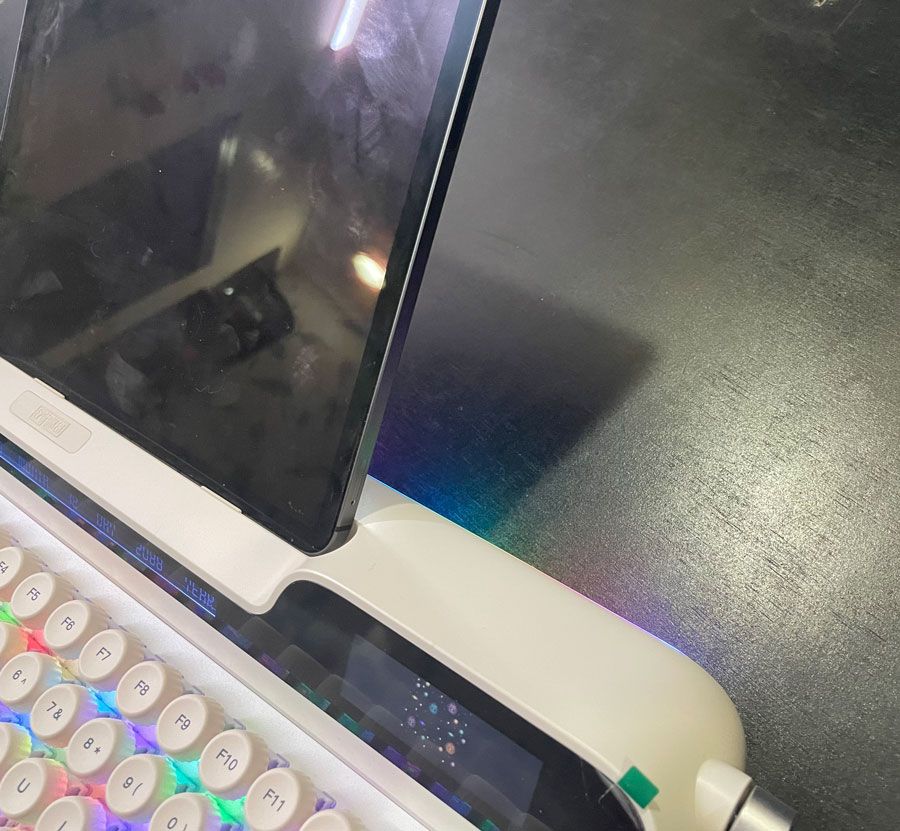
Just like the case with many of my keyboards I tested, I played Prince of Persia. This is the cutest way I ever played this game:-
I also did some note typing & internet browsing as well:-
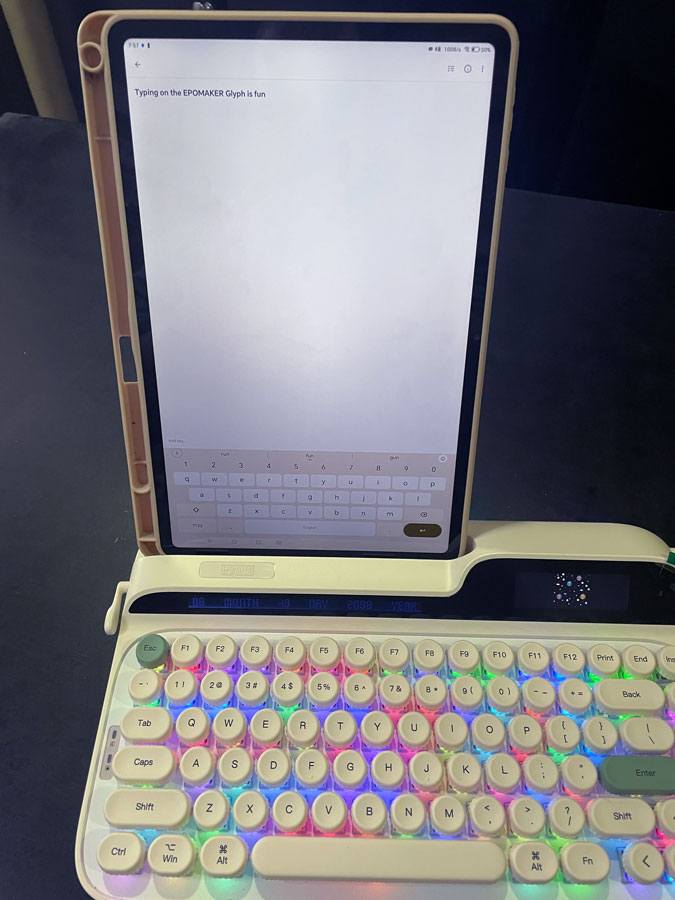
EPOMAKER lists EPOMAKER Glyph as being compatible with Windows, Mac & Android, but it also worked very well on my iPad. I totally think it will work on any device that supports USB or Bluetooth.

3 Connectivity Modes
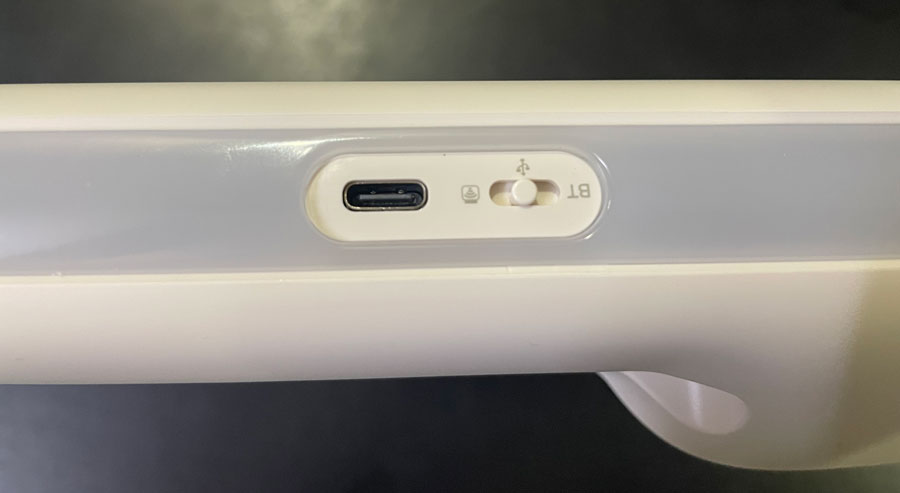
EPOMAKER Glyph supports 3 connectivity modes, meaning you can connect it with a USB cable, USB wireless receiver or up to 3 Bluetooth devices. This is the typical configuration with many keyboards, and it’s one I always find welcome. You can use the toggle on the back of the keyboard to toggle between the 3 modes. In Bluetooth mode, you can toggle between the 3 devices by pressing FN + Q, R & E, respectively.
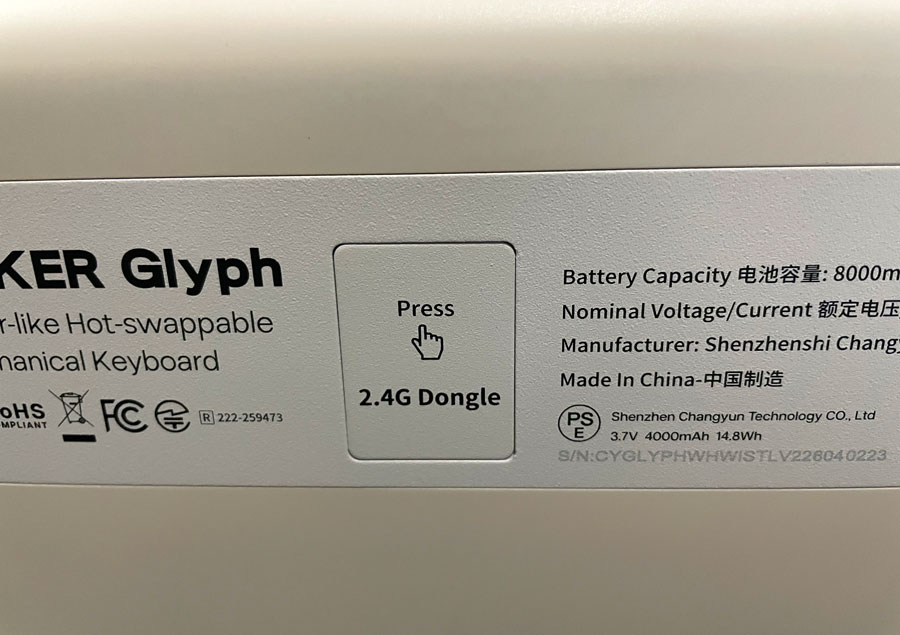
The 2.4GHz USB receiver is found in a compartment at the bottom of the keyboard. You push it then pull it out to open it.
Buy from AliExpress
#CommissionsEarned
Customizing EPOMAKER Glyph With The Driver
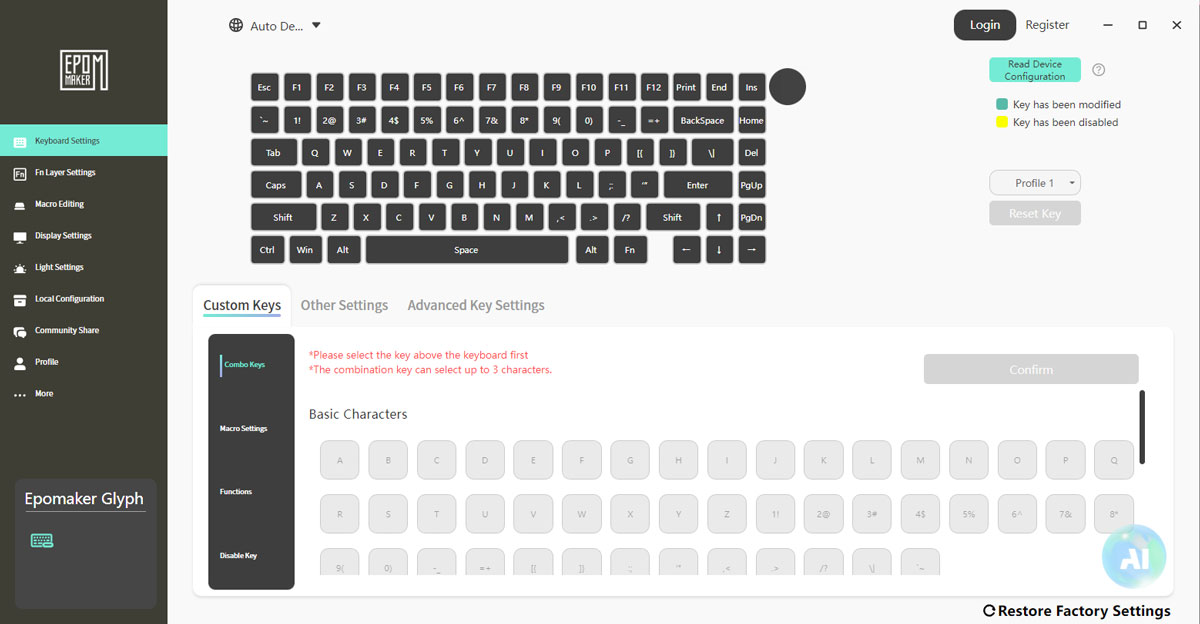
EPOMAKER Glyph offers a lot of customization options via the driver, which I downloaded from EPOMAKER’s website. For a starter, it allows you to customize the FN layer. There aren’t many missing keys on 75% keyboards, but you can take advantage of it by assigning macros or hard key combinations to that layer. I used it to get the Pause key back since I use it often, for example. You can also customize what the knob does whenever it is rotated clockwise, counter-clockwise or when it gets pressed. One of the things I liked about the driver is that you can reset each key configuration separately, so you don’t need to worry about making mistakes & starting over whenever you make an irreversible mistake.
Unfortunately, you can’t customize what the handle does. It’s stuck to default functionality. It would have been nice if I could make it trigger Enter or Space when pushed down instead of when pushed up. That way, I could use it to turn pages in E-books or to progress the text in visual novels. This is a missed opportunity, I must say. I will still try to find reliable ways to do that with software, but doing that on hardware level is much better.
The driver also supports SOCD, which determines what happens when you press two keys at the same time. Say you were playing a game, and you were holding the D key to move right in a game, and then you pressed A to move left while D was still held down. With SOCD activated, the last key will always take priority. The driver doesn’t provide options for that though, like prioritizing the first key, for example. The driver supports 3 profiles, so you can have separate profiles for typing & gaming.
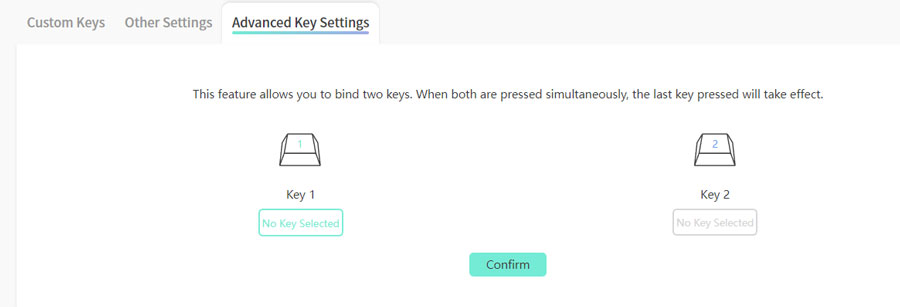
You can customize the backlight & even download new patterns online. The light bar at the back can be customized as well. You can also configure sleep time for 2.4Ghz & Bluetooth modes separately. The driver has options for customizing the right screen. I will talk about that in detail in its own section.
All in all, I think the driver works well, though I didn’t like having AI in it. I couldn’t find a setting to hide its icon.
The Screens
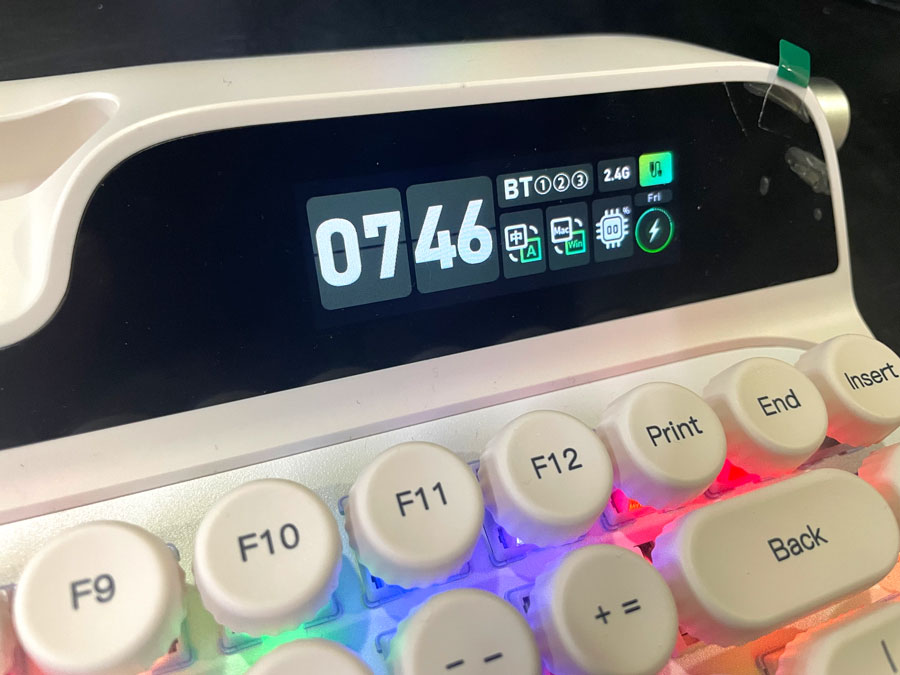
Having two screens is one of the most unique features about EPOMAKER Glyph. It provides a convenient way to check battery life or check the time by default. It can also be customized to display animated GIFs as well. The narrow screen to the left displays today’s date & can’t be customized.
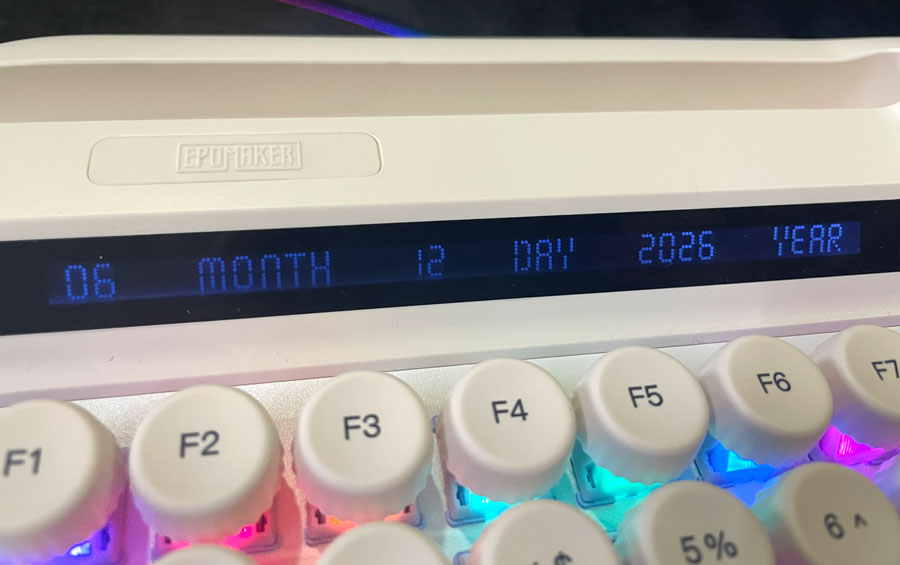
By default, the screen displays the following settings:-
-
- Indicates which connectivity mode you are on. If you’re on Bluetooth mode, it indicates which device you’re connected to (1,2 or 3).
- The time of the day
- Whether you are on Windows or Mac mode.
- CPU status
- Battery life
- Current language.
- Day of the week (Mon, Tue, Wed… etc).
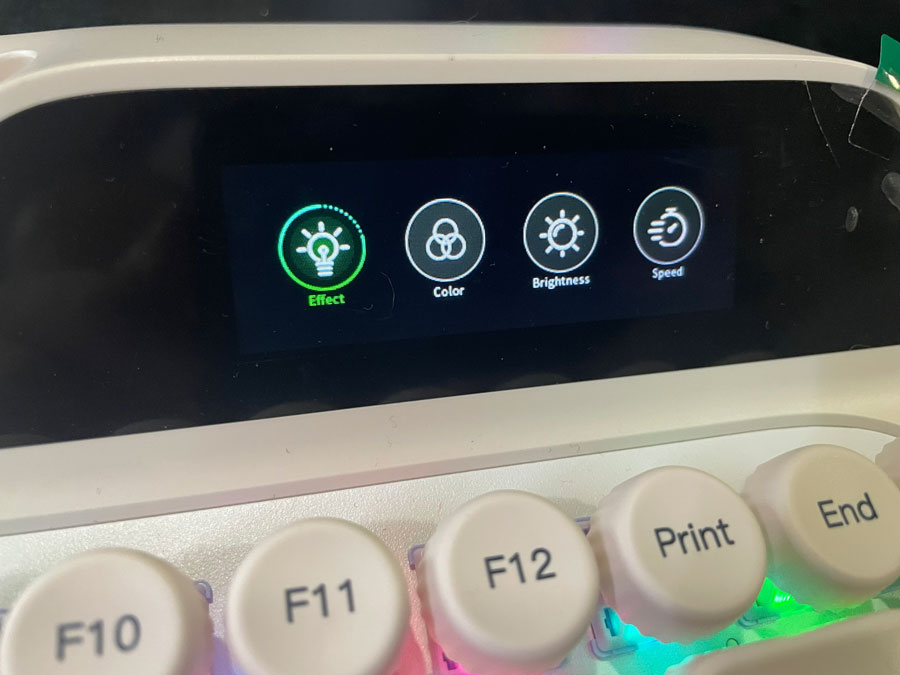
The screen can be used to customize some aspects about the keyboard (mostly the backlight) without the need for the driver. Press the FN key along with the knob to switch to the Screen Control mode, where you can adjust the backlight setting from the keyboard itself, and the screen will show the various options for that (speed, color, effect & brightness). You can also switch between Windows & Mac modes or change the language from there. Screen Control mode also allows you to switch between showing the animation you uploaded or the default configuration screen.
If you don’t care about the information the screen displays by default, you can upload an animation to display there. You can either draw your own still or animated image, download ones made by the community in the Community Share tab, or even upload your own GIF. I downloaded this Pikachu running one from the community hub, which is very cute:-
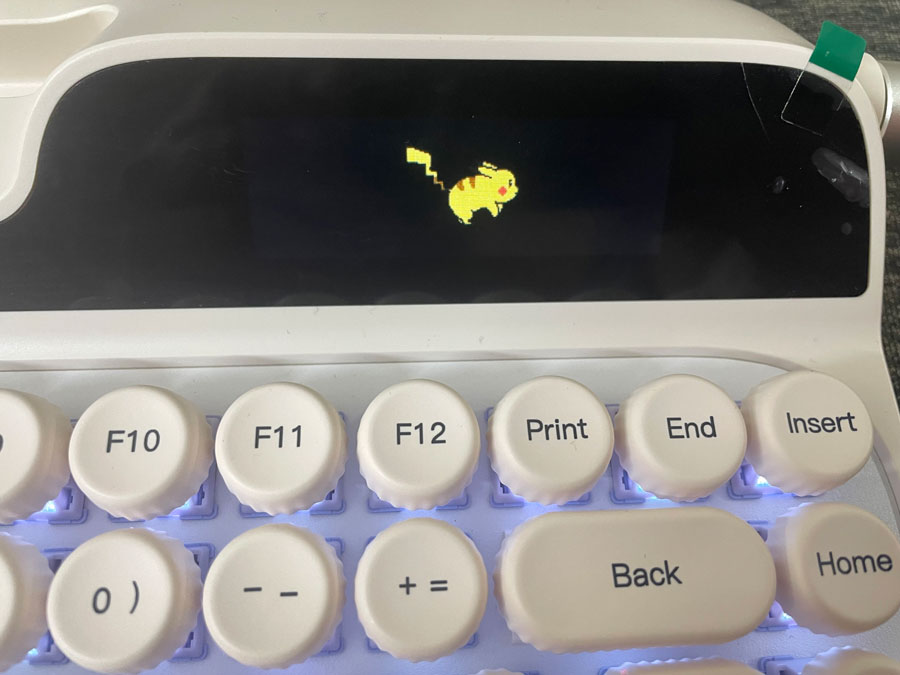
I tried to upload my own GIF as well, but most of the time I tried that, the keyboard would restart during the upload process. I thought it could be the number of frames or the size of the image I picked that caused that, so I tried a 150 X 150 image that’s 5KB, but that still didn’t work. This could be a bug in the driver or the firmware. I am on the latest version of both, so I will wait for a fix for that (Update:- The problem has been fixed).
The Community Share tab makes it easy to download animations made by others. You don’t need an account to download them. I downloaded the Pikachu animation I showed earlier without creating any. You can also download new backlight patterns, macros & configurations. Like one I found for Counter Strike 2 (with rapid trigger).
And Finally
Overall, I quite liked this keyboard. It’s very beautiful & chique. I am totally aware it’s not for everyone, but if you want a keyboard you just want to enjoy using & you don’t mind the rounded keys (or you don’t mind replacing them if you don’t like them), then I can easily recommend EPOMAKER Glyph for you.
I hope you liked my EPOMAKER Glyph review, and I will see you in another Tech Fairy article. Check out the mobile apps I developed, which I hope you find useful & interesting.
Buy from AliExpress
#CommissionsEarned