


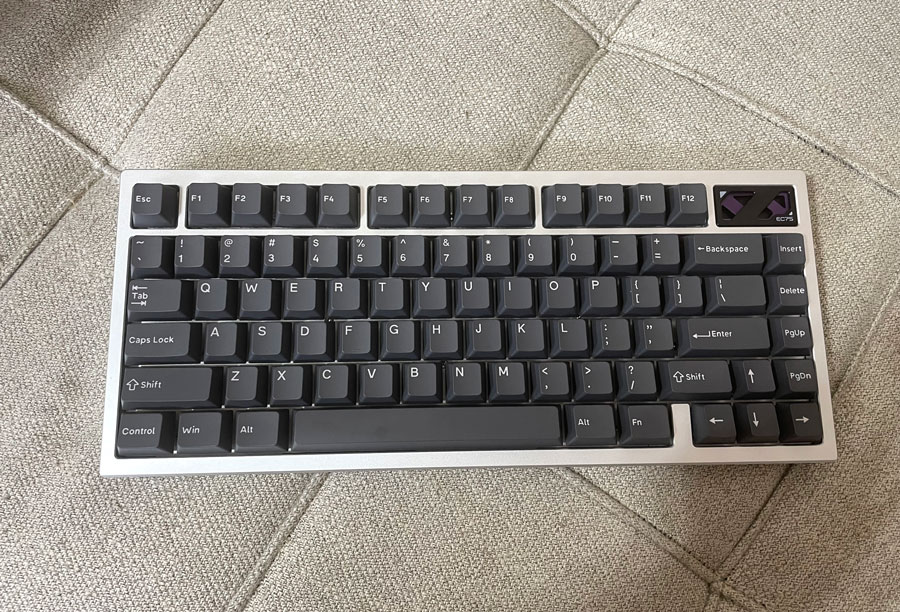
Want A Hall Effect Keyboard With A Nice Clacky Sound & Good Typing Experience? IQUNIX EC75 Has Come
I received IQUNIX EC75 from IQUNIX to review & give my opinion on. It is a good Hall Effect keyboard with a nice aluminum body. Despite being aluminum, it’s not a very heavy keyboard, although still heavier than an equivalent plastic keyboard. It’s a 75% keyboard, which is a form factor that gives you most of the keys you would need, but in a neat & compact package. I enjoyed looking at the RGB lighting, since I tend to enjoy looking at them in my peripherals.
Because it is a Hall Effect keyboard, it provides many additional features you usually won’t find in regular mechanical keyboards. This includes the ability to adjust the actuation distance for each key, trigger multiple keys with only one, as well as pick which key to prioritize when two keys are pressed at the same time. I explained what each of these features does in some detail below in this review.
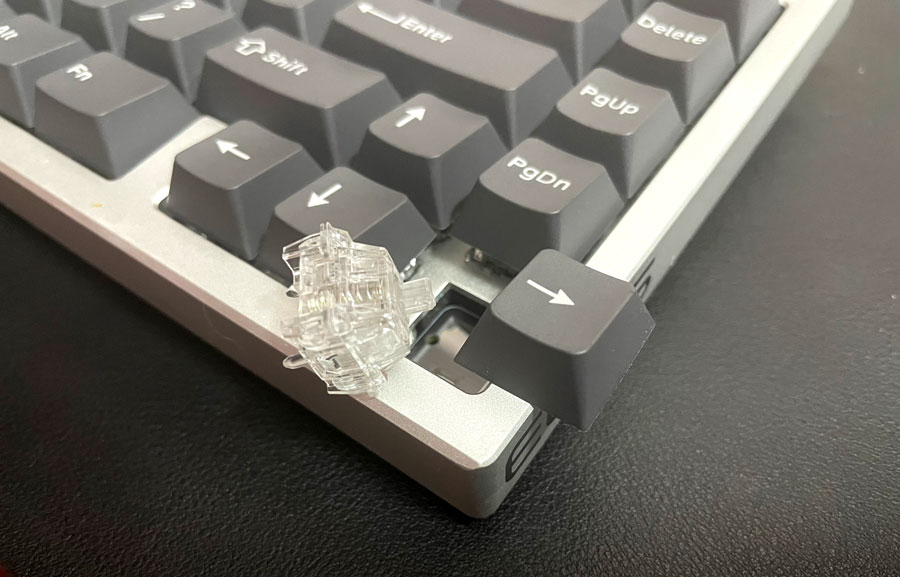
I liked typing on IQUNIX EC75. The keyboard felt sturdy during normal typing. The Diamond Pro Magnetic switches, which are linear, make a nice clacky sound if you like that type of sound. The switches on IQUNIX EC75 are hot-swappable, so you can replace them in the future if you want to, although it only works with Hall Effect switches. While regular mechanical keyboard switches won’t work with this keyboard, the magnetic switches are expected to last for longer than regular switches.
The web driver offers all sorts of customizations. Including key mapping, RGB customization, macros & the ability to adjust all the features magnetic keyboards provide, like Rapid Trigger, SOCD, TGL, actuation distance & more.
IQUNIX EC75 is wired only. It doesn’t have any wireless capabilities.
You can buy IQUNIX EC75 from the following affiliate links, which will support Tech Fairy & help keep it going:-
Buy From AliExpress
#CommissionsEarned

Quickly go to:-
Unboxing & Overview
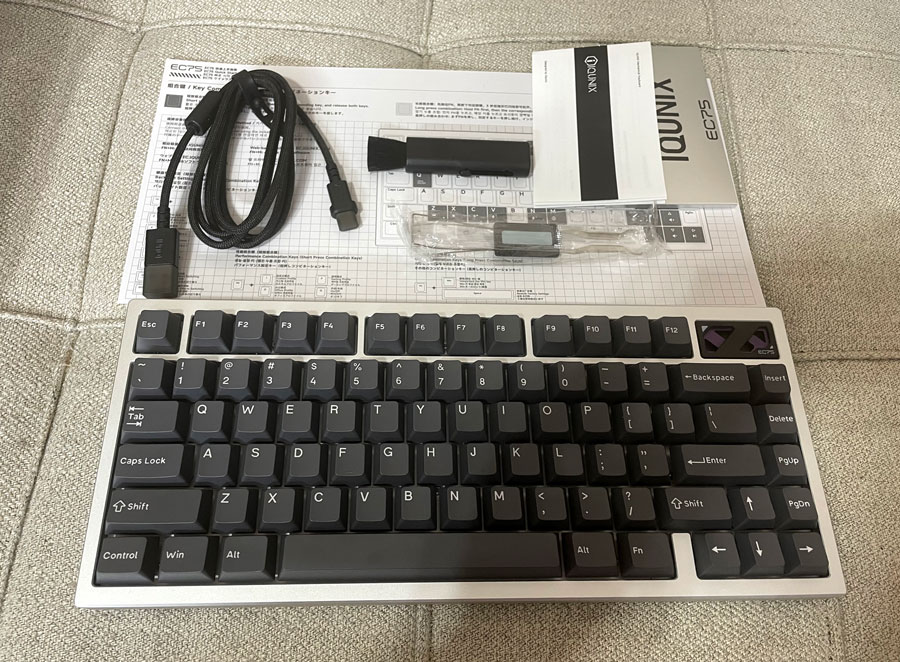
After unboxing IQUNIX EC75, I found the following stuff in the box:-
-
- IQUNIX EC75.
- Switches & keycap puller.
- A USB cable.
- Cleaning brush.
- A leaflet showing different key combinations & configurations.
- Warranty booklet.
I noticed I got no spare switches along with the keyboard. I don’t know if that’s the case with my review unit or if that will be the case when IQUNIX EC75 gets released. The keyboard has a nice aluminum body with slightly rounded corners. It’s relatively heavy, but not as heavy as the other aluminum keyboards I used before. The default RGB lights compliment the aluminum body pretty well. It makes the keyboard look so beautiful. If you are a regular reader of my reviews, you know I enjoy looking at various types of RGBs on my peripherals.
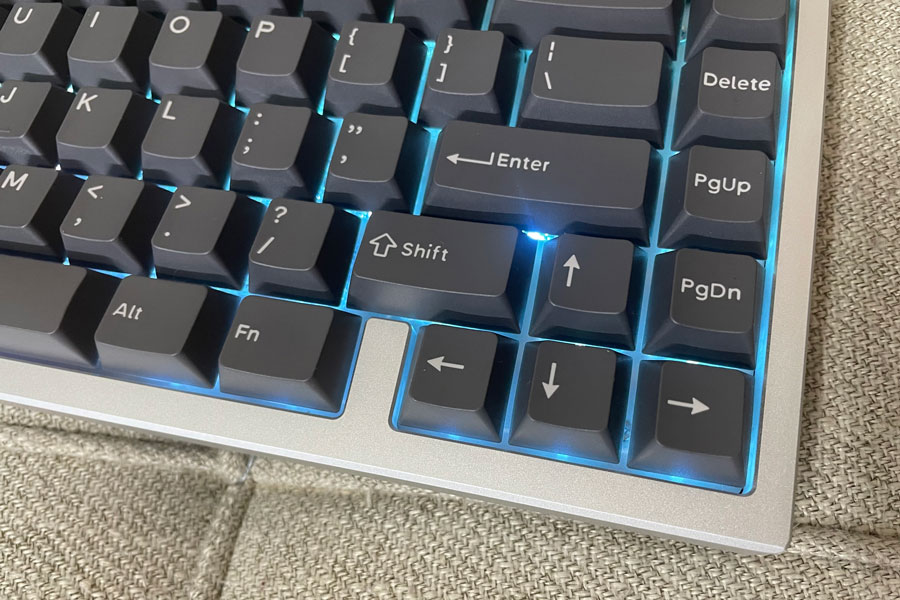
IQUNIX EC75 has a 75% form factor, which is similar to a laptop keyboard. It is compact yet contains many of the keys of 100% keyboards, including the F-Keys & some navigation keys, like Page Up, Page Down & Insert. You can check the images in the review to see what keys are available. It has no knob to adjust the volume, though you can adjust the volume using either the FN along with the Up & Down arrows or along the F11 & F12 too. These key combinations can be customized in the driver if you don’t like them.
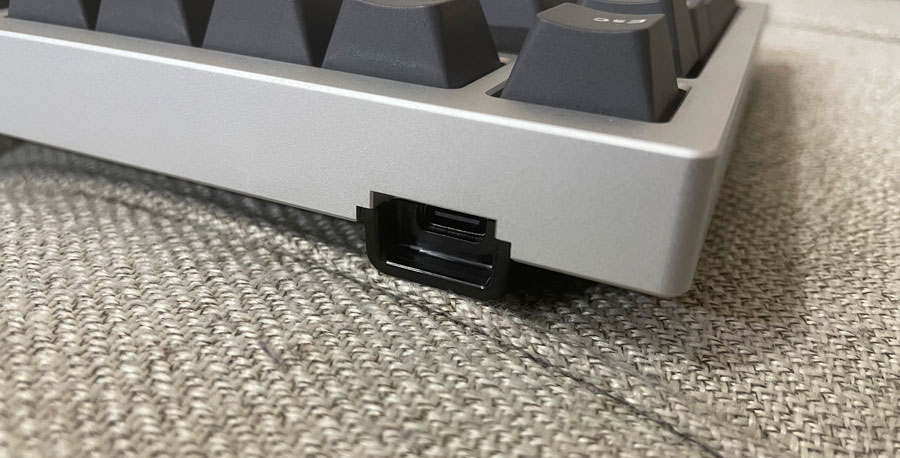
IQUNIX EC75 connects to the computer using a USB cable only and offers no wireless connectivity. The keyboard sits flat on my desk, and there are adjustable feet at the bottom of the keyboard that provide two more typing angles.
Now, let’s talk about the switches. IQUNIX EC75 comes with Diamond Pro Magnetic Switch by default; they are Hall effect switches. The way this type of magnetic switches is designed makes it more likely to last longer than regular switches. They are also capable of providing a bunch of additional features that are not available on regular mechanical keyboards. These features can be quite useful for gaming. I will talk about them in detail later in this review. The switches are hot-swappable and can be very easily replaced with any switches you may like. Although the keyboard is only compatible with other Hall Effect switches, regular switches won’t work on it.
Typing Experience On IQUNIX EC75
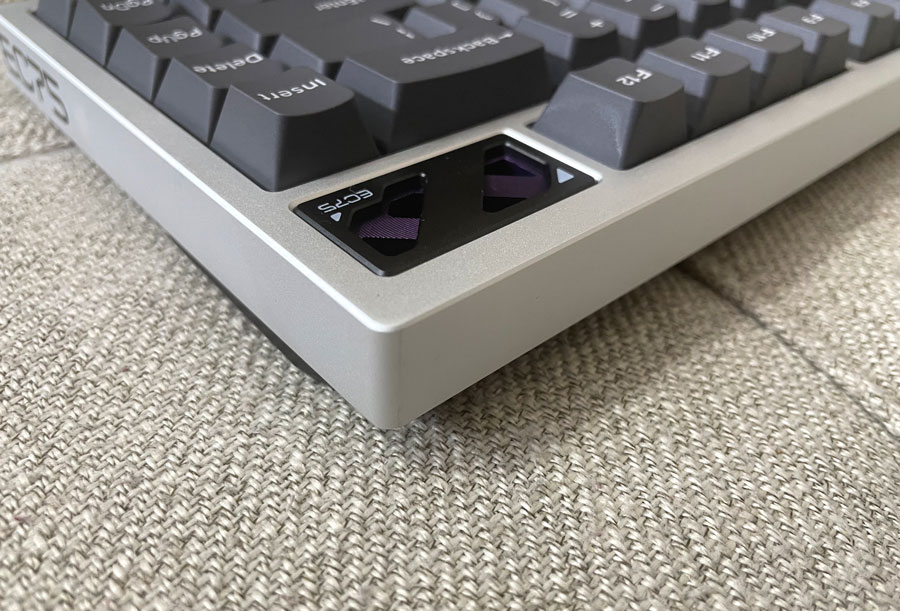
Typing on IQUNIX EC75 was nice. The keys give a nice feeling while typing, which makes it good to use for coding. It’s not what I would call a quiet keyboard, as each key press makes a distinctly clacky sound. The sound is more obvious when you press the keys harder, which can happen when you type fast on it. The keyboard is quite sturdy; it feels as if it can take whatever I can throw at it. Despite that, there was a slight reflex when I pressed the G key a bit too strongly. That flex never appears during normal use though. I tested the sound of the large keys, like the space bar, Enter & so on; they all make good sounds too. The backspace key makes a bit of a distinct sound compared to them, which some may find annoying.
Because the arrow keys are located at the corner of the keyboard, they are very easy to locate & use without having to look down on the keyboard. That is useful if you are more used to larger keyboards.
Since this is a Hall Effect, you can adjust the actuation distance of each key separately. Keys can be set to actuate after being pushed down a little bit or to only actuate when they are pushed all the way down, which could be quite helpful in preventing typos, something that’s common with linear switches. It’s worth noting that while this feature can change the typing experience in a very satisfying way, it is not a complete alternative to trying out a new switches type. They won’t turn the switches to clicky blue switches, for example.

Taking A Look At Magnetic Keyboards Features
IQUNIX EC75 supports quite a bunch of useful features. Some of these features can be useful for gaming, and some may even be useful for productivity. I will talk about them here. I hope this will prove useful to decide whether you would want a Hall Effect keyboard or not.
Rapid Trigger
This feature makes it easier to trigger a key a second time without having to wait for it to go all the way up. It just needs to go up a certain distance before it can be pushed down again & be actuated again. This distance can be configured in the driver.
MT
MT makes it easier to make a key trigger one of two keys depending on whether you quickly pressed the key or held it down for a certain period of time. For example, you can program the G key so that holding it down for 200+ milliseconds triggers the L key, while pressing it quickly triggers the H key. I imagine this feature would be useful in design programs. Imagine having the W key switch to a certain tool if pressed quickly and resize the brush when held down.
TGL
This feature works similarly to the auto-turbo feature found in some gaming controllers. When activated on a key, pressing the key once triggers the key continuously until you press it again. The key that gets triggered doesn’t have to be the same you press. For example, you can program the keyboard so that pressing the G key triggers the T key continuously until you press the G key again to stop that.
SOCD
Do you know what happens when you press two keys at the same time? Especially two keys that do the opposite? For example, in many games, the A key strafes to the left, while the D key strafes to the right. Now what would happen if you pressed the A & D keys at the same time? The answer usually depends on the keyboard. Many keyboards prioritize the second key. With SOCD, you can dictate how the keyboard would respond to that. You can make the keyboard prioritize the second key, make one of the keys take absolute priority, or have the two keys cancel each other out.
It’s worth noting that SOCD can be toggled on & off if needed using the FN + Q shortcut.
RS (Rappy Snappy)
RS is similar to SOCD in that it deals with what would happen when two keys are pressed at the same time, but with RS, you can make it so that the key pushed down the most takes priority. This makes it easier to alternate between two keys.
DKS
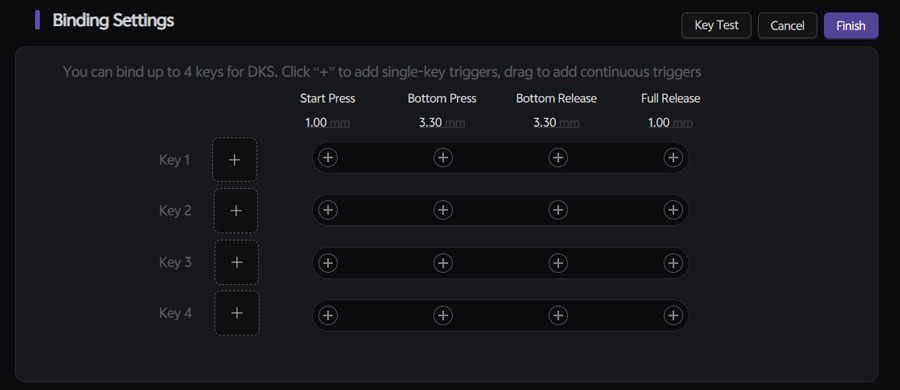
DKS is similar to MT, it makes it possible to trigger up to 4 keys using only one. 2 keys are triggered on the way down, while the other 2 are triggered on the way up. For example, you can program the G key to activate the A key when pushed halfway down, and then trigger the B key when pushed all the way down. Once you start releasing the key, the C key triggers, and when you pass the fourth actuation distance (like 50% up), the D key triggers. It’s possible to only trigger the A & D keys simply by not pushing the G key all the way down.
All the actuation distances can be adjusted. As you can see in the grid in the picture, it’s also possible to trigger both A & B once the key is past the first actuation point on the way down, then trigger B again when we reach all the way down (or you can make it so it only activates along with the A key). There are too many combinations to play with here.
Customizing IQUNIX EC75 Using The Web Driver
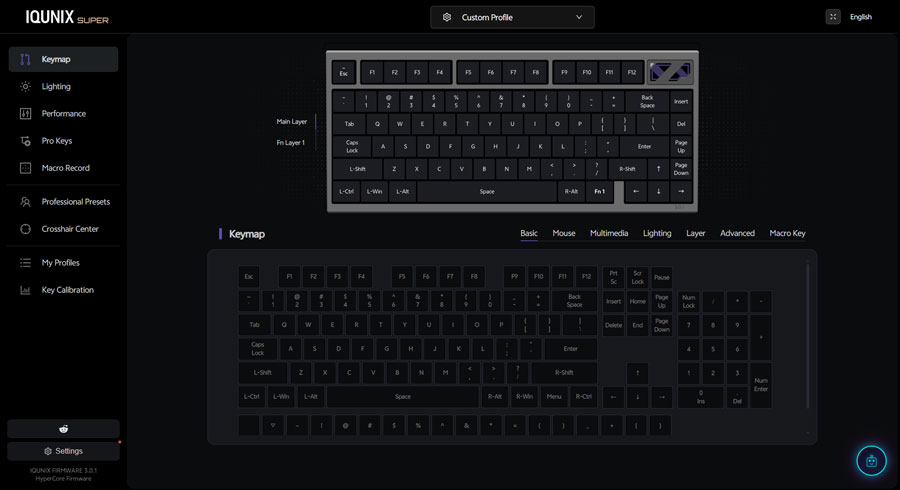
IQUNIX EC75 can be customized in all sorts of ways using the web-based driver. Simply go to the driver page (https://ez.iqunix.com/), and then connect the keyboard. By default, pressing the FN + M on the keyboard triggers a macro that types the URL for you.
The web driver offers all the customization options you would expect from a good mechanical keyboard driver. In addition to the ability to customize the magnetic keyboard features I explained earlier. You can remap any key to another; this includes customizing the FN layer (you can’t remap a key to do a keyboard shortcut though). You can also customize the RGB lighting in its own dedicated tab, and of course, you can record your own macros to assign to different keys.
The Performance & Pro Keys tabs are where you customize the magnetic keyboard features I discussed earlier. This includes customizing the actuation distance for each key, as well as setting up SOCD, MT, RS & the other features.
I used the remap keys to program the FN layer & get back some of the keys I want back. I remapped the FN + / to act as a replacement for the Pause key, since I use it to activate my browser.
While you are free to set up the keyboard to suit the way to play your games. The keyboard comes with presets for professional Velorant players. There are also various crosshair shapes for Velorant & Counter Strike.
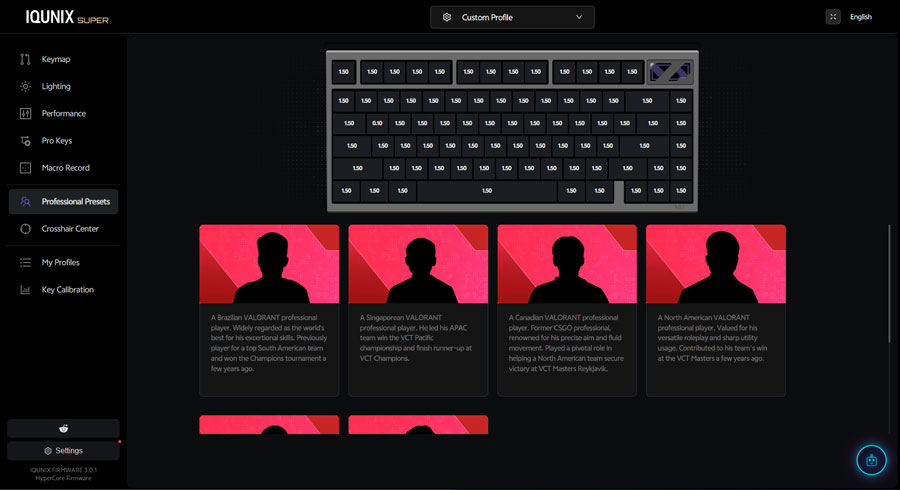
You can program up to 3 profiles in the driver and quickly switch between them using the FN along with the I, O & P keys. By the way, all the key combinations I mentioned in this review are the default. You can always change them to whatever key combination you want.
While I liked the features the web driver provides, I kinda wish there was an offline version of it.
And Finally
Overall, I found IQUNIX EC75 to be a good 75% Hall Effect keyboard. It may not be a keyboard I would use in an office setting due to how relatively loud it is, but when I am alone, I can always enjoy it in “silence”, lool.
I hope you liked my IQUNIX EC75 review, and I will see you in another Tech Fairy article. Check out the mobile apps I developed, which I hope you find useful & interesting.
You can buy IQUNIX EC75 from the following affiliate links, which will support Tech Fairy & help keep it going:-
Buy From AliExpress
#CommissionsEarned