


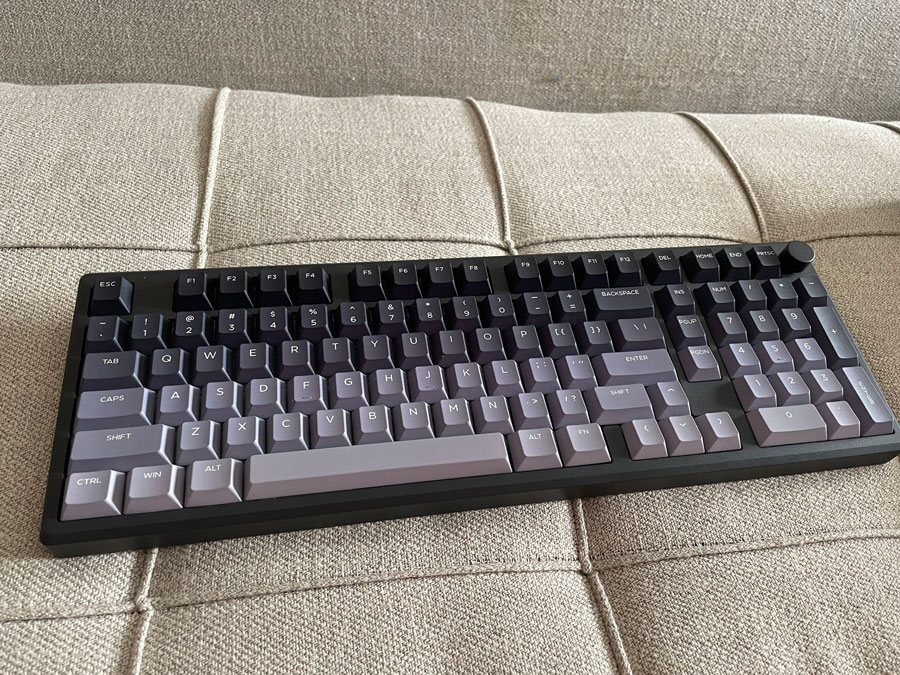
EPOMAKER Galaxy100 Lite Is A Great Value For The Money And Has Everything You May Want In A Keyboard.
I received EPOMAKER Galaxy100 Lite from Epomaker to review & write my opinions on it. I used it as my main keyboard, and I wrote the whole review with it. It’s quite a good keyboard for the price. It offers a nice aluminum body & 3 connectivity modes that make it easy to use on multiple devices & alternate between them. VIA & QMK support to remap & program the keys the way you want.
Since it is a 96% keyboard, it has got almost all the keys of a 100% keyboard while still taking up less space. There’s enough spacing around the arrow & navigation keys to make it easier to locate them without looking down. You still need to get used to it if you’re new to this keyboard form factor though.
EPOMAKER Galaxy100 Lite offers a great typing experience, with a thock sound and very sturdy body that never flexes. Even the large keys like Shift & Enter make good sounds. But the sound of the spacebar is a bit high-pitched compared to the rest of the keys. The linear switches I had on mine have a slight traveling resistance that I found pleasant. I found the keyboard particularly fun to use for coding & certain keyboard-only games like DOS games. Since it’s a hot-swap keyboard, you can customize it however you want in the future, either to make it even better or to try out new switches without having to buy a new keyboard.
Aside from the duplicate N key in the keyboard, I think the Galaxy100 Lite is an awesome keyboard. One I hope will last me for a very long time.
Buy EPOMAKER Galaxy100 Lite from AliExpress
#CommissionsEarned

Quickly go to:-
Unboxing & A Quick Look
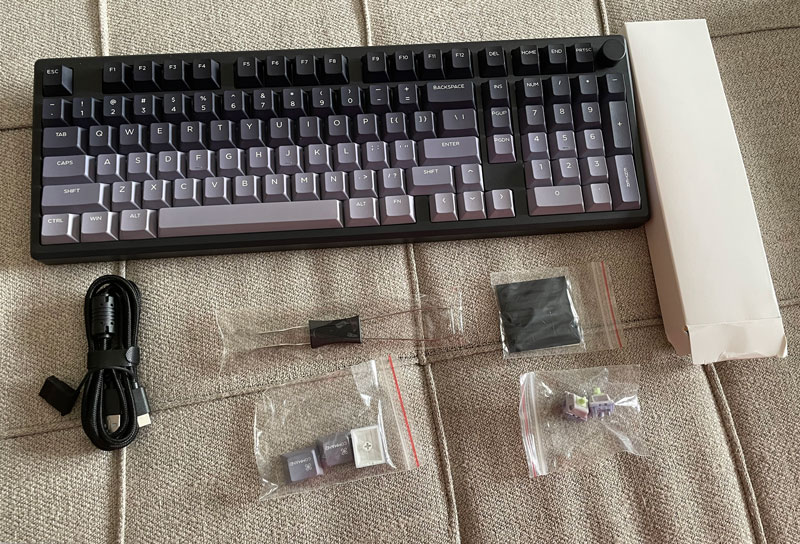
Upon unboxing, I found the following stuff in the box:-
-
- EPOMAKER Galaxy100 Lite itself.
- USB-C cable.
- User manual.
- USB receiver.
- Additional keycaps for Mac.
- 2 Spare switches.
- Keycap & switch puller.
- Spare rubber pads.
From the moment I held it up, I noticed how heavy it was. This is typical with keyboards with aluminum bodies. Such a body gives it a luxury feeling. Some people may prefer plastic keyboards due to the weight or because they sound better. I personally think aluminum/metal chassis feel awesome on a desk, especially since they feel as if they can’t be moved easily.
EPOMAKER Galaxy100 Lite is a 96% keyboard, a form factor also known as 1800 keyboards. It has almost all the keys you usually see in a 100% keyboard, all while taking less space. These keyboards can be as wide as a TKL keyboard (a keyboard without the numpad part but without sacrificing many keys). Many 96% keyboards don’t have the column in the middle with the Insert, Page Up & Page Down keys, where these keys are usually distributed somewhere else on some other 96% keyboards, like how they are in this picture:-
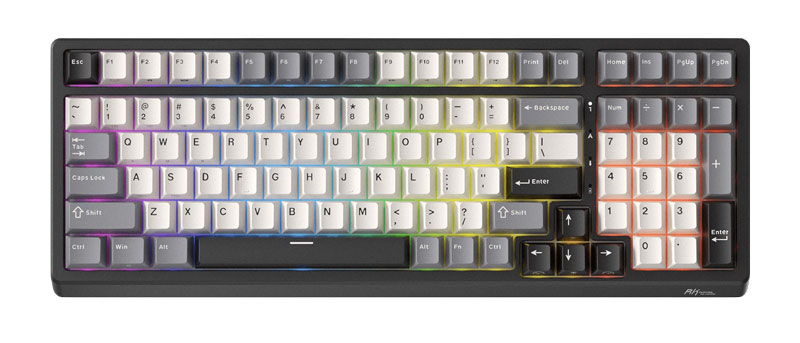
The main missing keys from 100% keyboards I noticed are the Pause, right Ctrl & Scroll Lock keys. There’s a knob at the corner of the keyboard, which defaults to adjusting the volume, and pressing it down mutes/unmutes the volume. It can be customized to anything else you want. For example, you can make it adjust the brush size, scroll or do anything else you deem worthy of it. I tend to keep it at default because adjusting the volume easily makes my life much better (you can still adjust the volume up & down by pressing FN + F11 & F12, respectively).
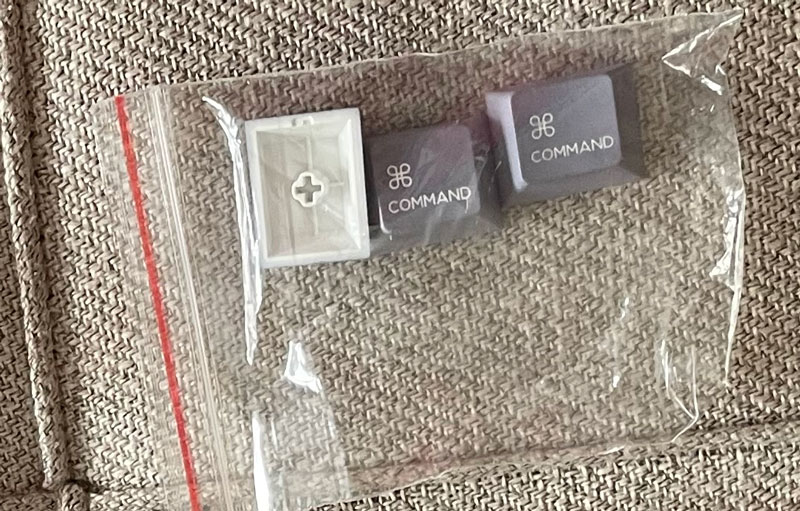
Since EPOMAKER Galaxy100 Lite is compatible with Macs, it also comes with Mac keycaps:-
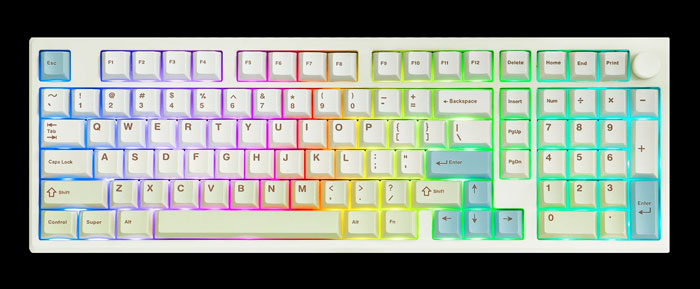
EPOMAKER Galaxy100 Lite comes in two colors: creamy white or black. I have the black one, but here’s how the white one looks like:-
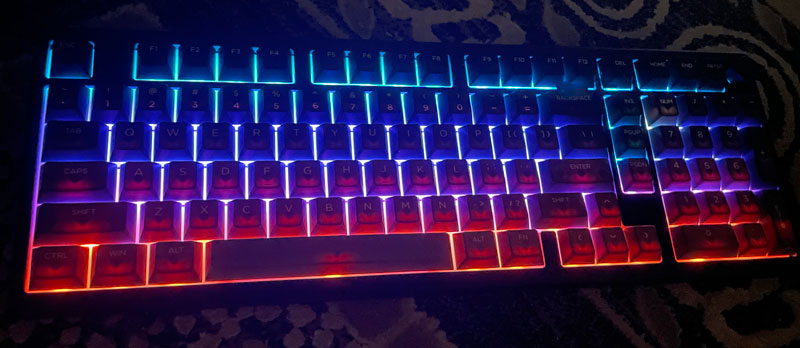
Just like the case with many keyboards, EPOMAKER Galaxy100 Lite has some beautiful RGB lights; you toggle between them using the FN key (FN + Enter to change the pattern, FN + \| to subtly change the color, if applicable). The backlight can be switched off for those who don’t like it or simply want to preserve the battery life.
Typing On EPOMAKER Galaxy100 Lite
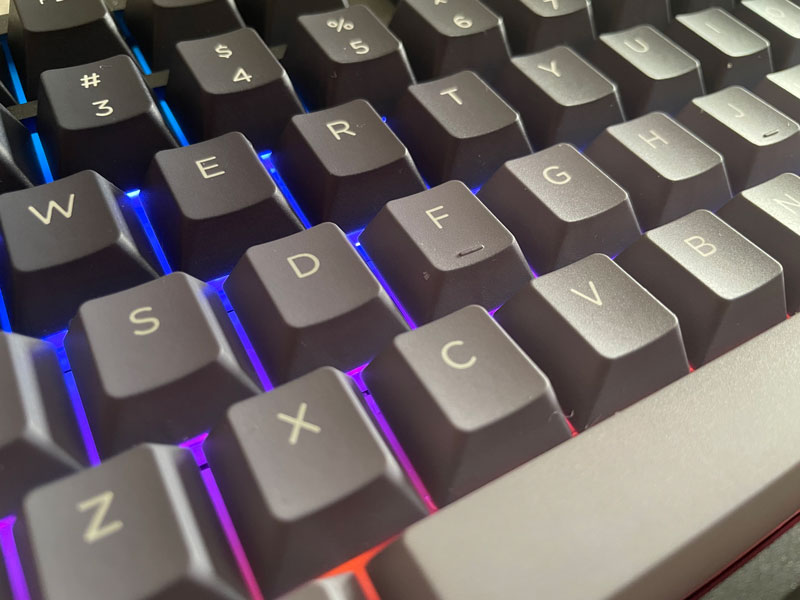
Let’s talk about the typing experience, which is the main thing I will judge EPOMAKER Galaxy100 Lite on. I used EPOMAKER Galaxy100 Lite as my main keyboard throughout this review, and I wrote this whole review with it. This will hopefully give me a really nice impression of how it feels.
To give you some background, I used more compact keyboards than this, some of which have totally no space between the arrow keys & the rest of the keyboard, so I had a much easier time getting used to EPOMAKER Galaxy100 Lite, thanks to the spacing around the arrow keys. If you came from a more traditional form factor, and particularly the 100% factor, you should be prepared to spend some time to get used to it. There are 3 notable key placements you may need to adjust to:-
-
- Finding the arrow keys by hand while typing. The empty space around the keys will make this much easier, but the proximity of the right shift key & the up key may throw you off a few times at the beginning.
- If you are used to the typical navigation keys’ placement, like the way the Insert, Delete, Page Up & Page Down keys are arranged. The Page Up & Page Down keys are located in a very convenient place, but the Delete key is quite up there.
- The Home & End buttons are another placement that may need to get used to, although I found them easy to locate.
The rest of the keyboard is like your typical keyboard, and I doubt anyone will have any issues typing with it. Remember that the keyboard allows you to remap any of these keys to your heart’s content.
EPOMAKER Galaxy100 Lite has a cherry profile, so the keys rows are arranged like a staircase, with the bottom rows closer to you are lower, forming a typing angle of 7°. This eliminates the need for legs to prop the keyboard up. These legs tend to break on many keyboards, so good riddance to them.
The keys make a really distinct thock sound while typing. Something you will appreciate if you are into that. I tried pressing hard on the key on purpose just to see if there was any flexing, and there was none. The keyboard is as sturdy as a rock. There was no ding sound no matter what I did. While you can always avoid these sounds by typing gently, sometimes I like to press on the keys slightly hard when I am in the mood. I do that especially while coding, so I appreciate keyboards that take whatever I throw at them.
One of the main tests I do is to test the sound of the bigger keys, such as Shift, Enter & the Backspace keys. Because I have encountered many cheaper mechanical keyboards that make a really awesome sound on the regular keys (F, A, I, R, Y, etc), but tend to have a hollow sound with the larger keys. I tend to prefer having a “Just OK” sound on these keys at the very least, and having an awesome sound counts as a big plus. I tested the two shift keys, enter, backspace & space key, and I found they sound awesome. The space key tends to have a slightly higher pitch when pressed, which annoyed me a little bit. I stopped noticing it for the most part after a while.
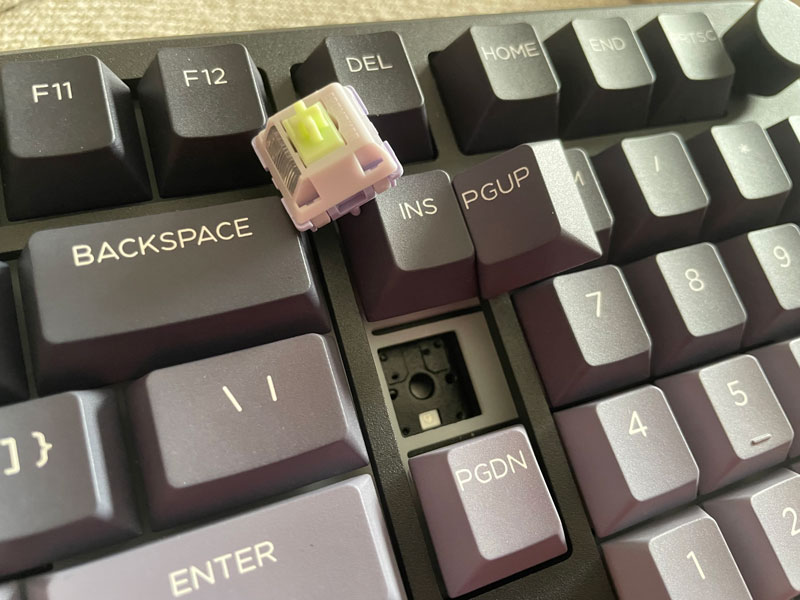
EPOMAKER Galaxy100 Lite has two switch options, Feker Marble White or Epomaker Wisteria Linear V2, I have the linear switches because it’s what I prefer. Every key has a slight amount of resistance when pushed down, which gives the keys a really nice feeling to type on. The switches on this keyboard are hot-swappable. So you can change the switches to any other switches if you want in the future. Generally speaking, I think hot-swap keyboards are worth the price, as they allow you to try out new switch types without having to buy a new keyboard. They make it easier to replace a broken switch easily without having to mess with soldering.
After being fully charged, I found the battery life lasts for 2 days of use. And that’s with the backlights turned on (you can check battery life by pressing the FN + Space keys, and the number keys below the F-keys will light up to indicate the approximate percentage).

3 Connectivity Modes
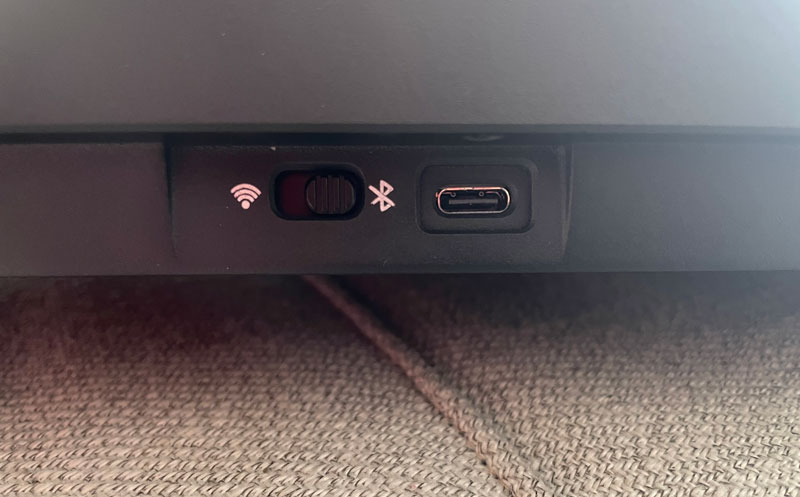
EPOMAKER Galaxy100 Lite supports 3 connectivity modes. It can be used wired, via Bluetooth, or via the USB receiver. Bluetooth mode supports connecting & switching between up to 3 devices. This means you can use up to 4 devices wirelessly with it (1 with the USB receiver + 3 Bluetooth devices). There’s a small toggle switch at the back to change the mode.
During most of this review period, I used the Galaxy 100 Lite in Bluetooth & wired modes. One thing I noticed about Bluetooth mode is how quickly it reconnects after I leave my computer for a while. It was very close to how USB receivers work.
Pairing EPOMAKER Galaxy100 Lite to Bluetooth was easy; just hold down FN + Q, FN + W or FN + E, depending on which of the 3 Bluetooth devices you want to pair. The key in question will start blinking fast, indicating it is ready for pairing. While the blinking is easy to see, you can turn off the backlight by pressing FN + T to see it more easily. The keyboard appears in the Bluetooth devices list as “galaxy100 lite-X,” where “X” is the Bluetooth device number (1, 2, or 3).
I Tried EPOMAKER Galaxy100 Lite On My Mobile Devices.
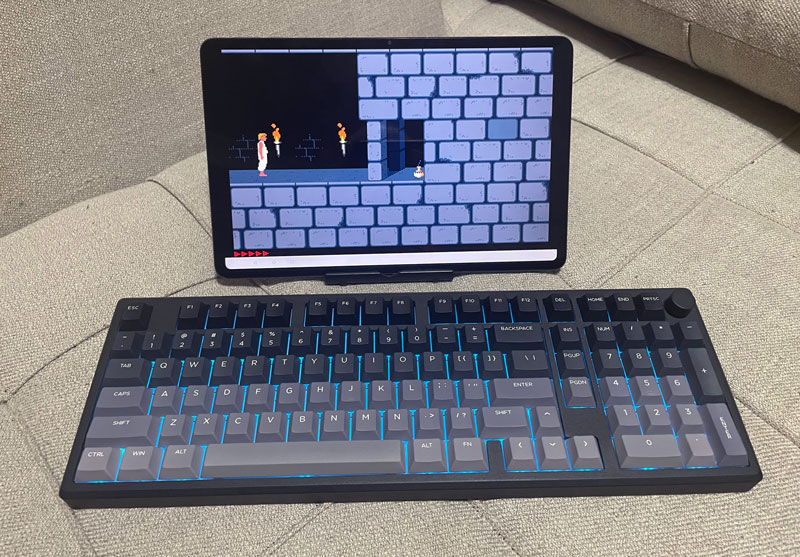
Aside from typing & coding, I also used EPOMAKER Galaxy100 Lite with my mobile devices. I connected it via Bluetooth to my Android tablet. I used it mainly to enjoy some DOS gaming, something I do almost exclusively with mechanical keyboards.
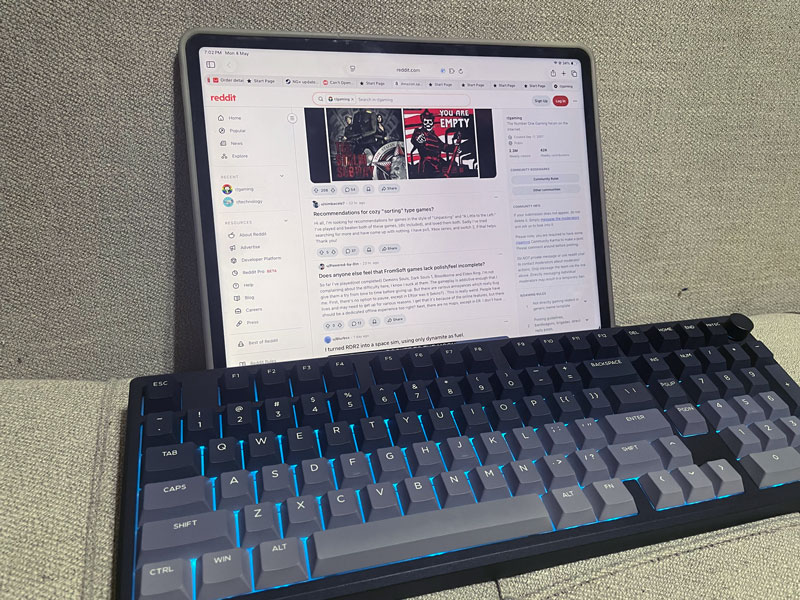
The Galaxy 100 Lite product page lists it as compatible with Windows, Mac & Android. It doesn’t list iOS at all, but I was able to use it with my iPad Pro without any issues. Even the volume knob worked. Technically speaking, there was no reason for it not to work, as keyboards are standardized these days.
VIA & QMK Support
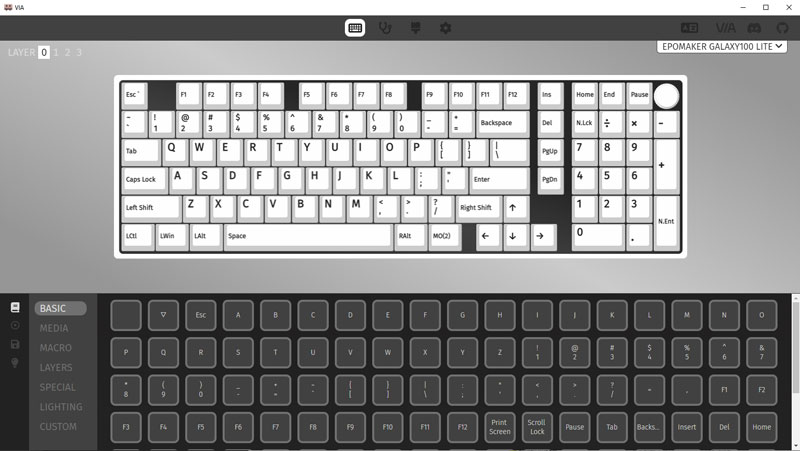
EPOMAKER Galaxy100 Lite supports customization via VIA & QMK. To start with VIA, it is software that makes it so easy to remap & customize the keys of the keyboards that support it. Just bear in mind that VIA won’t recognize the keyboard right away, and so you will have to load a JSON file from this link, and apply it manually in VIA. Once that’s done, you can start customizing the keyboard.
I used VIA to remap some of the keys the way I want to. I needed the Pause key, since I use it to activate the browser, so I remapped the PrintScreen key to it. I also swapped the Insert & Delete keys, since that makes them closer to how I prefer to work. VIA allows you to do more than just remapping keys. You can assign a macro or control the mouse with the key if you want to.
VIA is considered the simple way for customizing your keyboard, and it provides what most people would need, but you can go down the rabbit hole & program it with QMK, as it allows you to customize the keyboard in nitty-gritty details. Many keyboard users find VIA to be a bit limited. So QMK can unleash the demon of your keyboard if you ever feel the need to.
One Thing I Didn’t Like About EPOMAKER Galaxy100 Lite
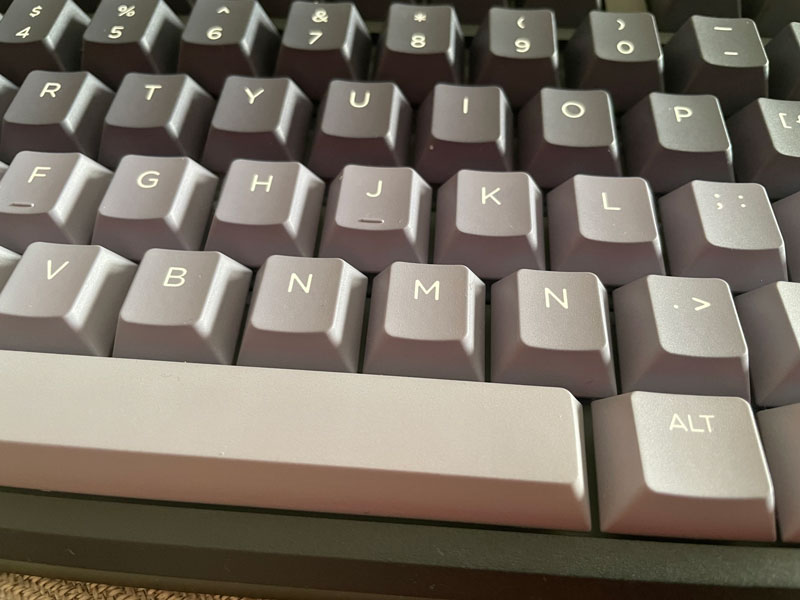
So far, many of the aspects about EPOMAKER Galaxy100 Lite mentioned above are subjective. I tried to showcase them to you the best way I could, while leaving the final decision to you. But there is one about EPOMAKER Galaxy100 Lite I think anyone would find negative, so I will talk about them here.
You probably have noticed it in the pictures, but there are two N keys on the keyboard I received. Because I touch-type all the time, it took me a whole day to notice it. This doesn’t affect the functionality of the keyboard. It could simply be that I was unlucky and that only my unit got the wrong key out of the many keyboards they make, but I think I should point that out.
And Finally
Overall, I think EPOMAKER Galaxy100 Lite is a very decent keyboard. It provides all the key features one would look for in a mechanical keyboard and for a very good price.
I hope you liked my EPOMAKER Galaxy100 Lite review, and I will see you in another Tech Fairy article. Check out the mobile apps I developed, which I hope you find useful & interesting.
Buy EPOMAKER Galaxy100 Lite from AliExpress
#CommissionsEarned
If you just contact EPOMAKER customer support they will send you the key cap you are missing. 🤷 I actually emailed them to see if I could get a second CTRL keycap (I used VIA to swap FN & Right Alt, and then I made Right Alt, Right Ctrl instead), because I NEED right CTRL, and ideally wanted my keycaps to match the actually layout.
… To be honest, I COMPLETELY expected them to say no… or say that I would have to pay for it… but NOPE!!! They just shipped me another CTRL keycap directly from the EPOMAKER warehouse in China, no questions asked! 😳🤯