


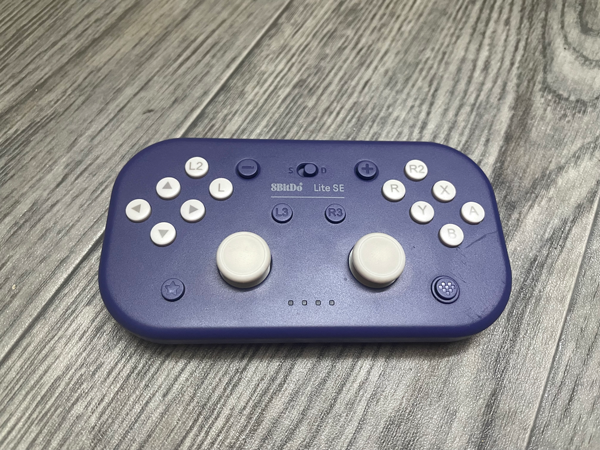
8Bitdo Lite Se Is A Interesting Controller, Here’s My Experience With It
There are two things I like when it comes to controllers:- I like to see the gaming experience with them, and I also like to use controllers as shortcuts remote (specially the ones with a unique design like 8Bitdo Lite Se, which makes it easy to hold it in one hand, with all the buttons within reach). It’s a very nice controller for those who can’t hold a controller due to disability. After trying it for some time, I would rather use a regular controller for most modern games. However, it’s the only controller I know that allows you to play games easily while laying the controller on your desk. It can be considered as an alternative for the 8Bitdo Lite 2 when it comes to playing most retro games.
I tried 8Bitdo Lite Se on many operating systems & devices. You can jump to the part of review you’re interested in if you like, or read the whole thing to get the full idea about the controller.
#CommissionsEarned

Quickly go to:-
- Pros Of 8Bitdo Lite Se
- Cons Of 8Bitdo Lite Se
- 8Bitdo Lite Se:- An Overview
- Two Modes To Choose From
- Turbo Mode
- Testing 8Bitdo Lite Se On PC:- Playing Games
- Testing 8Bitdo Lite Se On PC:- As A Shortcuts Remote
- Playing Games On Android
- Playing Games On The Nintendo Switch 1
- Sadly, It Doesn’t Work With The Nintendo Switch 2
- Testing 8Bitdo Lite Se On Retropie (On Raspberry Pi 4)
- And Finally
Pros Of 8Bitdo Lite Se
- Soft buttons easy to press.
- Allows you to play games while laying it on a table.
- Great to be used as a shortcut remote.
Cons Of 8Bitdo Lite Se
- Takes some time to get used to it.
- Has no X mode. It is likely designed for the Switch mainly.
- Doesn’t work with the Switch 2.
8Bitdo Lite Se:- An Overview
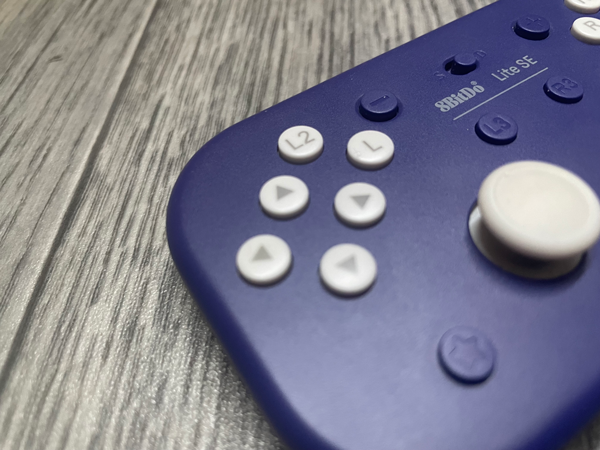
Let’s take a look at 8Bitdo Lite Se. It has the same buttons layout as any controller, except that the shoulder & trigger buttons are on the face of the controller, along with the arrow keys & the A, B, X, Y buttons. It even has dedicated R3 & L3 buttons (you can still push the two sticks down if you like to). Since it follows the design of the 8bitdo Lite, it lacks grips.
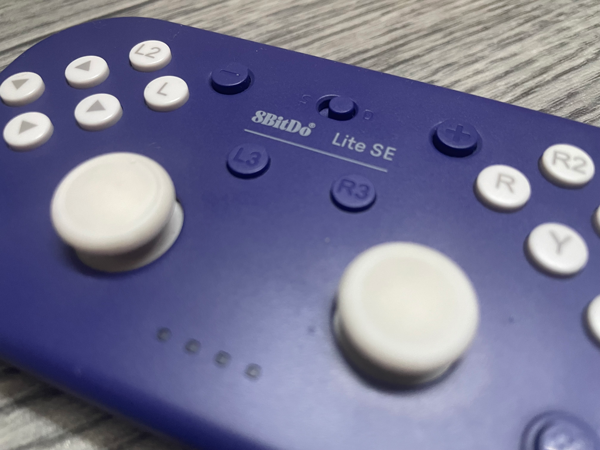
You may ask, what’s the point to have the buttons that way? Well, it’s because it was designed for people with limited mobility. It’s made so that you could place it on your desk, and play with it that way, it even has rubber mat at the bottom to keep it in place. While I am not the target audience for the controller, I found it useful in two cases. The first is dealing with RSI, as I could play games without using my index fingers at all, which is very comfortable. The second is using it as a shortcut remote, as all the buttons are within reach when I hold it in one hand.
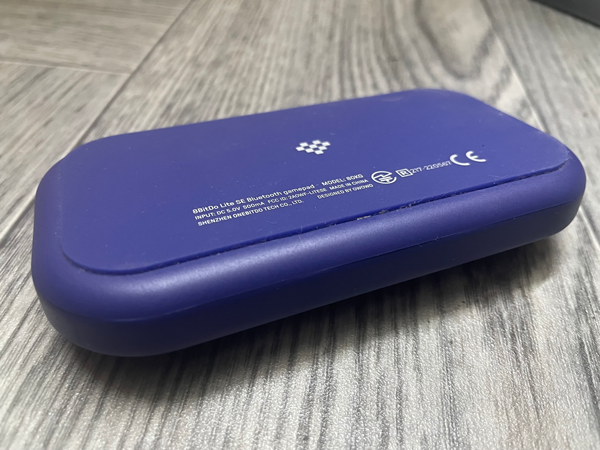
I found that it takes some time to get used to it for actual gaming. That makes me unwilling to recommend this controller to people without any issue.
The buttons themselves are soft & very easy to use. They are not clicky at all, but they aren’t mushy either. That goes for the analog sticks too. Overall, the controller feels premium. Despite that it wasn’t that much more expensive than the 8Bitdo Lite 1 or Lite 2.
Even the pairing button is so easy to press. This controller was made with comfort in mind, first & foremost.
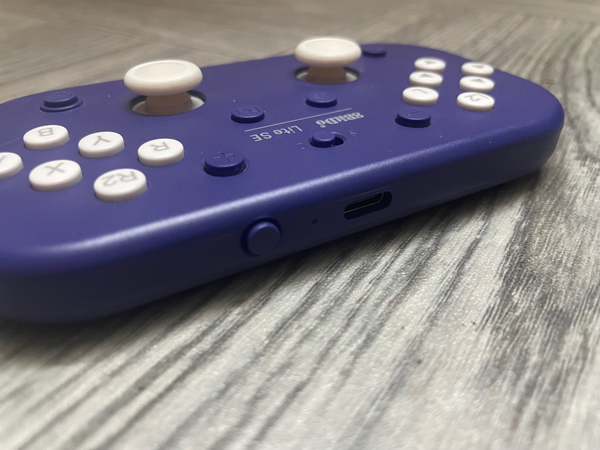
The controller only comes in one color, which is purple, so there’s no choice of colors to choose from here.
Two Modes To Choose From
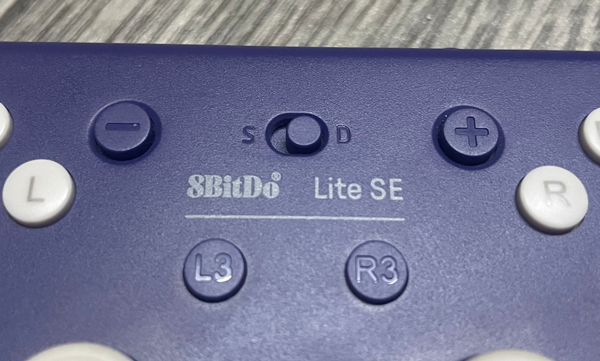
8Bitdo Lite Se has two input modes to choose from. You can switch between the two with the toggle switch at the middle of the controller:-
-
- S mode:- For the Nintendo Switch. The controller is recognized as Pro Controller on the other devices.
- D mode:- The D-Input mode. To be used with Android devices.
Switching from one mode to another when things don’t quite work is one way to get things working on the various devices I tested the controller on. I find it bumming there’s no X mode. I know it’s likely designed with the Switch & Android in mind, but would rather to be able to use it to play PC games without having to fiddle with remapping buttons. I will still tested on it to see how it goes.
Turbo Mode
8Bitdo Lite Se has a turbo function, which allows you to repeat any button on the controller by simply holding it down. It is useful in many cases, like skipping dialog in some games, or the games that requires you to mash a certain button as fast as possible (Oh, I hate it when games do that). Test your might on Mortal Kombat 1 is a prime example of that:-
To activate the turbo function, simply hold the button you can to activate as turbo, then press the star button once, and voilà, that button will be repeated as long as you’re holding it down. To deactivate the turbo button, repeat the same steps as you did with activation.
Testing 8Bitdo Lite Se On PC:- Playing Games
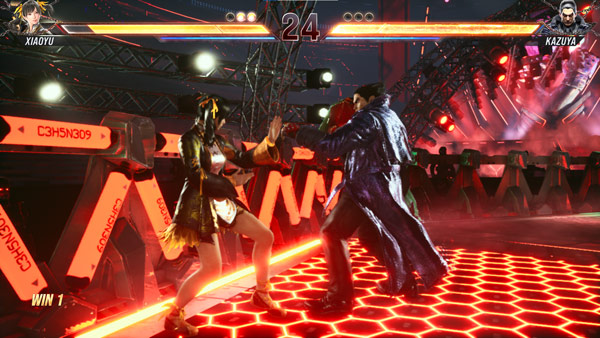
As previously mentioned, the controller has no XInput mode, so I had to try the S or D mode instead. Using the S mode makes the game appears as a Pro Controller, and in some games, like Genshin impact, the right analog stick is not recognized. That’s not an issue with the D mode, which is the mode I settled on PC. I also played few matches in Tekken 8. It all worked well, but the controller layout was quite different from my Xbox controllers. So it wasn’t comfortable. It’s totally possible to play many games with this controller after some time of practice. A platformer can be played quite easily here, but I am not sure how well fast-paced games can be played on this controller. Again, I think it can be done with enough practice. The softness of the buttons helped a great deal, so I appreciate that again.
It’s worth noting there’s a similar controller from 8Bitdo designed with XInput in mind.
Testing 8Bitdo Lite Se On PC:- As A Shortcuts Remote
Using 8Bitdo Lite Se as a shortcuts remote is one of the reasons I was interested in 8Bitdo Lite Se. The layout made it pretty great to be held in one hand. I can access any button with my thumb, as well as the analog sticks. When using it for shortcuts, I held the controller vertically, with the analog sticks being on the far side from my thumb, since they get in the way if I held it the other way.
The main test is on Photoshop, since I use a lot of shortcuts on. With a software like Joy2Key, you can customize 18 shortcuts, one for each buttons. That’s without counting the analog sticks. In my case, I wanted more, which is why I have my own software, which allows me to assign shortcuts to each button, or to a combination of buttons. For example, I can program a shortcut for button A, another shortcut for button B, and yet a 3rd shortcut for when I press A + B. That way, I can have tens if not hundreds of shortcuts. It’s all about customizing the buttons the best way. The fact that the buttons are close to each other means I can press the different combinations more easily (some combinations are easier than other). It’s even relatively easy to push and of the 6 buttons group with my thumb. That’s awesome by my standards.
I used an identical setup to the one I did with the 8Bitdo Micro. With the more accessible “shoulder” buttons, it’s actually easier to use. I assigned a buttons combination for the stuff I don’t use that often (like the Levels dialog). To give you an idea about the setup, here are some of the buttons assignments I made:-
-
- Hold/release R button:- Hand tool
- Y:- Toggle between Mouse/Eraser.
- R + Y:- Zoom tool (Identical to CTRL + Space).
- X:- Toggle between Move/Wand tools.
And so on, I added way much more shortcuts than that, and with 4 buttons, I can do quite a lot. Although I tend to pick the button combinations that are easier to press one hand.
Playing Games On Android
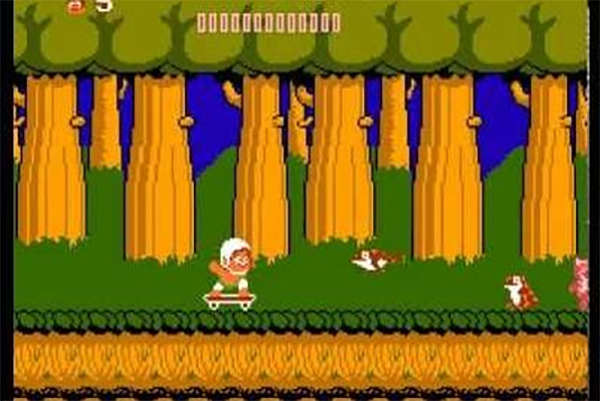
I paired 8Bitdo Lite Se on D mode with my Android phone, and tested it. I mostly play with emulators, since that’s what I actually play on my phone. I played Adventure Island on NES emulator, since platformers seems to be one good genre to play with this controller. I used the joystick to move the character with one finger, and another finger to run & jump.
8Bitdo Lite Se can work quite good for a shortcuts remote on my Android devices, but I honestly won’t use it for that much, as I prefer the smaller controllers for that, like:-
Playing Games On The Nintendo Switch 1
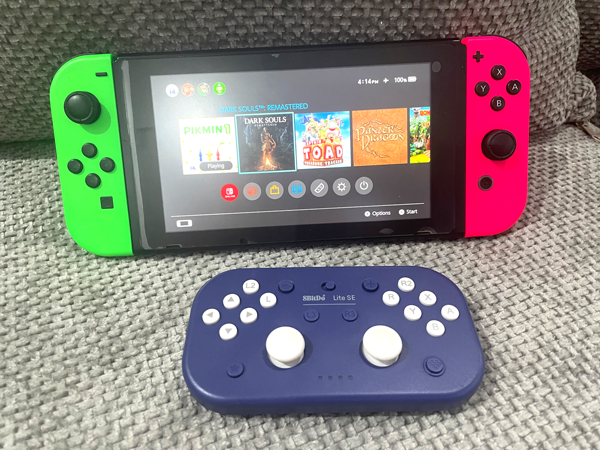
Since the controller was obviously was designed for the Switch in mind. I had to try the Nintendo Switch. The controller was recognized right away. I tried Super Mario Bros Wonder. The game was easy to play with the controller. Another game I tried & found playable was Captain Toad: Treasure Tracker. Even the gyro worked well in the stages that required it.
I finished my test with Dark souls Remastered. I actually managed to do a number of parries in Anor Londo. You may have to play slowly with this controller, but playing was totally doable.
Sadly, It Doesn’t Work With The Nintendo Switch 2
I tried really hard to pair 8Bitdo Lite Se with my Switch 2. On both the S & D modes. Despite my many attempts, my Switch 2 persistently failed to recognize the controller. This is my first time seeing this happen. I thought all the controllers that are compatible with Switch 1 works on 2.
Testing 8Bitdo Lite Se On Retropie (On Raspberry Pi 4)
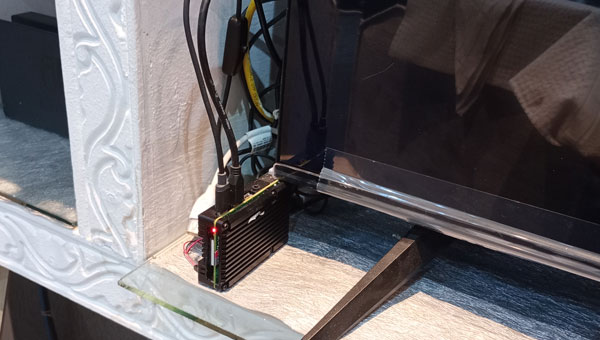
Just like any controller, I paired 8Bitdo Lite Se from the Bluetooth menu in Retropie in D-Mode. It worked right away. From the games I tried, I played Machine Hunter, a fun top-down shooter game on PSX. I used the left analog for movement, but it can be played with the D-Pad just fine. Since I last tested the 8Bitdo Lite with Twisted Metal 2 on PSX, I thought I could do the same with this one. It was totally playable, but the shoulder buttons placement made it less ideal. Placing the controller on my lap helped, as I could use two fingers on each side to press more than a button at the same time. For the majority of older gaming systems, this controller passes my tests. Since any controller with 2 or more buttons can be used on NES, playing a NES game like Legacy of the Wizard went very well.
During gameplay, I experienced no lag whatsoever. This is nice, since I experience a temporary lag during my tests of the 8Bitdo Lite review.
And Finally
Like many of the 8Bitdo controllers with unique layouts, 8Bitdo Lite Se may not be for everyone, but it’s certainly good for what it was made for. It passes the mark for playing retro games for the most part. It’s great for shortcuts input, thanks to its unique buttons layout. I would only use it with modern games as a spare controller because of the same buttons layout. I gave it a lot of slack though, since I kinda used it in a way it wasn’t designed for it. If you know someone who can’t hold a controller, you can recommend this one to them any time.
Thank you for reading my 8Bitdo Lite Se review, and see you again in another Tech Fairy Article. Check out the mobile apps I developed, which I hope you find useful & interesting.
#CommissionsEarned