


Machenike G5Pro Max SE Review Summary
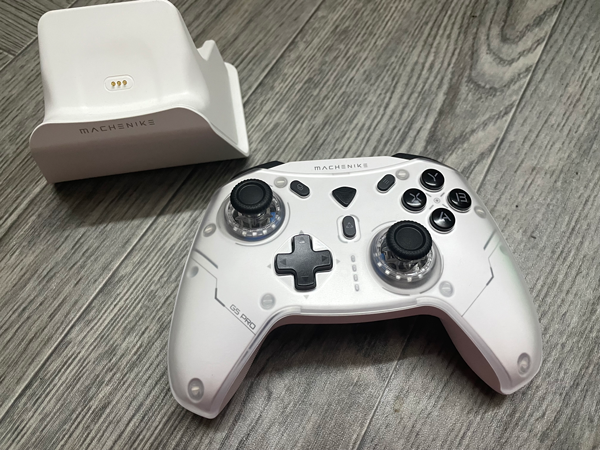
Machenike G5Pro Max SE is a controller that kept popping up in search results many times over the months. Back when I was shopping for a controller to replace my Xbox 360 controller. I stumbled about it. It looked quite interesting & promising, but I wasn’t in the mood to risk trying out something new, so I opted to get the 8bitdo Ultimate 3-mode controller instead, which I reviewed here. What happened next is that I was able to get Machenike G5Pro Max SE at a very good discount, including the dock, which is why I bought it in addition to the 8bitdo. If you remember some of my complaints about the 8bitdo controller, like the lack of customization when using it on PC & the lack of turbo buttons. This controller solves all these problems. It should have been the one I got instead. Specially since it is a top brand that people don’t return that often, according to AliExpress.
It has 4 connectivity modes that are quite flexible. A lot of customizations in the app, some of which can be made from the controller itself. I quite appreciate having two back buttons, as they make gaming more convenient. These buttons can be programmed to replace other buttons, or to do macros instead of a single button press.
All in all, Machenike G5Pro Max SE has all the advantages that attract me to 3rd-party controllers, like the good price, as well as the extra features like turbo buttons, customization software, multiple connectivity modes & charging dock.
Buy Machenike G5Pro Max SE From AliExpress
Quickly go to:-
Pros Of Machenike G5Pro Max SE
- Hall-effect sticks.
- Multiple connectivity modes that are flexible.
- Buttons feel nice to press.
- Low price.
Cons Of Machenike G5Pro Max SE
- Relatively hard to turn off after using it.
- May take you some time to get used to the analog sticks.
- In Switch mode, the buttons need to be remapped in the app for the buttons to match a pro controller.
Overview & Quick Look

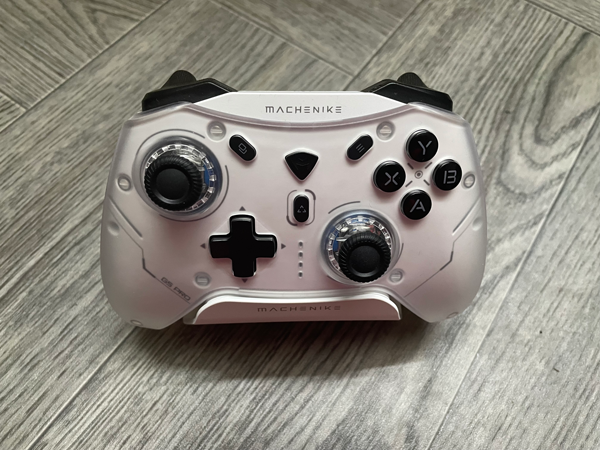
At first glance, Machenike G5Pro Max SE is a really good-looking controller, although I prefer simple elegant look. At the front, there is a battery indicator between the d-pad & the right stick, the number of lights turned on indicates how much of the battery is left.

The buttons are nice to press. The triggers & shoulder buttons are not clicky, which can be good based on your taste. The sticks themselves are Hall-effect sticks, which are expected to last longer than regular sticks. But they may take you some time to get used to. I initially found the sticks to be too sensitive to my liking. However, the sensitivity can be adjusted from the Key Linker app. It can also be adjusted on the fly by pressing down the two joysticks together and holding them for 5 seconds. That made them much less sensitive. Some games offers the option to adjust the sensitivity too, but I prefer not to depend on that, as quite many games don’t provide that option at all.
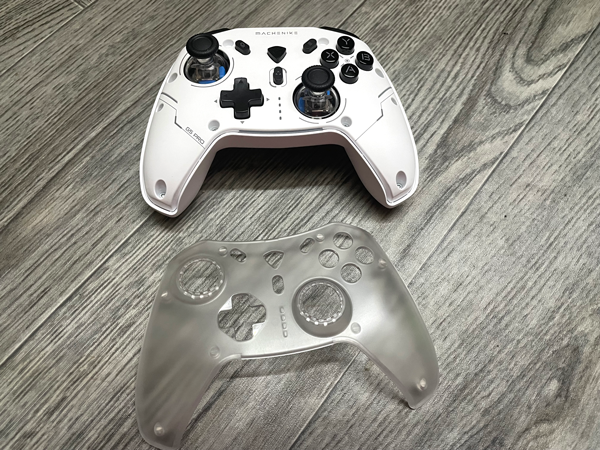
The translucent face plate on the top can be removed & replaced, although I couldn’t find any replacement plates on AliExpress.
4 Modes Of Connectivity

Machenike G5Pro Max SE supports 4 connectivity modes, which I talk about in details below. Having multiple connectivity modes not only makes it to connect & use the controller with probably any device you have, but it also makes it easy to use it with multiple devices without having to pair it again & again every time you get to change device, which is one of the things I dislike about one-mode controllers.
While I appreciate having all these connectivity mode, and all the flexibility they provide, I found them a bit confusing at times. Some of their uses were obvious, like, you use the Switch mode with the Nintendo switch, mobile with a Smartphone, PC mode with PC, and so on. But I still had to do all sort of experimenting to know what you can do with each mode. Like, can I use the dongle with the Switch 2, for example?
2.4G Mode
This is the mode where you connect the controller to your computer via the USB dongle. It is convenient in that you can connect it to any computer without having to pair the controller again. It’s also nice in case you don’t have good Bluetooth in your device.
This way this mode works is flexible. It can be recognized as either Xinput (like an Xbox controller), DInput or Switch controller. Depending on the configuration. To change the configuration, just press & hold Select + Start for 3 seconds, and the controller switch to the next configuration, and the configuration will cycle between the 3 every time you do that. It is worth noting that this also works with the wired mode.
This mode didn’t work with my Switch 2. I connected the USB dongle to the dock & tried to use the controller many times. It connects to the dongle, but the Switch 2 completely ignores it. Switching the mode didn’t help here at all.
PC Mode
In this mode, Machenike G5Pro Max SE is recognized as Xbox controller. Unlike the 2.4Ghz mode, which requires the dongle, this mode allows you to connect the controller to PC via Bluetooth.
Nintendo Switch Mode (NS Mode)
This is the mode where Machenike G5Pro Max SE acts as a Pro Controller. I used that mode to test it out on my Switch 2. It worked very well. However, as far as I know, you cannot wake up the Switch 2 using the controller using this mode. I tried all the tricks I know, including disconnecting & reconnecting the joycons after pairing, and nothing worked. Other than that, everything else worked very well here.
One thing I noticed on my Switch 2 is that the control follows the Xbox controller scheme, where A & B buttons are swapped compared to Nintendo controller. That threw me off at first. I managed to remap the buttons to how they should be via the app, and it all worked, but it was such a pain.
Mobile Mode
Given the name, the first thing that came to mind to try with this mode is to try it out with a phone. I tried it on my Android phone, and it worked without any issue. The manual states the mode is recognized as Xbox controller, and that’s what appeared in the devices list on my phone. I tried this mode on my PC. And it was recognized as such. I guess it’s another mode you could use on PC. Making Machenike G5Pro Max SE is a very good controller option if you have multiple PCs you want to play games on.
I tried connecting the controller to my Switch 2 in this mode, and it didn’t work.

Turbo Function
Machenike G5Pro Max SE supports Turbo function on one or more of the following buttons: A, B, X, Y, LB, LT, RB & RT. Turbo is one of the main reasons I go for 3rd-party controllers, as they are convenient in many games. I used it to automatically launch Mario Kart World & enter the online queue while I am doing something else. It is also useful for skipping dialog in many games, like in Genshin Impact, or the intro in Splatoon that Nintendo likes to forces upon us.
You can do two kinds of turbo with this controller, the one where you hold the button down for the continuous firing of a button, and the hand-free approach, where you press the button once, and the button will keep firing until you press it again. You toggle between the normal mode (no turbo), hold mode & hand-free modes by pressing middle button(the one that looks like the triforce in Zelda) along with the button you want to activate turbo on. Turbo can be activated on more than one button.
Buy Machenike G5Pro Max SE From AliExpress
Back Buttons
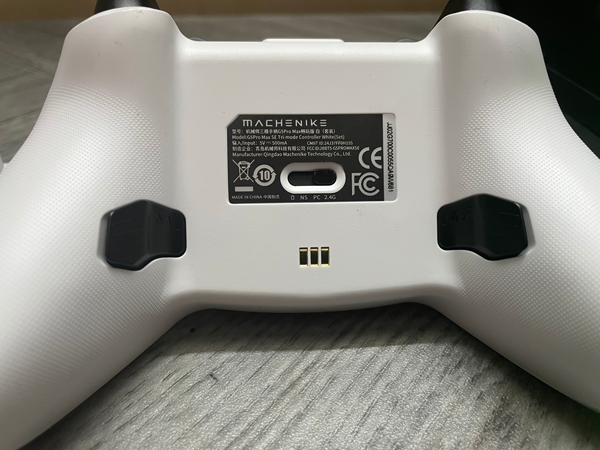
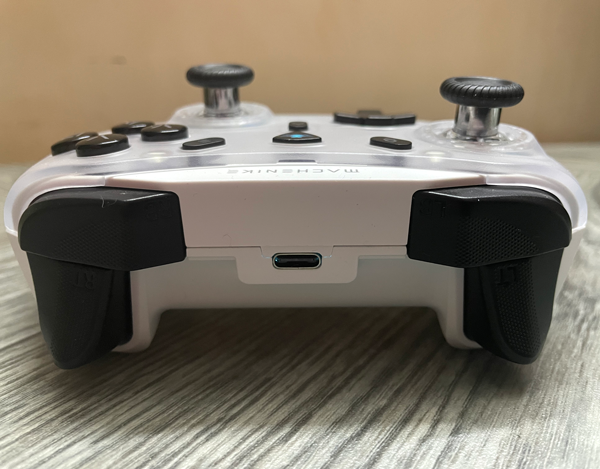
There are two programmable buttons at the back of Machenike G5Pro Max SE. They can be customized using the key linker app to replicate any button. I tend to customize them replace LS & RS, since I don’t like games that uses LS for running, for example. These button can be programmed to be a series of button presses (Macros) using the key linker app (more on that later), but you can program them to do one button press, if you like.
Charging Dock
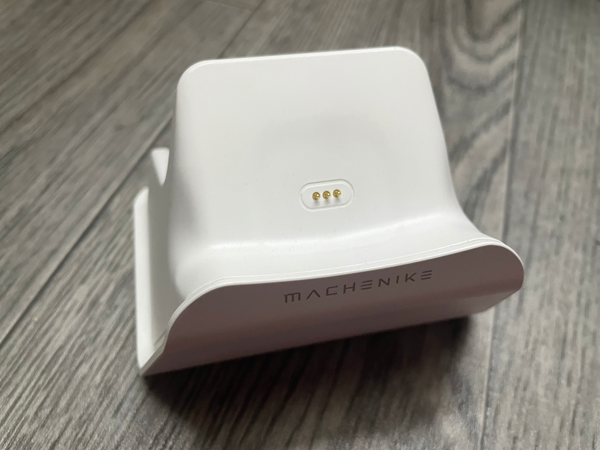
Machenike G5Pro Max SE comes with an optional charging dock, where you plop the controller onto it, and it starts charging it immediately, and without the need to fiddle with the controller placement. It’s the convenient way to charging the controller, and it doesn’t prevent you from charging the controller directly via USB cable.
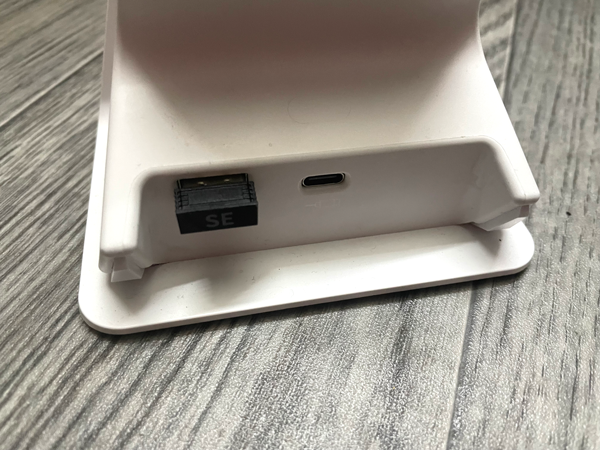
The hub has a USB-A port at the back, which can be used just like any USB port. That means you don’t lose the USB-Port on your PC or Switch when you connect the controller for charging the controller.
If you don’t care about the charging dock, you can get Machenike G5Pro Max SE without the charging dock for cheaper.
The Key Linker App
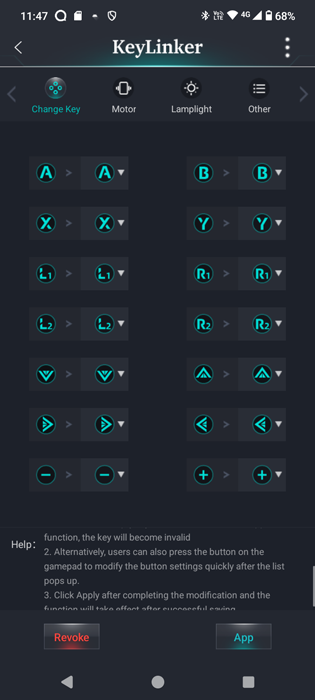
Besides the many customizations you could do on Machenike G5Pro Max SE itself, there are more you could do with the Key Linker app. It’s the same app I used with LinYuvo KS54. So I didn’t have to install it again for this review. It gives you many options to customize Machenike G5Pro Max SE to your heart content. Some of the available customizations are:-
-
- Remap any key to another.
- Record macro to any of the two back buttons, or manually specify what button to press at different time intervals, or both.
- Enable/Disable turbo for each button (you can do that without the app).
- Adjust vibration/rumble.
- Adjust triggers sensitivity.
- Adjust joysticks sensitivity & deadzone.
The app provides a screen to customize the backlighting color & pattern, but it was completely useless with this controller.
And Finally
This is my first time trying a Machenike controller, and I am happy with it. Chinese controllers came along way, specially if we took into account EasySMX S10, which is another Chinese controller I reviewed lately.
I hope you liked my Machenike G5Pro Max SE review, and see you again with another Tech-Fairy article. Check out the mobile apps I developed, which I hope you find useful & interesting.