


Safari Allows You To Block Annoying Elements Now, But Adblockers Are Still Better
A while ago, I covered Safari’s “Hide Distracting Elements” feature, which can be helpful for removing ads & annoying stuff from web pages. In this tutorial, I will present you with a better solution, which is using 3rd party Adblocker. This has many advantages over Apple’s solution, and can be quite more convenient. We will be focusing on using the Adguard adblocker, but there’s other very useful adblockers, like uBlock Origin.
I am not affiliated with Adguard or any adblocker company. I simply like the apps, which is why I am covering them on my own.
Quickly go to:-
Advantages Of Using 3rd-party Adblockers Over Safari’s Hide Distracting Items Feature
- Adblockers come with lists of premade filters of ads & annoying elements, which can be updated with a push of a button. These lists include annoying items & privacy filters. The filters also cover many languages. You can activate any of these filters lists with a single tap.
- More security:- Many ads contain malware, so it’s better to hide them altogether.
- Adblockers hide many of the stuff Safari’s Hide Distracting Items can’t. They also give you more options when you hide elements.
- The filters you created can be exported to your PC or Mac, or even other browsers on the same device. That way, you get the same experience on all your devices (Unfortunately, this has to be done manually, but it’s still an advantage).
Installing Adguard & Enabling The Filters
Download & install Adguard from the app store. Then open the app:-

Accept the terms and conditions. You are welcome to read it before that:-

You are the greeted with a tutorial explaining the various features of Adguard. That can be useful if it is your first time using it:-

You may also be presented with an offer to subscribe to the Adguard premium, press X to dismiss that. You can subscribe at a later time if you like:-

Then you get to the main screen, which shows you that protection is on.

We want to make sure that Safari protection is on, so let’s switch to the protection tab:-

Make sure that Safari protection is on:-

The basic setup is done. However, there are more options we can play with, which will make Adguard even more useful.
Tap on the Safari protection part (not the toggle button):-
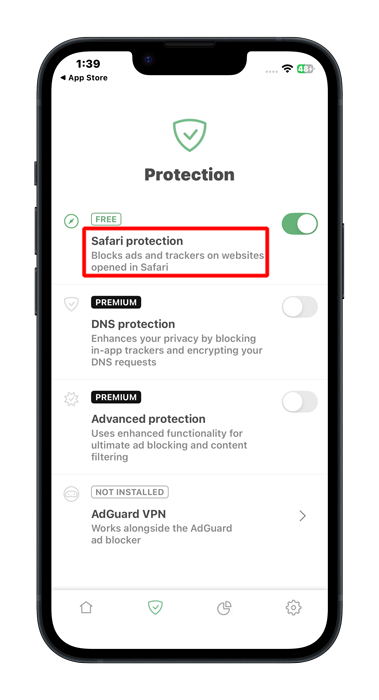
This leads us to a screen where we can adjust more settings:-

Let’s start with the Filters part:-

Here, we can enable even more filters, like blocking annoying social widgets or enabling privacy filters:-

There’s also the language specific filters, where you can enable premade list of filters made for all sort of languages:-


Now, back to the Safari Protection screen. Tap on user rules:-

From here, we can see all the blocking rules we added on our own. Since we just installed Adguard, the list is empty. We will get to add our own filters later in this tutorial. This is where we can copy & paste the rules to export them from or to PC or Mac (Tap Menu => Open editor to see the rules in text form):-


How To Blocking Annoying Elements On Websites Using Adguard
Just like we blocked an annoying banner using Safari’s built-in Hide Distracting Items features, we can do the same using Adguard instead. Adguard has the advantage of giving us more options for blocking elements, and let’s not forget the ability to export the filters or backing them up.
Let’s go to a site with an annoying element. I will use the same silly GDPR floating element on Tech Fairy we used in the last tutorial:-

Tap on the reader icon on the address bar. If the address bar is hidden, scroll up a bit to make it show itself:-

Tap on Adguard from the menu:-

You get a small window that allows you to disable Adguard on this particular site. This can be useful if the site isn’t working properly because of Adguard. What we want here is the Block elements on this page option, which allows us to pick elements on the page to block them. Let’s tap on it:-

We get a message telling us that we can choose elements to block, and to refresh the page in case we want to get out of that mode. Tap on Start:-

Now we are in elements selection mode, tap on the element you want to hide. A green rectangle will surround it:-

We can simply tap the checkmark button and be done with it, but there are few more things we can do here. For one, tap on the eye to see a preview of what the page would look like if we proceeded with our selection:-

We can also tap the narrow/broaden buttons. This will shift the selection to the parent element, or narrow it down. We would rather take the broader filter, as it is more likely to work for a long time to come (it blocks a group of banners as a whole instead of a specific picture). Make sure you press the preview eye button every time to broaden/narrow the selection to see if you’re on the right track:-
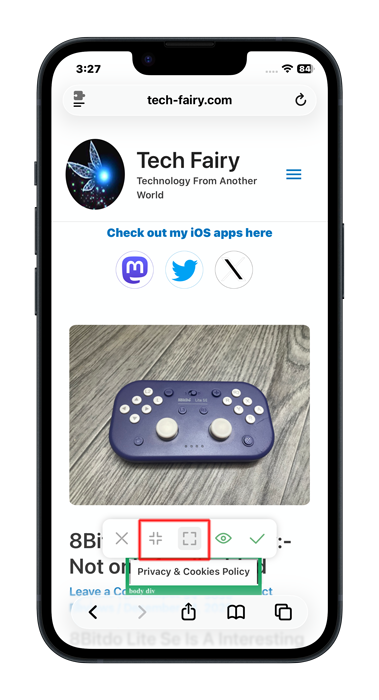
Once you are satisfied with the selection, tap the checkmark button, and we are done:-

The annoying element is now gone. Horraaaay!!!

And Finally
There are multiple ways to block annoying stuff on annoying websites. Adblockers are still essential for that even with the build-in feature in Safari. This is why I made this tutorial, which I totally hope it made it easier to block ads & annoying elements on any website. Happy browsing, and see you in another Tech Fairy article. Check out the mobile apps I developed, which I hope you find useful & interesting.