


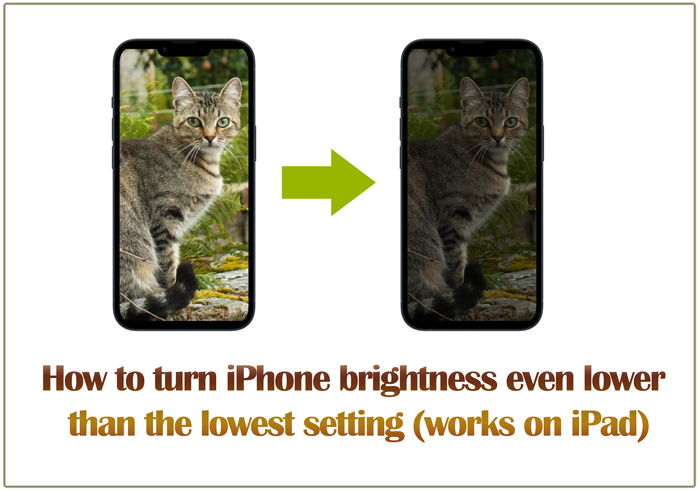
You Can Turn Down Brightness Lower Than What iOS Allows You To Do
While the lowest brightness setting in the iPhone can be quite low & enough for many people, some people need to have it even lower than what Control Center allows us to have. In this tutorial, I am going to share two little tricks that can help you with that. These methods have been tested on iOS 26, but they are expected to work on many iOS or iPad versions before & after that. While this tutorial focuses on the iPhone, the steps can be applied to the iPad too.
Quickly go to:-
Method 1:- Lowering Screen Brightness Using The Reduce White Point Feature
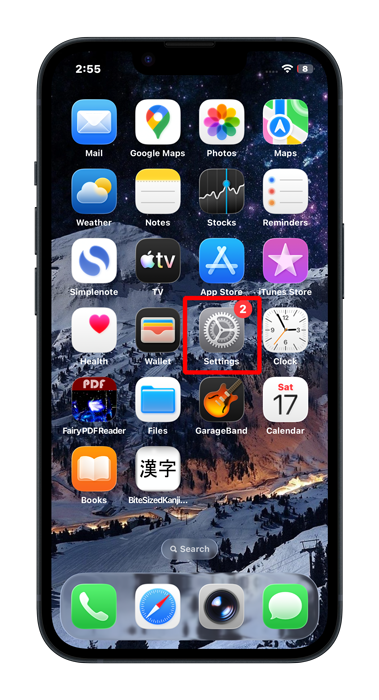
Open the settings app:-
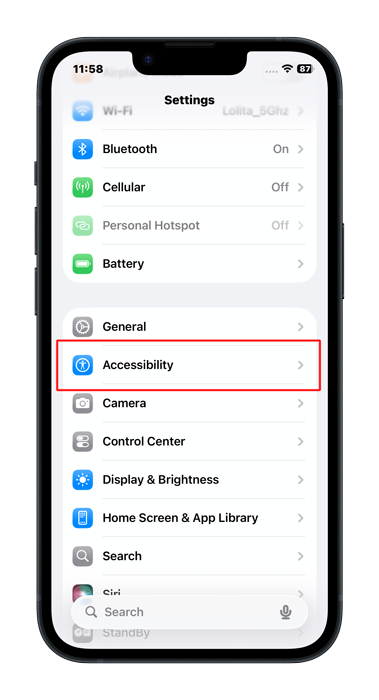
Scroll down to Accessibility, and tap on it:-
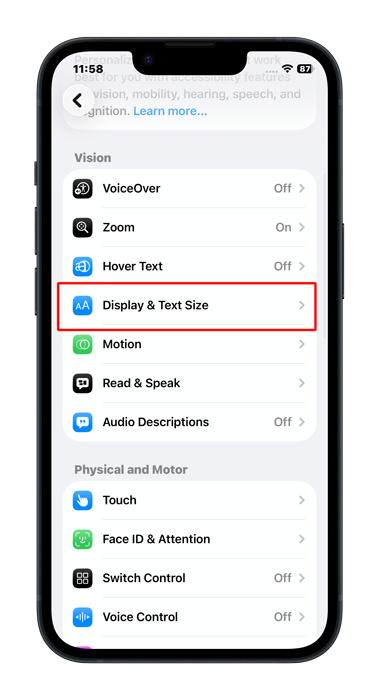
Scroll down & tap on Display & Text size:-
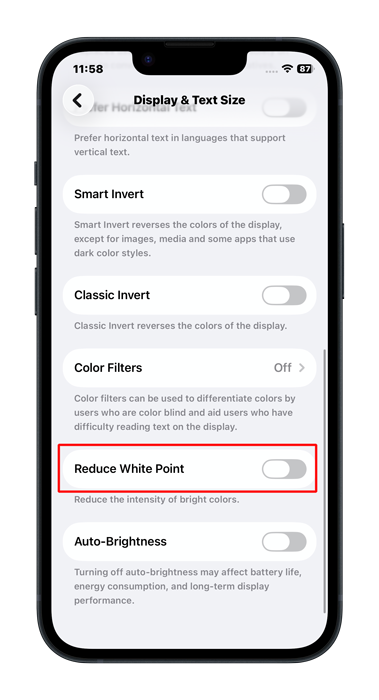
Find the Reduce White Point setting & turn it on. Now you have an even lower brightness on your iPhone:-
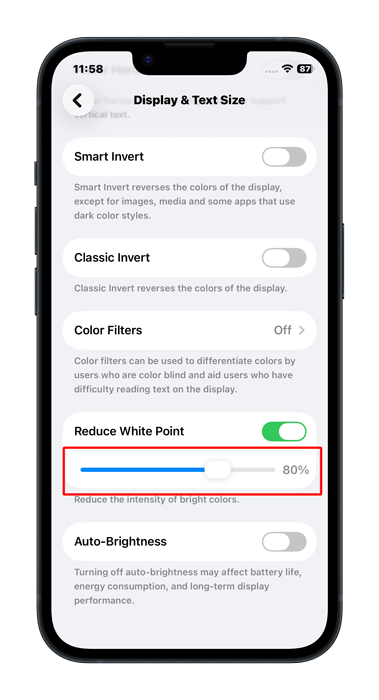
The Reduce White Point is 80% by default, but you can increase that to lower brightness even further:-
Happy reading or browsing while your beloved ones are asleep.

Method 2:- Lowering Screen Brightness Using The Accessibility Zoom Feature (Low Light Filter)
Open the settings app:-
Tap On Accessibility:-
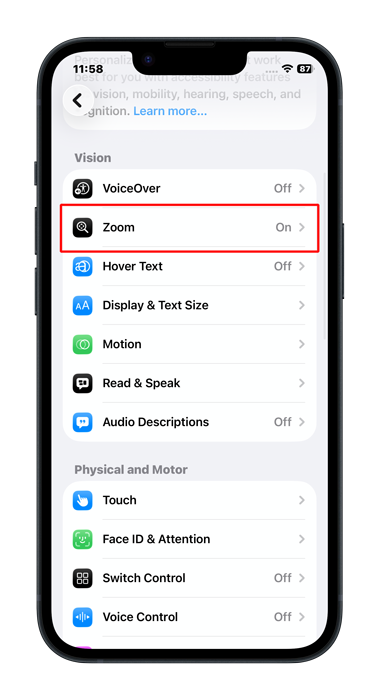
Tap on Zoom:-
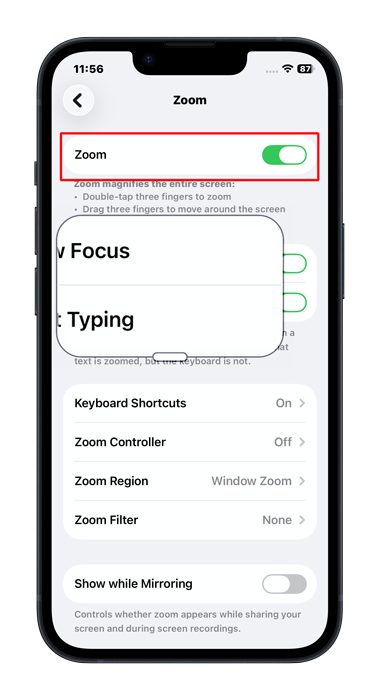
Turn Zoom on, and you will get a magnifying glass that magnifies a part of the screen. Don’t worry, we will get rid of that pretty soon:-
Using 3 fingers, triple-tap anywhere on the screen. If you did it right, you will get a menu with various options:-
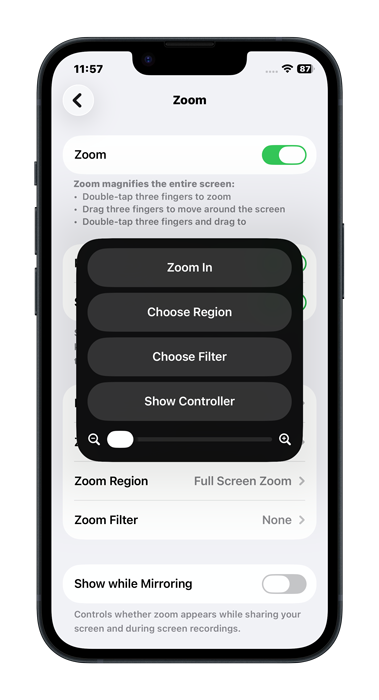
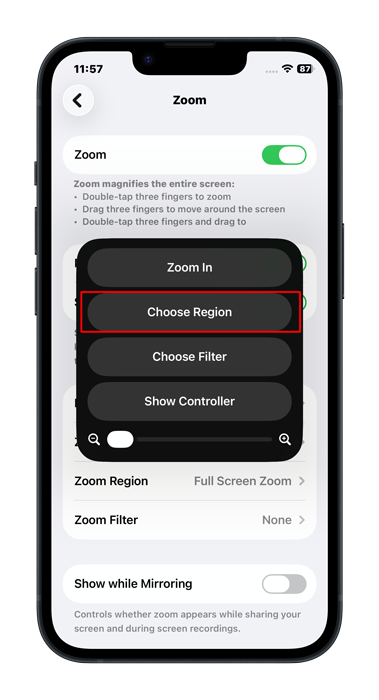
From the menu that just appeared, choose Region:-
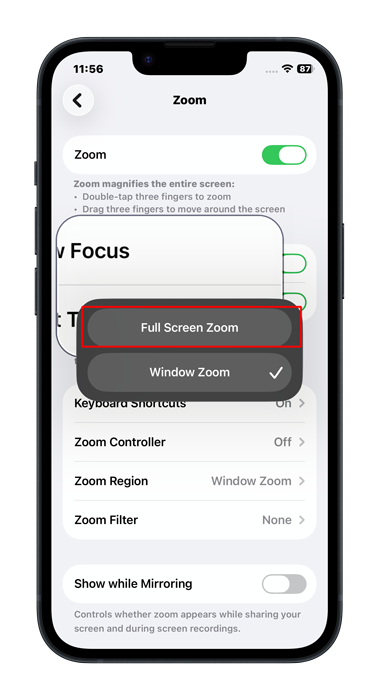
From the submenu, choose Full Screen Zoom:-
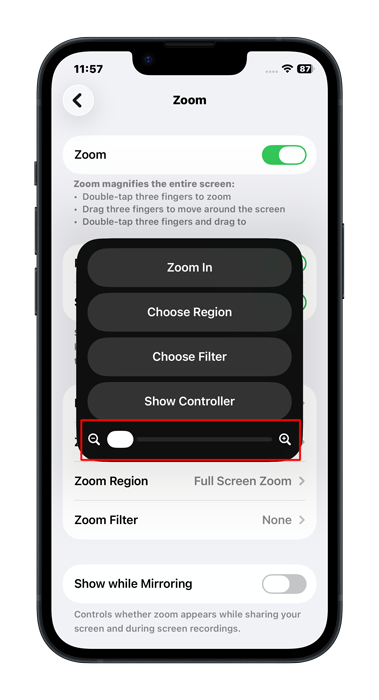
Use the zoom slider to ensure the screen is zoomed at 100%. We don’t want to magnify the screen here. We just turned it on to be able to apply a certain filter:-
Triple-tap again to show the menu. From the menu, tap on Choose Filter:-
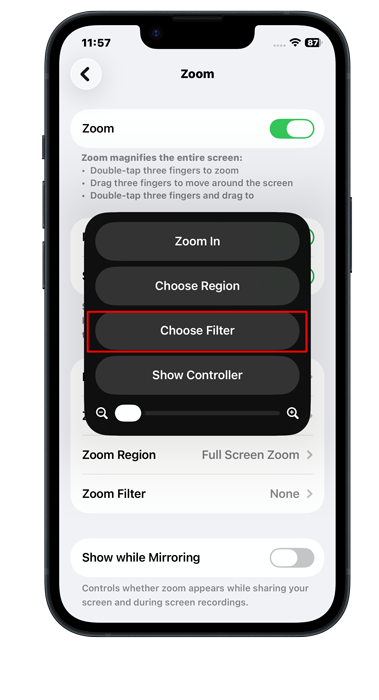
From the list of filters, tap on Low Light:-
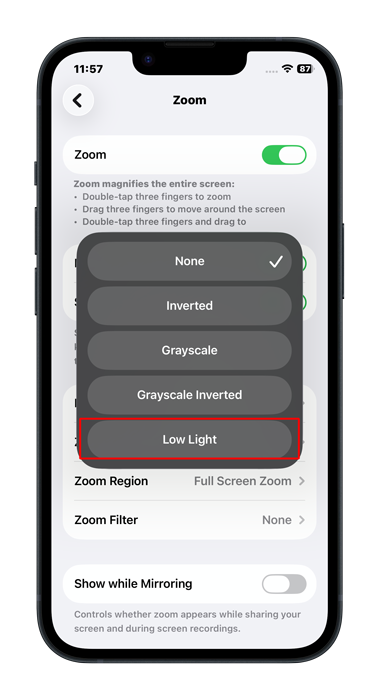
Now you’re done. The screen is dimmer than the lowest setting iOS allows.
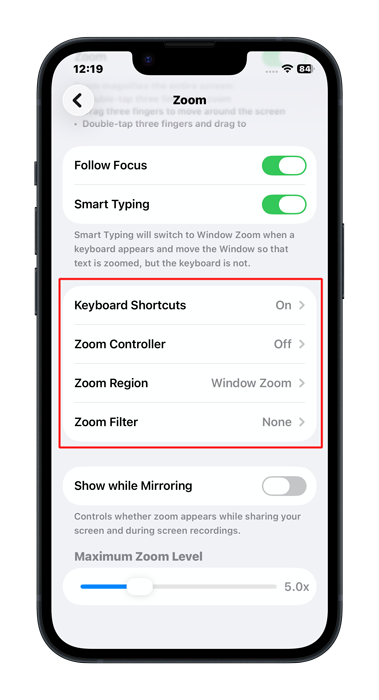
Alternatively, you can access many of the options in the menu from Zoom settings. The menu has the advantage of being easy to access from anywhere, which is why I used it in this tutorial:-
And Finally
No matter what your use case is, whether you use your phone while your kid is trying to sleep or you are sensitive to light. I hope these two methods help you enjoy your iPhone in darkness. And I will see you in another Tech Fairy article. Check out the mobile apps I developed, which I hope you find useful & interesting.