


With This Trick, You Don’t Need A Subscription To Play Videos In The Background
One of the things I don’t like about the official YouTube app is that you need YouTube Premium to be able to play videos in the background. Not only was this possible before they put it behind a paywall, but it is also something that can be done very easily on computers, so why not on phones?
In this tutorial, I will share with you a trick that makes it possible to play videos in the background. Not only that, but depending on what browser you end up using, you may end up without ads as well.
Quickly go to:-
Step 1:- Add The Now Playing Widget To The Control Center
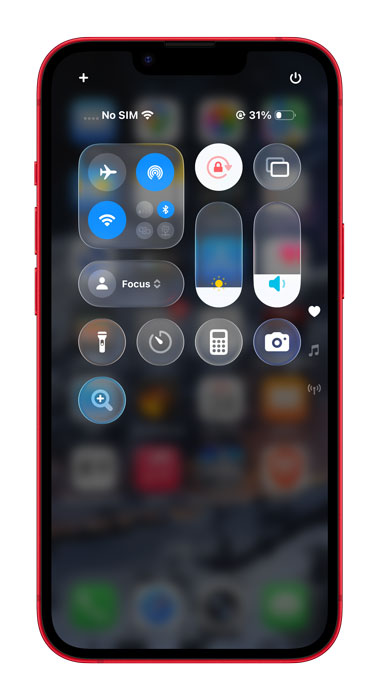
Swipe down from the top of the screen to show the Control Center:-
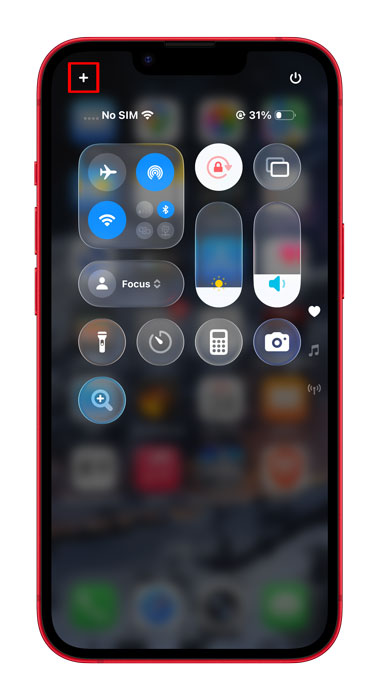
Tap on the + button at the corner of the screen to add a new widget:-
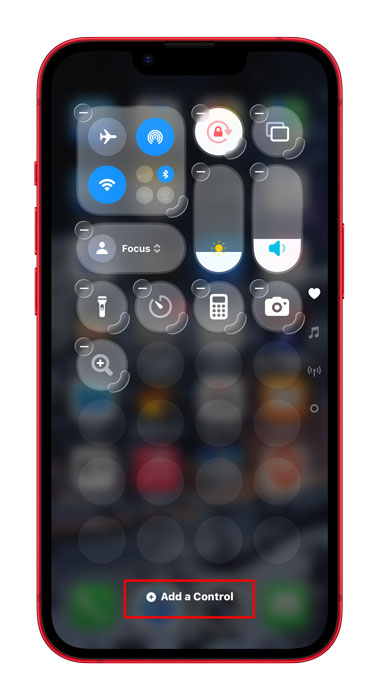
Tap on the Add a Control button at the bottom:-
Scroll down & tap on the “Now Playing” widget to add it to Control Center.
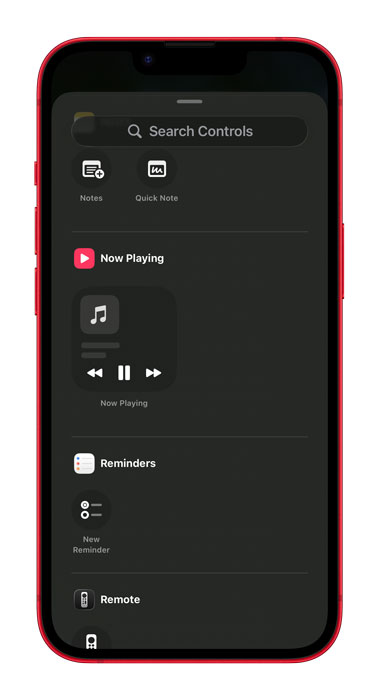
Step 2:- Get The Right Browser For The Task

Install Brave from the App Store.
I chose Brave here not only because it didn’t work, but also because I don’t trust Chrome. I care about privacy, and despite anything one may say about Brave, I think it’s the better option compared to Chrome. Not only for privacy, but also for the fact you get to block ads with it, since it comes with a built-in ad blocker. Meaning you will be watching YouTube videos without ads.
The trick outlined here may or may not work on other browsers, but I know for sure it doesn’t work on Safari. I did some testing on my own.
Other Browsers That Worked
- Opera Browser
Browsers That Did Not Work
-
- Firefox X
- UC Browser
- DuckDuckGo
- Chrome

Step 3:- Let’s Play A Video In The Background
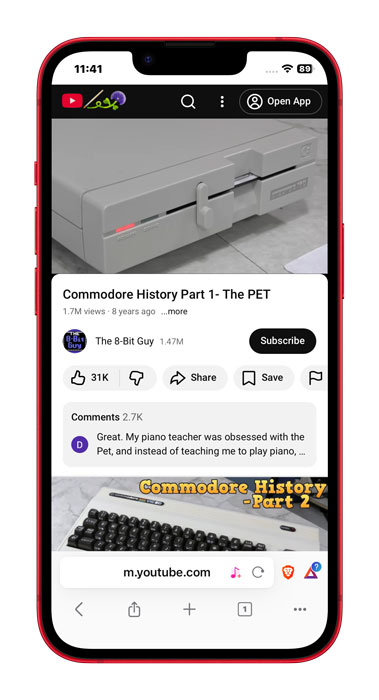
Go to YouTube on Brave (or any other browser you picked). Then tap on the video you want to listen to in the background.
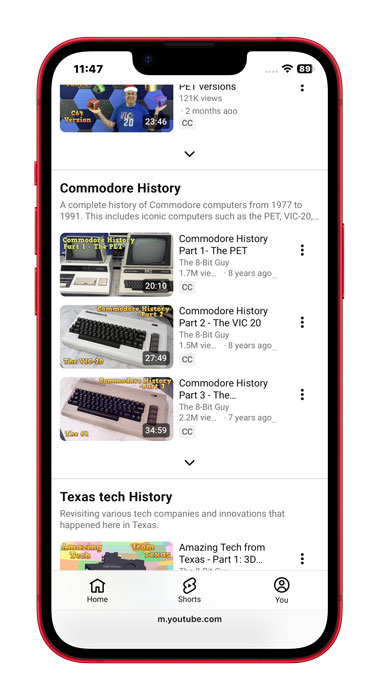
The video will start playing in the browser.
Swipe up to go to the home screen. The video will pause.
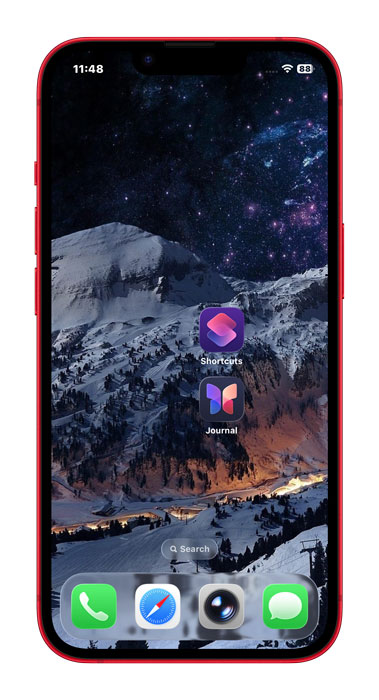
Swipe down to show the Control Center. The video will be there.
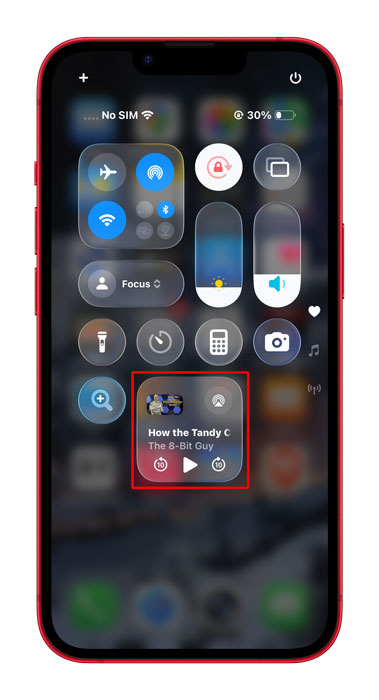
Play the video from the Now Playing widget, and you’re off to go.
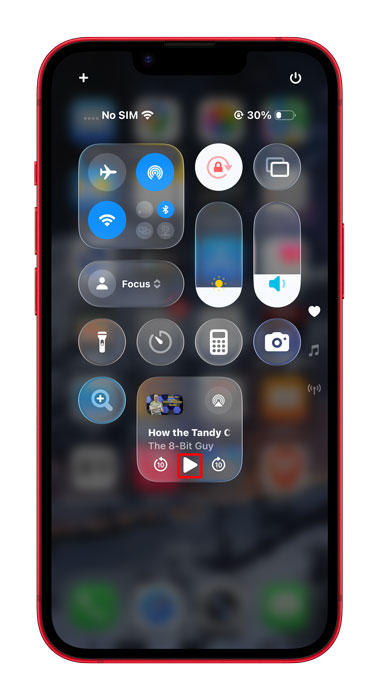
Enjoy your background video playing. 🐧
And Finally
I tried the steps below on Safari with the YouTube app uninstalled, but it didn’t work. Luckily for us, I managed to find other browsers where it works.
I hope this tutorial helped you play videos in the background, and I will see you in another Tech Fairy article. Check out the mobile apps I developed, which I hope you find useful & interesting.