


You Can Merge Multiple PDF Files On Your iPhone Or iPad Without Any 3rd Party Apps
So you have few PDF files you want to merge as one, either to read them one after the other or to send them to someone? Whatever the case, combining them together is so easy, and it doesn’t require any 3rd party apps. You just need the files app that comes with your device already. The steps to do that are surprisingly easy.
For merging PDF files in MacOS, you can refer to the following tutorial:-
How to merge/combine multiple PDF files easily on MacOS

Quickly go to:-
How To Merge Multiple PDF Files Using The Files App
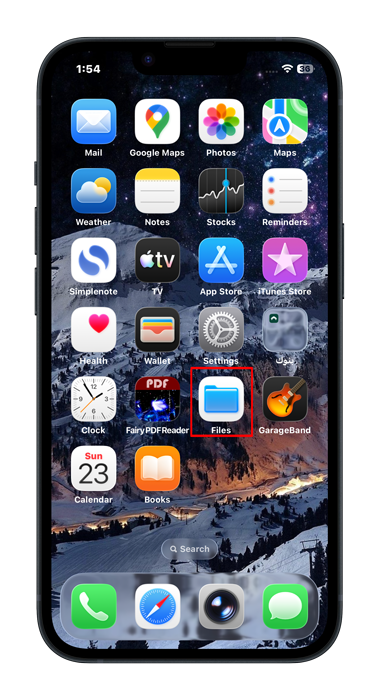
Open the files app
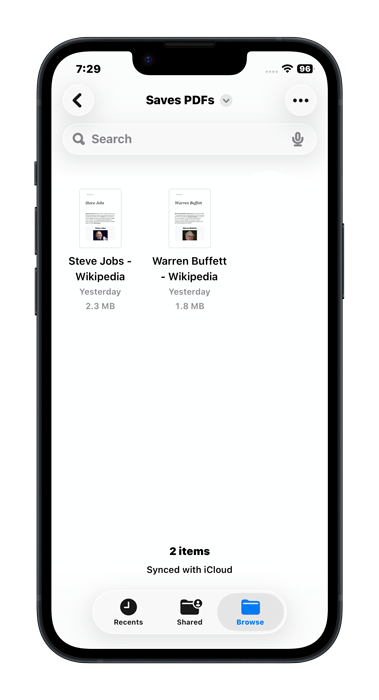
Navigate to the folder where you have the PDF files you want to merge. Here I have a folder with two files, the one we created in the converting any webpage or content to PDF tutorial, where we turned the Wikipedia page of Warren Buffet into a PDF, and another is the Wikipedia page of Steve Jobs, which I created the exact same way. I am only using 2 files here for simplicity, but you can have more than 2 files to merge, or course.
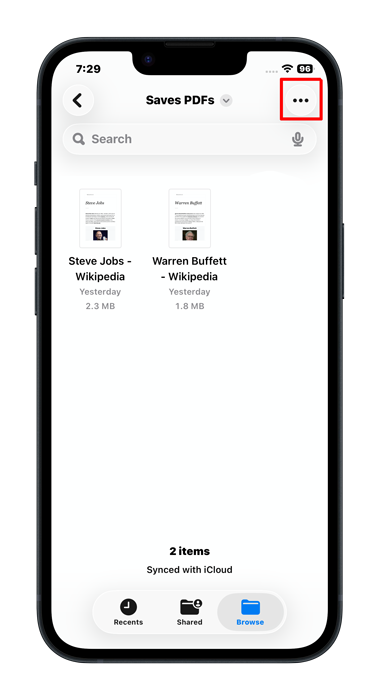
We need to select the two PDF files, for that, tap on the 3 dots at the corner of the screen, then tap Select from the menu.
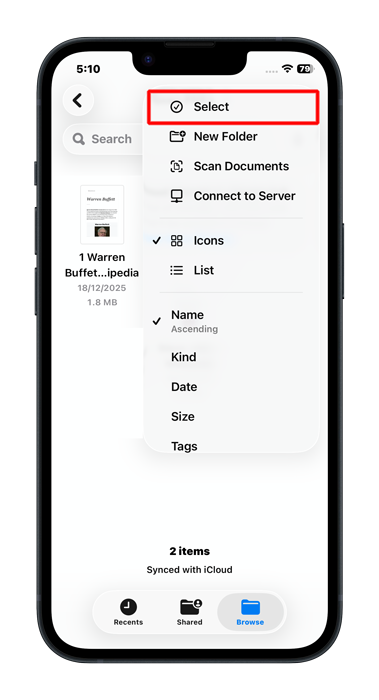
Select the files you want to merge by tapping them one after the other. Alternatively, you can tap the Select All to select all the files on one go:-
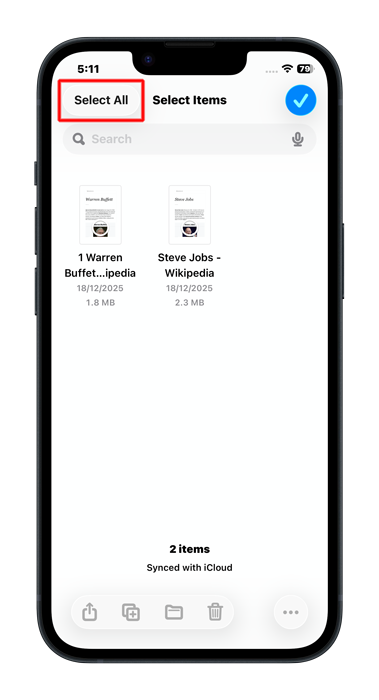
Now the files are selected. Tap on the 3 dots at the lower right corner of the screen:-
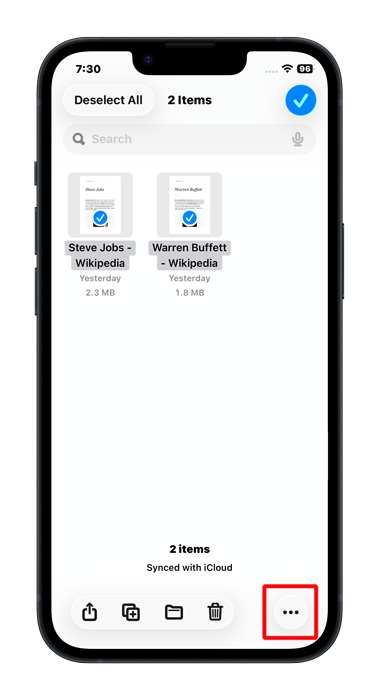
That will show us a list of the things we can do with the files. Tap on Quick Actions:-
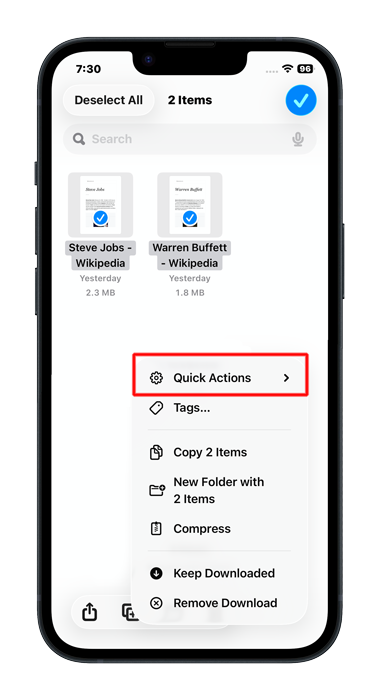
From the Quick Actions list, tap on Create PDF from the menu.
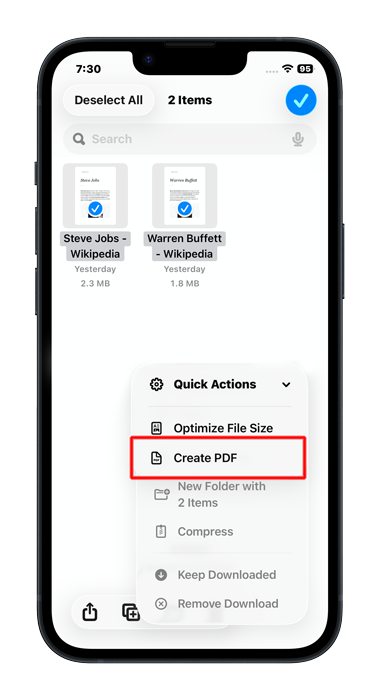
The files app will create a new PDF file containing the merged files you picked:-
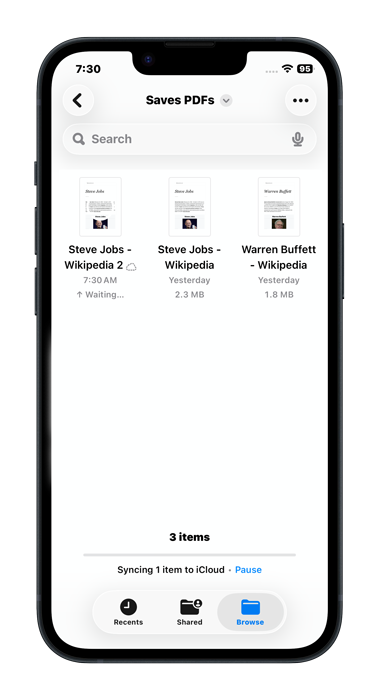
Enjoy your merged PDF file.
Note:- By default, the files app merges the files in alphabetical order, so renaming the files so the files we want first in the merged PDF comes first alphabetically results in a different order. For example, instead of having our files named like this:-
-
- Steve Jobs.pdf
- Warren Buffet.pdf
Which results in the Steve Jobs file to come first in the merged PDF, we can rename them like this:-
-
- 1 Warren Buffet.pdf
- 2 Steve Jobs.pdf
That way, Warren Buffet PDF comes first in the merged PDF.
Looking For A PDF Reader?
Now you have the merged PDF file, you may want a good PDF reader to read it on your iOS device. Something that’s better than the built-in PDF reader. This may be a good chance to try out my PDF reader, Fairy PDF Reader. It is an innovative PDF reader that makes it more convenient to read PDF files on your iPhone or iPad. It has the convenient features for that, like zoom-lock, nice dark mode & full keyboard support.

And Finally
I hope this tutorial was easy to follow, and that it allowed you to merge PDF files easily in iOS & iPadOS, and see you in another Tech Fairy article. Check out the mobile apps I developed, which I hope you find useful & interesting.