


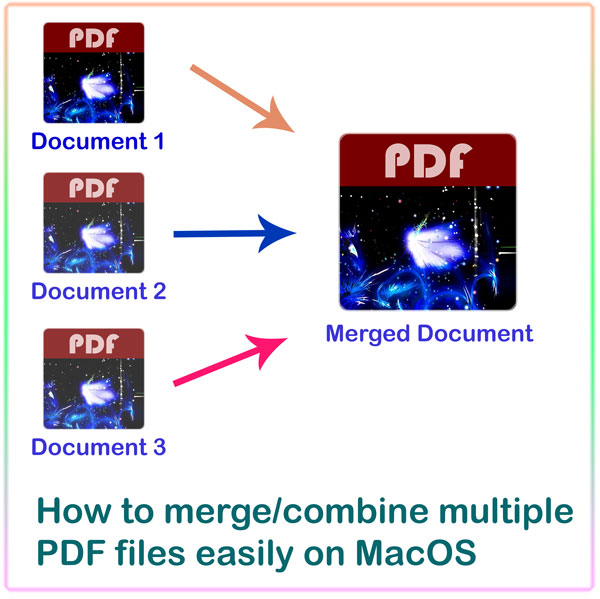
Want To Merge Or Combine Multiple PDFs In MacOS? You Can Do That Now
One relatively unknown hidden gem you can do on MacOS, and without any 3rd party software, is the ability to merge multiple PDF files into one. This is very easy to do, and is nice to know in case you ever needed it. Just follow the few steps below, and you are good to go.
For a tutorial on how to merge PDF files on iPhone or iPad, refer to this tutorial:-
How to merge multiple PDF iPhone on iPhone or iPad

How To Merge Multiple PDF Files Into One
In Finder, place the PDF files you want to merge into one in one folder.
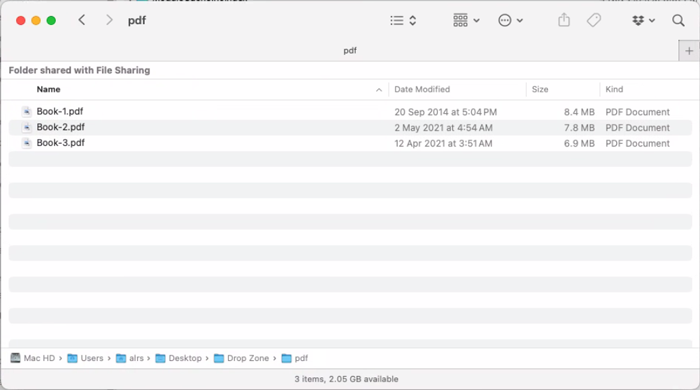
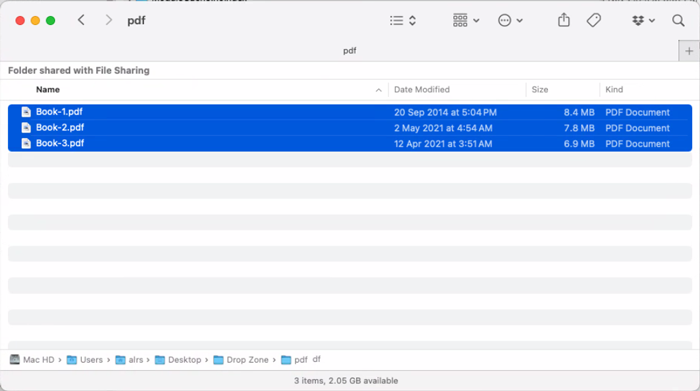
Now we need to select the files. This can be done in multiple of ways. Hold down the Command key (⌘) on the keyboard, then click on the PDF files to select them one after the other. You can also select all the files in the folder by pressing ⌘ + A on the keyboard:-
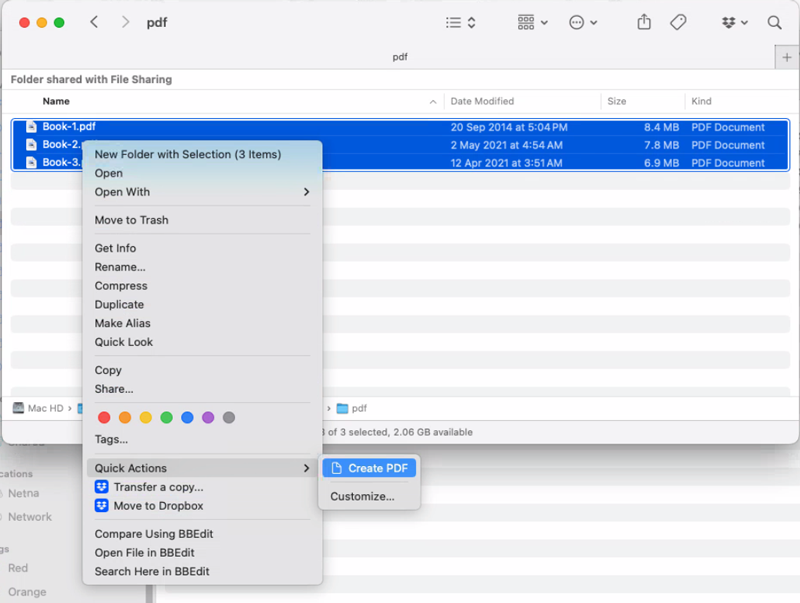
Right click on any of the files you selected. From the context menu, select Quick Actions -> Create PDF.
Wait until the merged PDF file is created:-

The new PDF file will appear in the same folder. Notice that it is larger than any of the single PDF files you merged:-

Looking For A PDF Reader?

Now you have the merged PDF file, you may want a good PDF reader to read it on your iOS device. Something that’s better than the built-in PDF reader. This may be a good chance to try out my PDF reader, Fairy PDF Reader. It is an innovative PDF reader that makes it more convenient to read PDF files on your iPhone or iPad. It has the convenient features for that, like zoom-lock, nice dark mode & full keyboard support.

And Finally
I hope this tutorial made it easier to merge multiple PDF files on MacOS, and see you in another article. Check out the mobile apps I developed, which I hope you find useful & interesting.