


Importing Photos From USB Storage To Iphone Or Ipad Has Never Been Easier
So, do you have some photos in a flash drive & you want to copy them to your iPhone? Maybe you have an iPad & want to edit them with the Apple pencil, or maybe someone gave you the photos in a USB hard drive, but you want them on your iOS device. In this tutorial, I am going to explain how to easily import these photos directly, without the need for iTunes or even a computer. These steps can be very useful to get a large number of photos from a computer to an iPhone or iPad.
For the most part, we will focus on importing the photos to the Photos app, as well as copying them to another folder. These steps can also be used to print the photos, or to import them to another app, or to do many other things iOS gives you the ability to do. I simply focused on these two things because they are common, and to keep the tutorial simply & easy to follow.
Quickly go to:-
How To Plug USB Drives To Iphone Or Ipad
Most USB drives or hard drive are USB-A based, so they can’t plug directly to iPhone or iPad device. In that case you will need a small & cheap adapter to convert it to USB-C or lightning port. These adapters are available in many online stores. I got mines from AliExpress, and they work quite well. They look like this:-
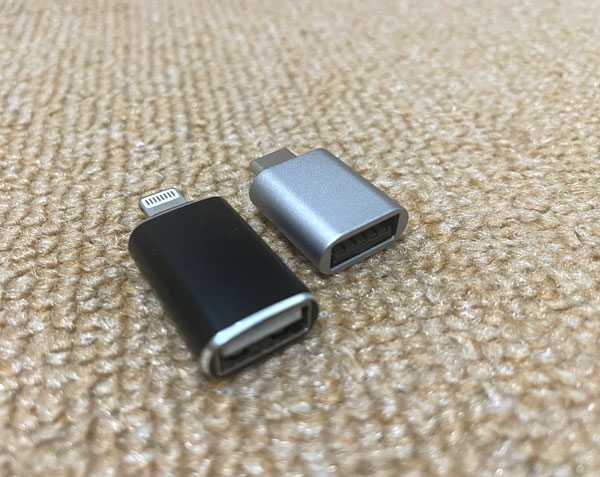
You can find adapters like this from the following AliExpress affiliate links:-
Importing The Photos To Your Ios Device
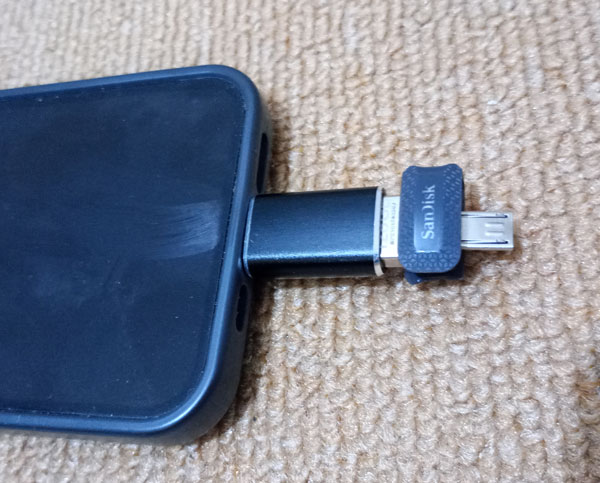
Plug the flash drive or external hard drive to your iPhone or iPad:-
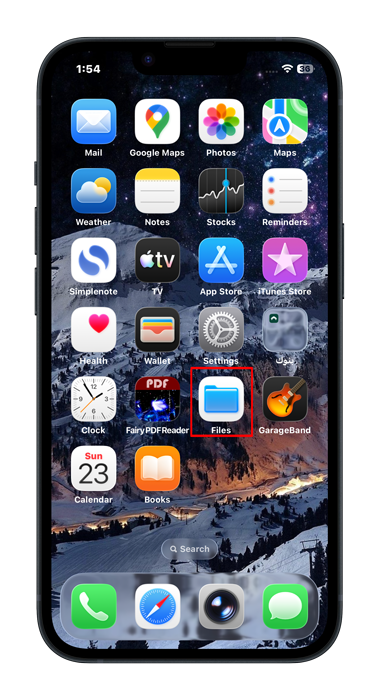
Open the files app
Go to the “Browse” tab
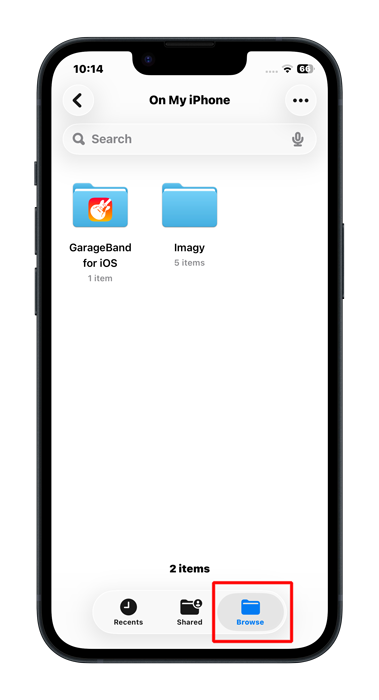
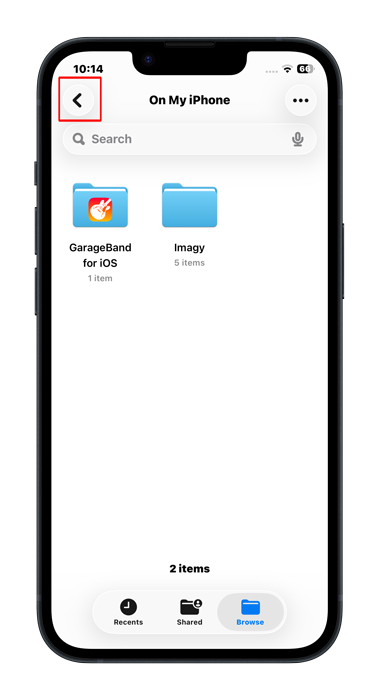
To get to the screen where the Files app shows as the list of primary locations, you may need to tap the back button multiple times.
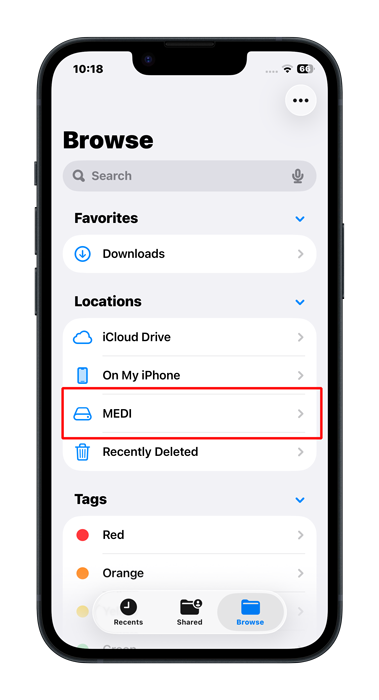
If everything is working correctly, you should see the drive you inserted in the list of locations. Tap on it:-
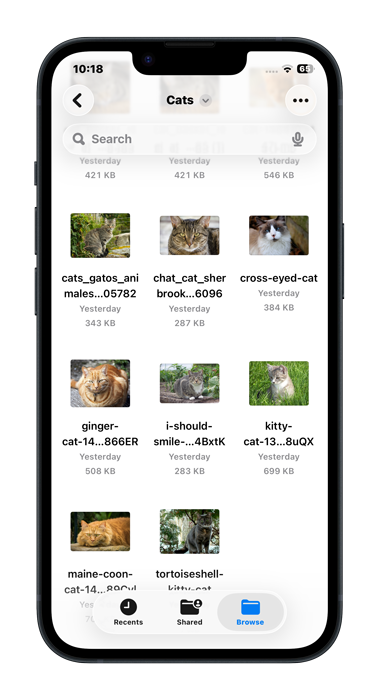
Browse to the folder where you stored the files. If the files are at the root of the drive, then you won’t have to do anything here:-
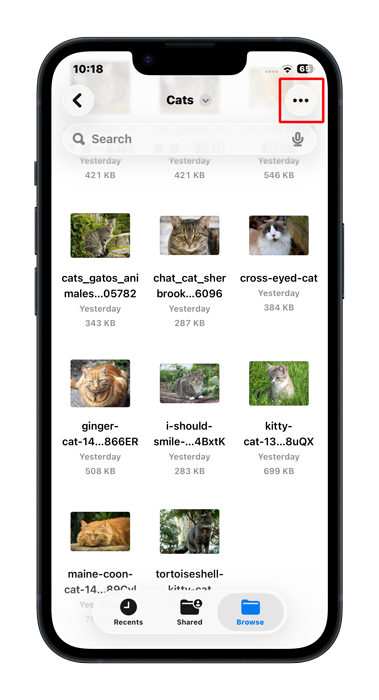
We need to select the files we want to import. To do that, we must enter selection mode. To do that in the files app, we first tap the menu button:-
Then we tap on “Select”:-
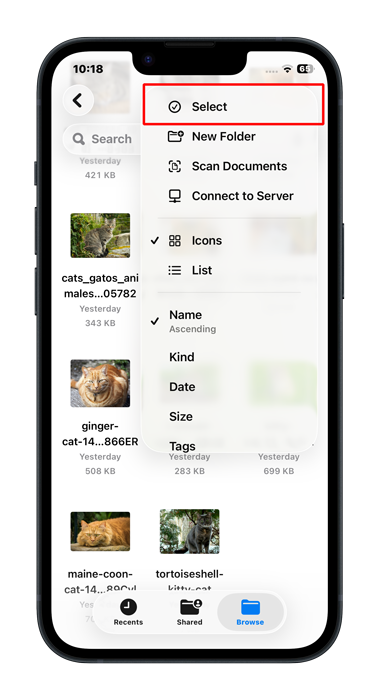
Note:- The way to enter the selection mode differs by app. e.g. in the photos app, there’s a “select” button that’s always visible that gets you to selection mode.
Select the photos you want to import from the drive. Alternatively, you can tap on the “Select All” button to select all of them.
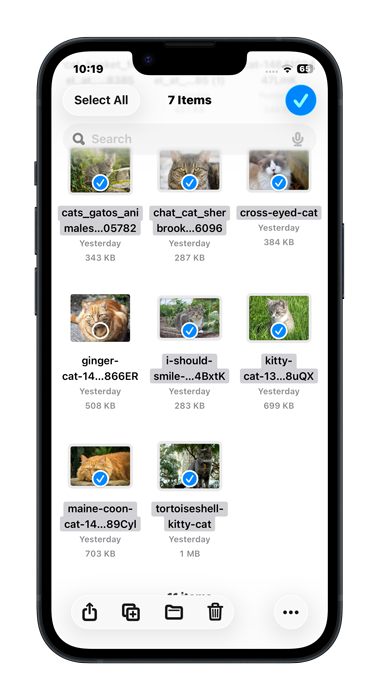
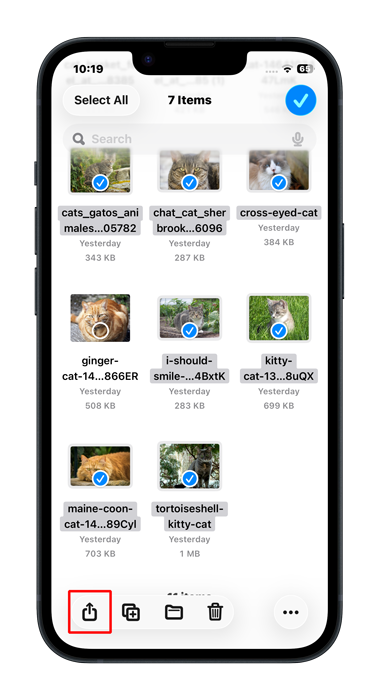
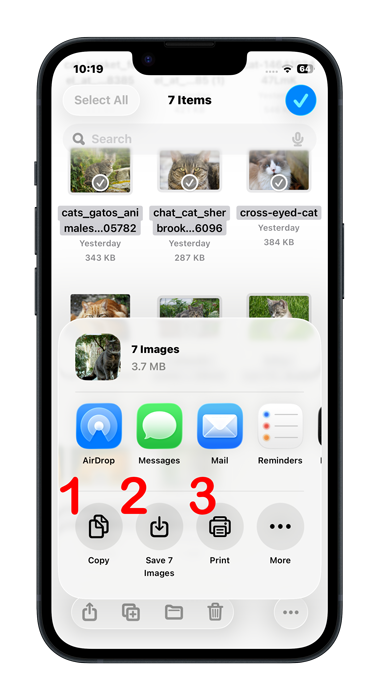
Tap the share icon. This icon allows us to export the photos, or do one of many other operations on them:-
To import the photos to the photos app, simply tap the “Save 7 Images” button from the share menu (the number of images you selected will likely be different, of course), and you are done.
There are many other sharing options you may want to explore. Like, you can choose to print the photos, or simply tap “Copy” to paste them in another folder in the Files app, instead of the photos app. You can also import them to any app that supports that.
If you chose to import the images to the photos app, you will find the photos you saved in the photos app:-
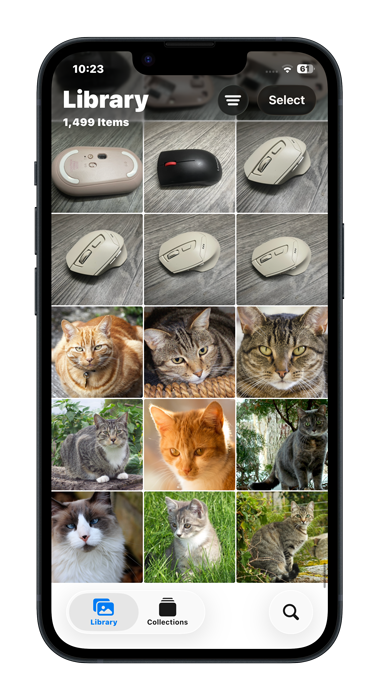
Feel free to unplug the USB drive from your iPhone or iPad.

How To Paste The Files You Copied In The Files App
In case you chose to copy the files you want to import, pasting them in another folder is simple, but may not be straightforward to everyone.
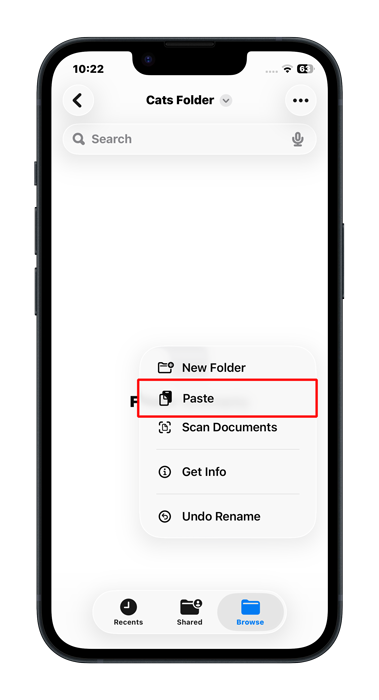
Simply go to the folder where you want to paste the image. You can create a new folder for that if you like. I created a new empty folder here:-

Tap & hold on an empty space, and you will get a context menu. From there, you can tap on “Paste” to paste the photos & have them copied to that folder.
And Finally
Fortunately, importing photos to directly to iOS devices has become much easier in the recent years. We no longer need iTunes or for the app to support Wi-Fi transferring (though these are still nice to have).
I hope this tutorial made it easy to import photos from a USB flash drive or hard drive to your iPhone or iPad. And see you again in another tutorial. Check out the mobile apps I developed, which I hope you find interesting. ^^