


The Web Has Became So Annoying, But There Are Ways Around It
The web has become a bit too annoying in the last few years. Many sites tend to have videos that auto-play & follow you as you scroll down the page. Fixed headers take precious screen space and are shown all the time, even when you totally don’t want them. Even worse, some headers hide themselves but show themselves the moment you scroll even slightly up. As if you only scroll up in order to use that useless header, and not to reread something on the page. Not to mention annoying newsletter popups. I can go on & on. Lucky for us, there are multiple ways to block these items. One of them is the Hide Distracting Items feature introduced in Safari starting from iOS 18, which will be the focus of this tutorial. Just follow the easy steps below, and you are good to go.
Quickly go to:-
How To Block Annoying & Distracting Items From Any Webpage On Safari On iOS
Go to the site you want to hide distracting & annoying items on. I will use Tech Fairy as an example. I will the feature to hide the cookie & privacy policy element that follows us everywhere:-
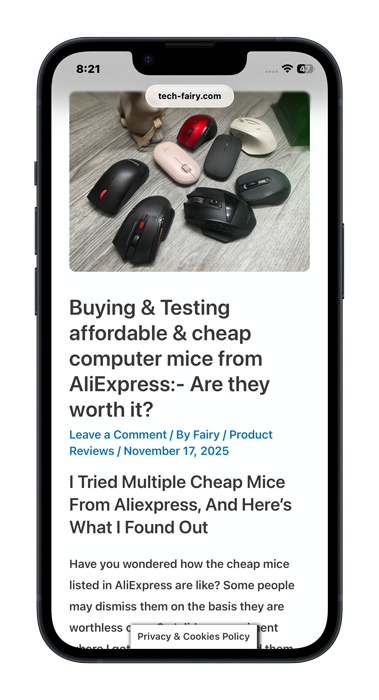
Make sure the address bar is shown. If not, scroll up a little bit to make it shows itself:-
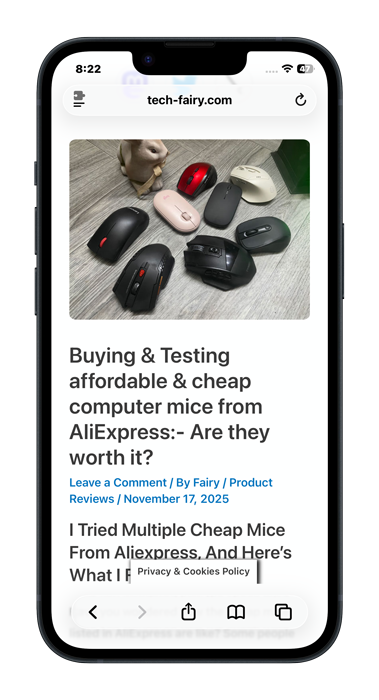
Tap the reader icon at the side of the address bar:-
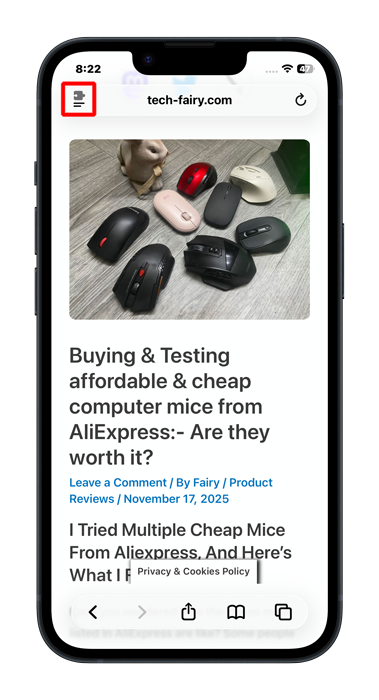
Tap on Hide Distracting Items from the menu:-
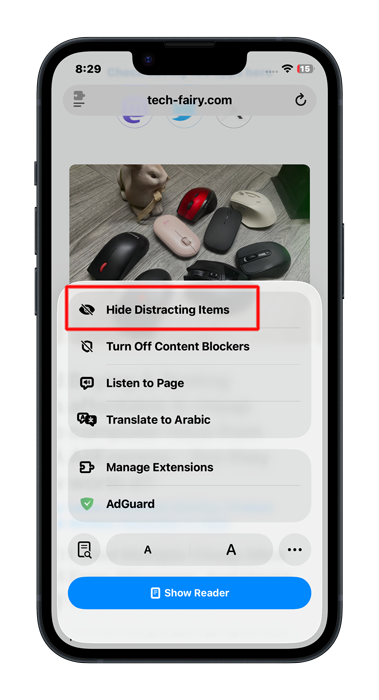
You may get a short popup informing you about the shortcomings of this method. Dismiss it.
Tap once on the item you wish to hide. A blue rectangle appears around it:-
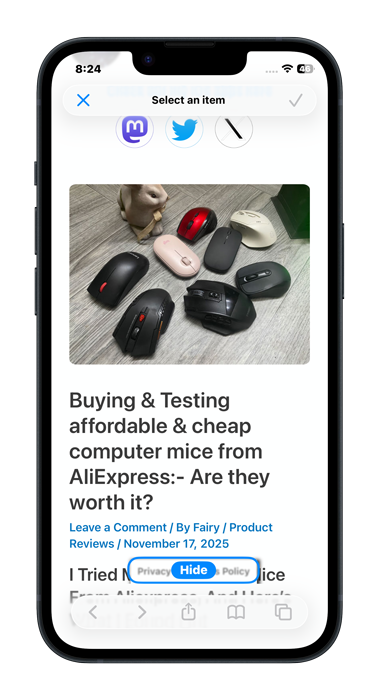
If the item with the blue rectangle around it is the one you want to hide, then tap on “Hide” to actually hide it. If not, tap on another item to switch to it:-
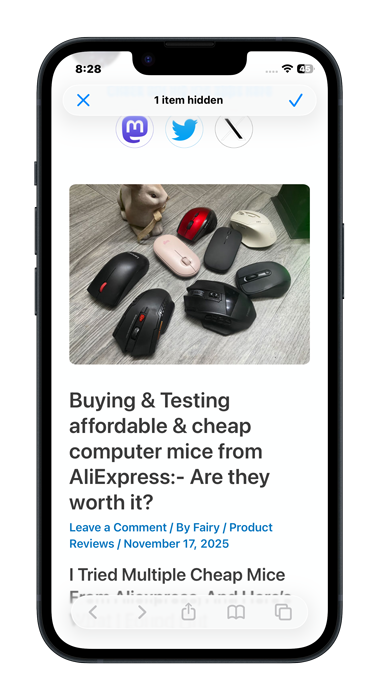
And the item is gone, hopefully forever. Unless it is one of the items this feature doesn’t work well with.
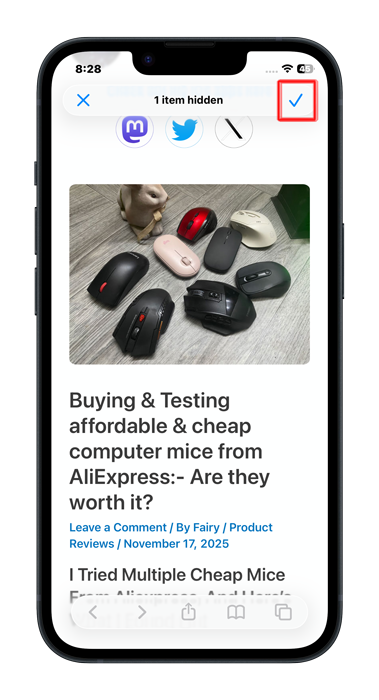
You can tap on another item to hide it the same way. If you are done hiding items, tap on the checkmark on the corner of the screen to exit the Hide Distracting Items mode.

If You Want To Show The Items You Hid Again
Support you made a mistake, and now you want to show the items you hid again. Or you simple want to start again, you can undo that very easily.
Just like before, tap on the reader icon on the URL bar:-
This time, tap on Show Hidden Items from the menu:-
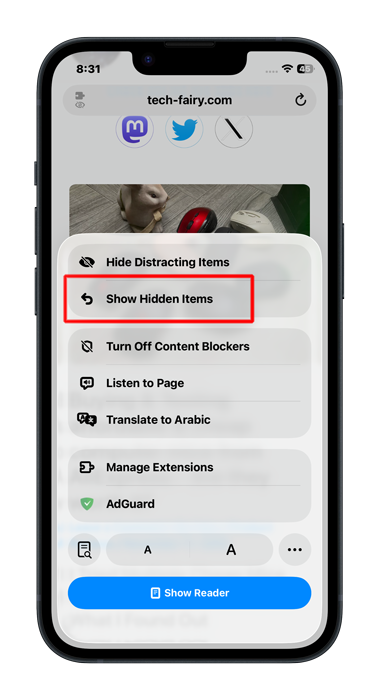
And now you are done. The items you have hidden are back again:-
Things Can’t Hide With The Hide Distracting Items
Sometimes you use the Hide Distracting Items to hide a certain banner, only for that banner to appear again, albeit with a different image. That’s because this feature can’t hide ever-changing items. If the website iterates between a bunch of banners, you may be able to block every single one of them manually, and that will get rid you of them.
Here’s A Better Way Hide Items:- Adblockers

While it is nice to have a native feature that helps you block annoying stuff on web pages. There’s another solution that you should consider, which is adblockers. Not only they allow you to hide unwanted items, but to also get rid of ads altogether. There are many good options for that like Adguard & uBlock Origin. Some of their better features require some learning, but they give you more capabilities (and you can always learn more about them here in Tech Fairy).
Some of the advantages of using adblockers:-
-
- They come with premade filter lists of the ads that covers a large portion of the Internet. This includes annoying items. You can activate the filters list you want to a single tap.
- Blocking ads increases your security, as some ads contain malware. Even the FBI encourage you to use an ad blocker.
- Many of the things you can’t hide with the Hide Distracting Items can be hidden with an ad blocker. As you can hide the parent or main component above the ever-changing items.
- You can export the filters you created to your PC or Mac. Granted, you may have to do that manually sometimes, but you get the same experience you created for yourself across different operating systems & browsers, as the filters themselves are standardized.
Since adblockers have so many nice uses anyone would appreciate, I wrote a detailed tutorial on using the Adguard adblockers.:-
How to use Adguard to block ads & annoying elements on iOS & iPadOS.
And Finally
Installing & using adblockers & the likes used to be an extra bonus back in the day. Sometimes I installed them, and sometimes I did not. But today, blocking items on web pages became a must. Any browser that doesn’t offer this capabilities is a big no for me. For that reason, being able to hide pesky & annoying items is a welcome addition in Safari. We may already have other ways to hide them, but having one more that’s built-in is always welcome. I hope this tutorial made it easier to hide & block annoying items in Safari, and see you in another Tech Fairy tutorial. Check out the mobile apps I developed, which I hope you find useful & interesting.