


Some Of Us Prefer To Pick Our Own Passwords.
Like to pick your own password? Do you find it annoying when Safari insists on suggesting a strong password? Sometimes the popup appears even when you log in to a website you already have an account on. I find it annoying, as I like to pick my own passwords. Not to mention the passkey prompt, which could be something you don’t even want to use. Being able to disable both is totally possible. The method has changed in iOS, making many tutorials obsolete, so hopefully the method outlined here will work for you. Just follow the steps below, and you’re done.
Now, let’s get started!!!
Quickly go to:-
How To Disable Safari’s Use Strong Password Feature (and Passkey Suggestion) On iPhone & iPad
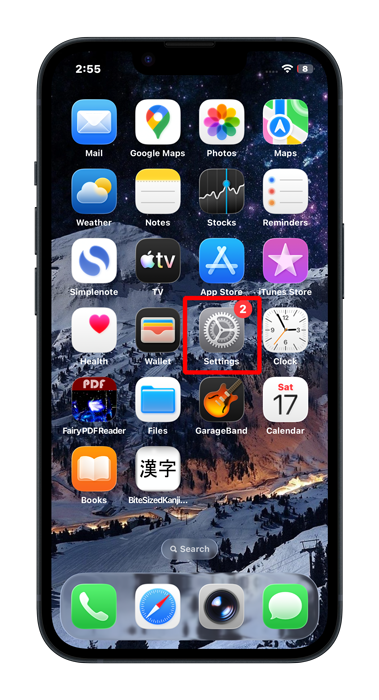
Open the settings app.
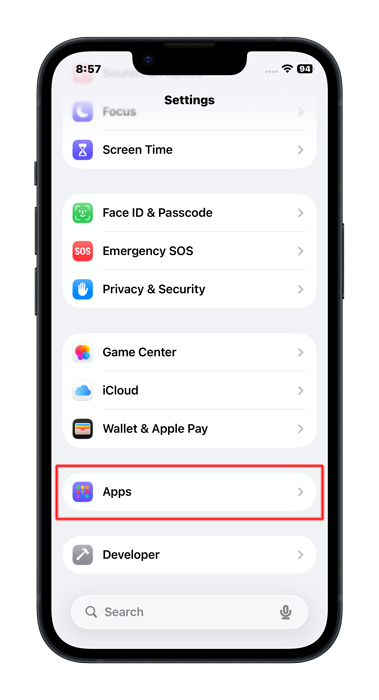
Scroll down & tap on Apps, which is where the settings for each individual app can be adjusted, including the Passwords app.
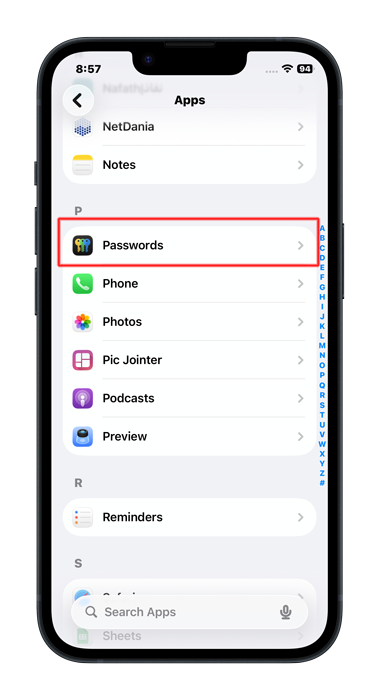
Scroll down to the letter P, then tap on Passwords from the list of apps. You can use the search function to make things easier if you like.
In the Passwords app settings, uncheck the Use Strong Passwords option to stop the passwords app from suggesting that.
You can also uncheck Allow Contacting Websites to stop Safari from suggesting using a passkey in the site that supports it.
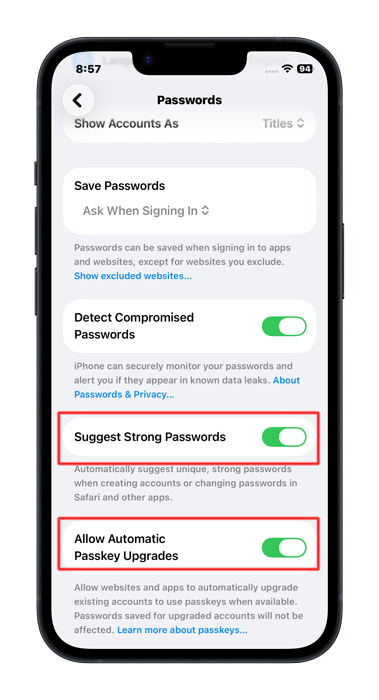
And we are done. Safari won’t pester you about strong passwords or passkeys anymore.

And Finally
Hopefully this tutorial was easy to follow and helped you stop Safari from suggesting using strong password or passkeys. See you in another Tech Fairy article. Check out the mobile apps I developed, which I hope you find useful & interesting.