


Converting Content To PDF On iOS & iPadOS Is Actually Quite Easy
Say you have a webpage you want to save as PDF, or you want to send a certain file from an app to someone as PDF. iOS & iPadOS come equipped with a built-in ability to turn anything to a PDF file. The option for that is a bit hidden, and requires no 3rd-party apps, so I won’t be surprised if many iPhone & iPad users never knew it existed. This is where this tutorial comes, which I hope it is easy-to-follow.
The steps below were tested on iOS 26, but since converting web pages & content to a PDF is an old feature, it is expected to work on other iOS or iPadOS after that. As well as many of the older iOS versions.
Quickly go to:-
How To Convert A Web Page To A PDF
Go to the webpage or the content you want to turn into PDF. In this example, we are going with a webpage using Safari, but you can do this with many other types of contents.
The page shown in the examples is the Wikipedia page of Warren Buffet..

Tap the share button. In case the bar is hidden, scroll up in the page to make it appear.

As we all know. The share window allows us to share the resource (the web page in this case) to other apps. We want iOS to treat the web page as a PDF. For that, tap the “Options” button.

In the options window, pick “PDF” under the Send As.
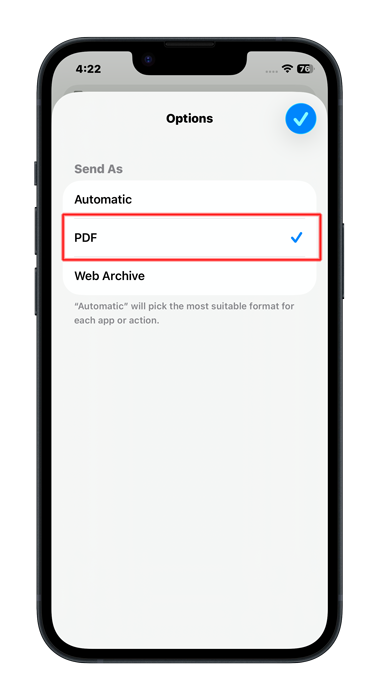
Press the checkmark button to close the dialog.

We are almost done here. We now need to pick what we want to do with the resulted PDF. We can do anything we want with it. In this case, we will save it to the files app.

Pick where you want to save the PDF file, then tap the Save button.

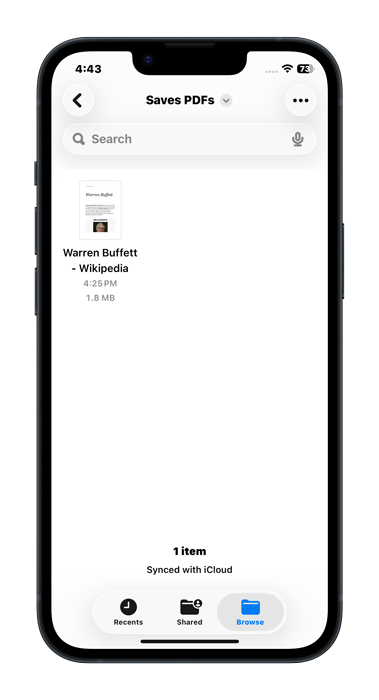
You can find the PDF file in the Files app:-
Looking For A PDF Reader?
Now you have the content as PDF file, you may want a good PDF reader to read it. Something that’s better than the built-in PDF reader. This may be a good chance to try out my app, Fairy PDF Reader. It is an innovative PDF reader that makes it more convenient to read PDF files on your iPhone or iPad. It has the convenient features for that, like zoom-lock, nice dark mode & full keyboard support.

And Finally
The thing is, you can do something similar to what we did on PC, Mac or Linux computers (using the print dialog). Android also allows this in a very straightforward way. Making it something that all main operating systems have.
I hope this tutorial helped you convert web pages & other content into PDF file, and see you in another article. Check out the mobile apps I developed, which I hope you find interesting.