


Shared Folders Are A Nice Way To Copy & Access Files That Are On Your Computer
Accessing & copying files from computer to iOS (and later iPadOS) is one of the most common problems people face while using their devices. There are many ways to do so, and luckily for us, it became easier over the years. In this tutorial, we will focus on doing that using shared folder.
We will use no 3rd-party apps (although some 3rd party apps can help you do this better). Just the good old Files app. The steps & screenshot in this tutorial shows iOS 26, but it will work for older versions of iOS or iPadOS, and will likely work in future versions of the system.
Now, let’s get started!
Quickly go to:-
How To Access Shared Folders From iOS & iPad OS
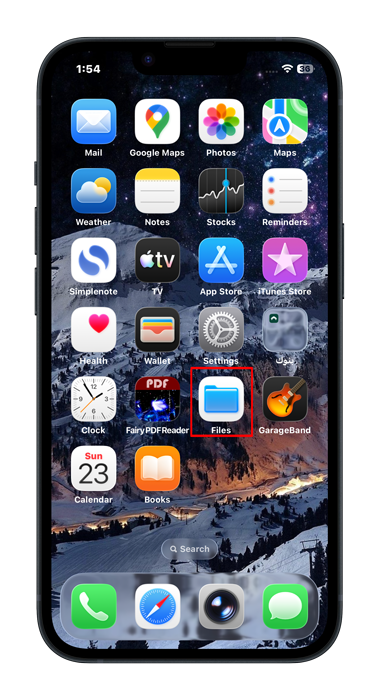
Open the Files app
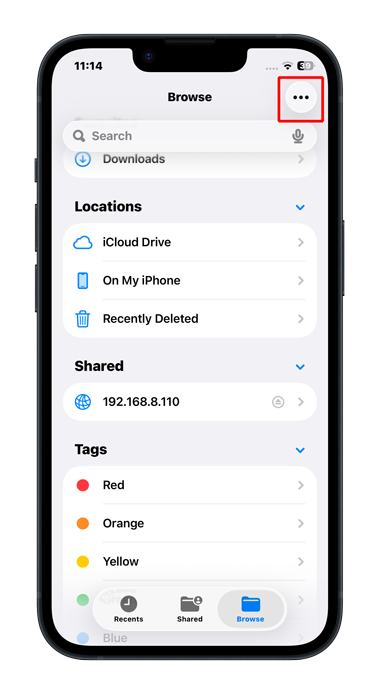
Tap on the menu dots bottom
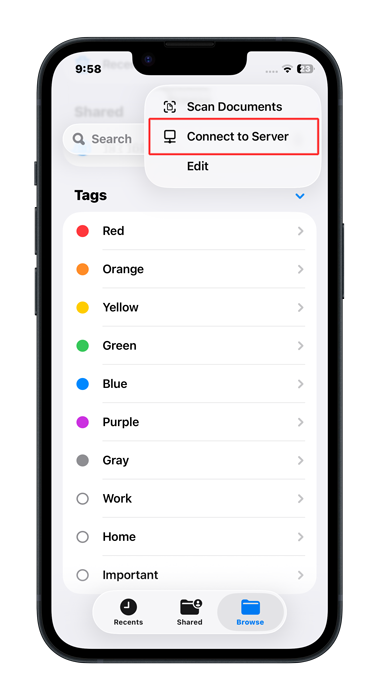
Tap “Connect To Server” from the menu.
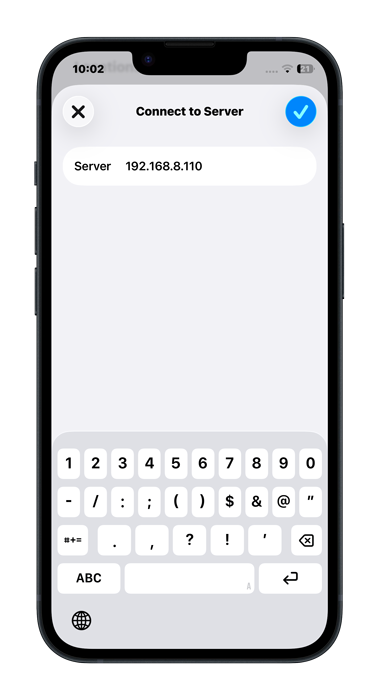
Enter the server IP address. To find the computer IP address, follow these tutorials based on your operating system:-
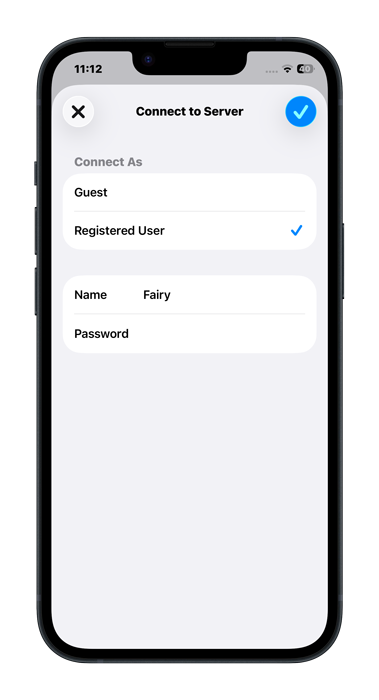
You have two options, you can choose to connect as a guest, which works fine if the shared folder requires no username & password, or to pick “Registered User”, where you enter the username & password required to make the connection. The computer I am connecting to require that, so I will go with it:-
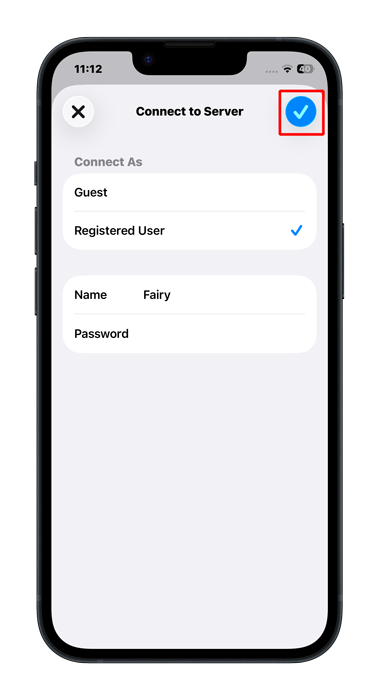
Tap checkmark icon to start connecting to server:-
If everything is entered correctly, and if you’re in the same network as the computer you’re connecting to. You will get a list of the files & folders available in the share:-
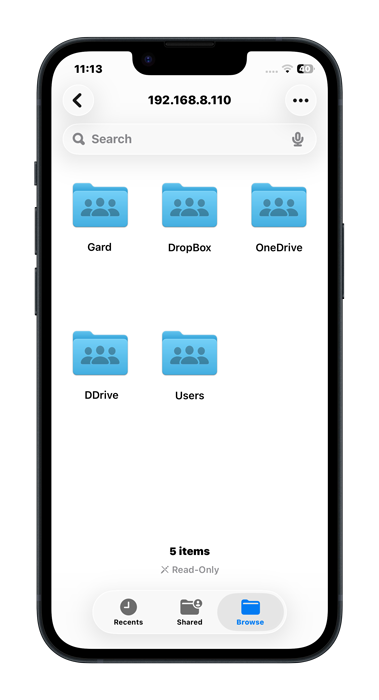
Feel free to do what you want with the files.
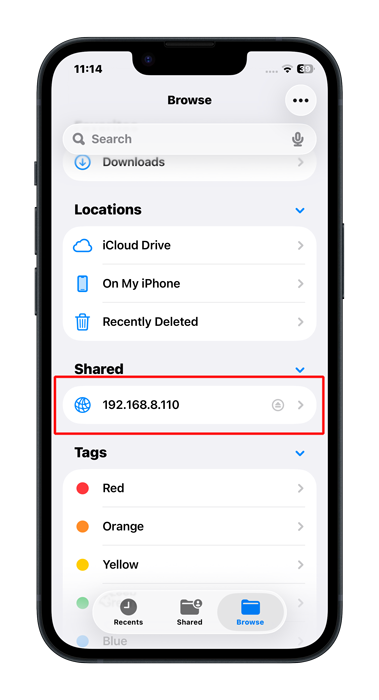
You can always reconnect to that server by tapping it from the shared resources in the Files app:-

In Case That Didn’t Work
In case the steps above didn’t work, try the following:-
- Make sure you’re on the same network as the computer you are connected to.
- Ensure you entered the correct username password. Sometimes entering passwords is entry on phones.
- If you got the message:- “There was a problem connecting to the server. Socket is not connected.”. Make sure to enter the IP address of the computer instead of the computer name.
And Finally
There are many ways to move files between iPhone or iPad & a computer. Even more if we factored in 3rd-party apps. I like using shared folders not because I already have them, but because I can access the files directly from my iOS device, but that’s just me.
I hope this article helped you move files easily between iPhone or iPad & your computer, and see you in another one. Check out the mobile apps I developed, which I hope you find interesting.