


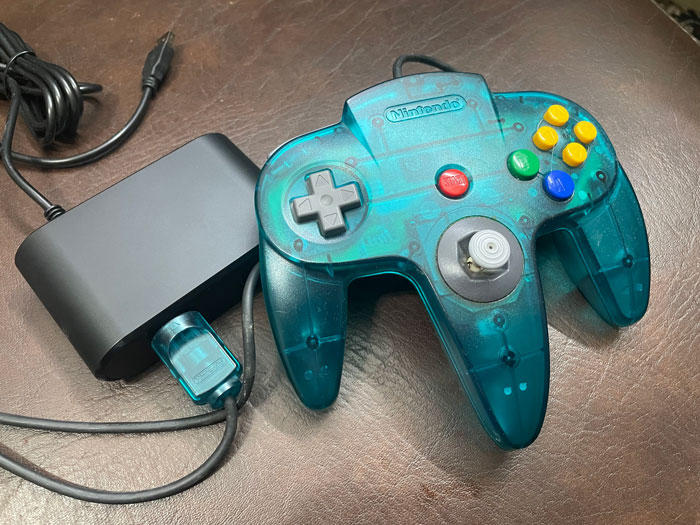
A Regular Controller Can Work For Emulating Nintendo 64 Games, But It’s Not Always The Best
As a Nintendo 64 fan, I own the console along with 3 controllers. I also emulate many of its games on PC. Not only because of save states, but because I can play them in ways I don’t think are possible on real hardware. I could create Pokemons on the fly to use on Pokemon Stadium, and I can literally teach any Pokemon any move I want. So far, I have been using regular controllers to play the game on the emulator. The problem is, the Nintendo 64 controller has such a unique layout that mapping the buttons to a regular controller is such a pain. For example, how would you map the c-buttons? I could totally map them to the right joystick, and it works well, but I would rather have physical buttons for that instead. It’s more convenient & matches the original experience.
This is why I sought a solution to help me connect my Nintendo 64 controller to PC. The adapter I found for that is cheap & works very well.
You can buy the same adapter I did from this following affiliate link.
Quickly go to:-
The USB Adapter From Aliexpress Comes To The Rescue
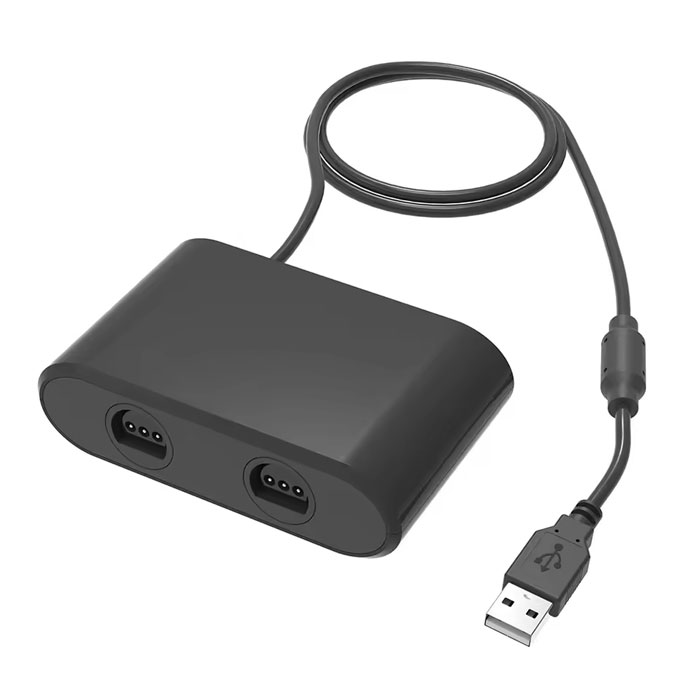
To solve this problem, I ended up buying a USB adapter for connecting my original Nintendo 64 controller to PC. I thought about buying a USB Nintendo 64 controller instead, but since I already own 3 Nintendo 64 controllers, two of which are original, I thought the adapter would be a better value.
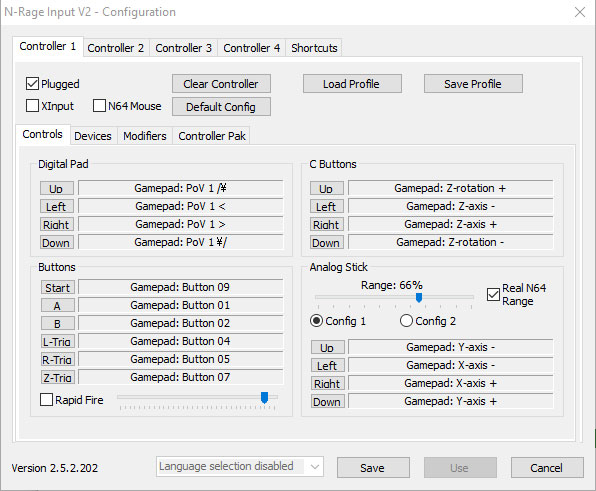
I tested the controller on Project 64 emulator, and it was recognized without me having to do any setting up. All I had to do was remap the buttons on the controllers in the controller settings. To do that, just uncheck the XInput option in the Configure Controller dialog, then map each button to its equivalent in the Nintendo 64 controller:-
And now I can play Pokemon Stadium in peace.
The Adapter Has A Turbo Function Too
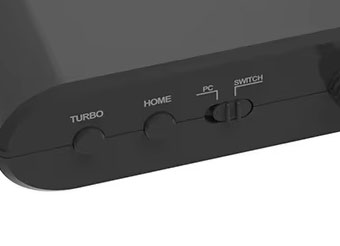
I noticed there’s a turbo button on the front of the adapter, so I tested it out. It allowed me to activate continuous firing of any button by holding it down. It can be activated by simply holding the turbo button down and then pressing the button I want to activate turbo for. Do that separately for every button you want to activate turbo for.
Turbo can be quite useful in many games, like certain stages in Star Fox 64, where fast firing is a key to earning a medal.

The Adapter Didn’t Work With The Nintendo Switch In My Case
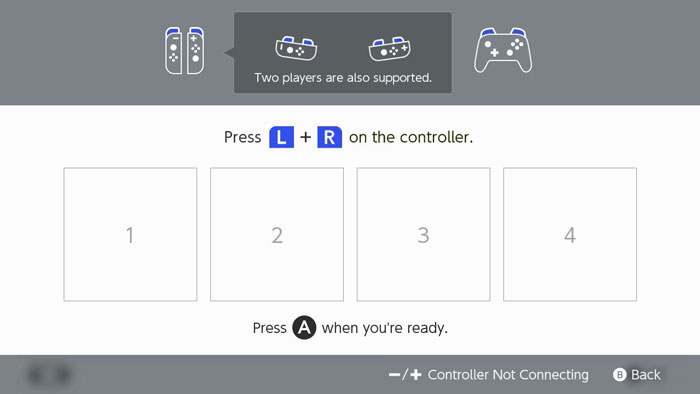
The adapter has a toggle switch on the front for switching between PC & the Switch mode. So I thought it would be nice to test it on my Switch. Unfortunately, it totally didn’t work. I even tried going to the Change Grip / Order screen, hoping the controller would get recognized, and it still didn’t work.
It’s funny that the adapter has a home button right beside the turbo button, which is useless since I failed to make it work on my Switch.
The adapter probably works on Nintendo 64 games on Nintendo NSO, but since I am not subscribed to that, I didn’t test it. It’s worth noting that I have a similar adapter for connecting GameCube controllers to PC, and that one did work on the Switch. Almost all my games worked on it too (Splatoon II did not). That adapter had a similar toggle switch with a Wii U mode, but it didn’t work with that console.
And Finally
Overall, I am quite satisfied with the adapter I got. Being able to play Pokemon Stadium with a real Nintendo 64 controller has been quite fun thanks to it.
I hope you found this Nintendo 64 adapter review useful, and I will see you in another Tech Fairy article. Check out the mobile apps I developed, which I hope you find useful & interesting.
You can buy the same adapter I did from this following affiliate link.